How to Add Sharepoint to File Explorer: Sync & Manage Files Easily
SharePoint's web interface works fine until you're trying to organize hundreds of files or work offline during a cross-country flight—suddenly, that familiar File Explorer becomes exactly what you need.

Working with SharePoint through a browser can feel like having a conversation through a glass wall—functional, but not quite natural. Your files live in the cloud, but your workflow lives in File Explorer. That familiar Windows interface where you’ve been dragging, dropping, and organizing files for years? That’s where most people naturally want to work.
The appeal is immediate: instead of navigating SharePoint’s web interface every time you need a document, you simply open a folder on your computer. Need to move files around? Drag and drop, just like you’ve always done. Working on a plane without internet? Your synced files are right there, ready to edit offline. It’s the difference between visiting your files and actually having them at your fingertips.
Connecting SharePoint to File Explorer isn’t just about convenience. It transforms how teams collaborate. When your SharePoint libraries appear as regular folders, the barrier between cloud collaboration and local productivity disappears. You can edit documents in your preferred applications, organize files using familiar Windows tools, and still maintain all the version control and sharing benefits that SharePoint provides.
This guide walks through every method to bridge that gap between SharePoint and File Explorer. We’ll cover the straightforward approaches like OneDrive sync that most users prefer, the more technical mapping methods that give you drive letters, and the quick shortcut options for occasional access.
Each method serves different needs. Some prioritize offline access, others emphasize real-time collaboration. Some work better for individual productivity, while others excel in team environments. By the end of this article, you’ll understand not just how to connect SharePoint to File Explorer, but which method will work best for your specific situation—and how to avoid the common pitfalls that can turn a simple sync into a frustrating technical puzzle.
How Do I Make SharePoint Appear in File Explorer? Understanding Integration Methods
SharePoint wasn’t designed to act like your local hard drive. While your Documents folder sits physically on your computer’s storage, SharePoint libraries exist in Microsoft’s cloud infrastructure. This fundamental difference explains why SharePoint doesn’t automatically appear in File Explorer the way a USB drive would when you plug it in.
Think of SharePoint as a sophisticated filing cabinet that happens to live on the internet. It’s built for collaboration, version control, and secure sharing—features that your local file system simply can’t match. But this cloud-first design means that accessing SharePoint files requires establishing a connection between your local computer and Microsoft’s servers. Unlike traditional network folders that your IT department might map to drive letters, SharePoint libraries need explicit configuration to show up in Windows Explorer.
Your Microsoft 365 account acts as the key to this connection. Without proper authentication, SharePoint won’t allow access to any files, regardless of which connection method you choose. This security layer protects organizational data, but it also means that your access depends on your account permissions, your organization’s security policies, and sometimes even your network configuration.
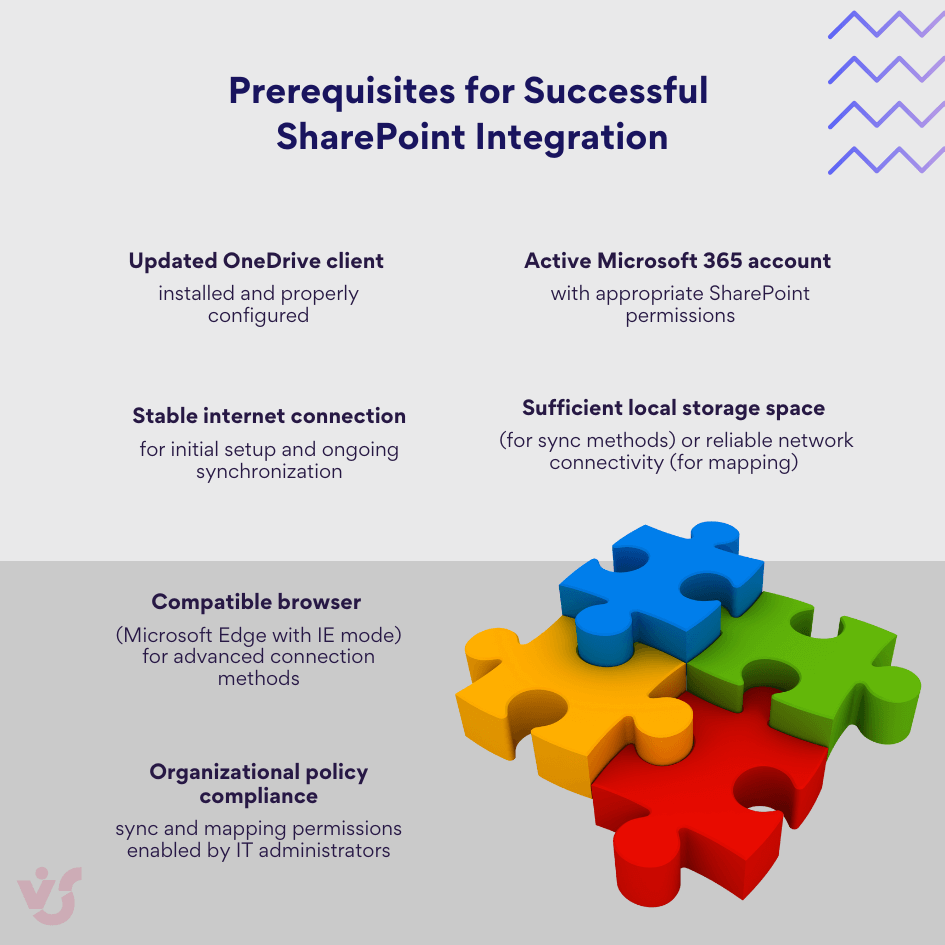
Connection methods: Four ways to bridge the gap
Each connection method represents a different philosophy for handling the relationship between your local computer and SharePoint’s cloud storage. The choice you make depends on whether you prioritize offline access, real-time collaboration, storage efficiency, or simplicity of setup.
OneDrive sync creates a local mirror of your SharePoint files. When you sync a library, OneDrive downloads copies to your computer and keeps them synchronized with the cloud version. This approach gives you true offline access—you can edit documents on a plane, and changes sync automatically when you reconnect to the internet.
Network drive mapping connects SharePoint directly as a drive letter using WebDAV technology. Think of it as creating a live connection where File Explorer communicates directly with SharePoint’s servers. You’re working with the actual cloud files, not local copies, which means you always see the most current version but need an internet connection for access.
Shortcut addition places a link to your SharePoint library inside your OneDrive folder structure. It’s the lightest-touch approach—SharePoint appears in File Explorer without taking up local storage space, but you still need internet connectivity to access files.
Explorer mode opening provides temporary access through your browser’s File Explorer interface. This method opens a Windows Explorer window that directly connects to SharePoint for the duration of your browser session, useful for one-time file operations without ongoing synchronization.
| Connection method | What it does | Best for | Setup process | Storage usage | Internet required |
| OneDrive sync | Creates local copies that sync automatically | Offline access and frequent file editing | Click “Sync” button in SharePoint library | Uses local disk space | No (for accessing files)<br>Yes (for syncing changes) |
| Network drive mapping | Maps SharePoint as a drive letter (Z:, Y:, etc.) | Live access to current files | Map network drive using WebDAV URL | No local storage used | Yes (always) |
| Shortcut addition | Creates link in OneDrive folder | Quick access without storage consumption | Click “Add shortcut to OneDrive” | Minimal (placeholders only) | Yes (for file access) |
| Explorer mode | Opens temporary File Explorer window | One-time file operations | Click “View in File Explorer” (IE/Edge only) | No local storage | Yes (session-based) |
| Teams integration | Syncs Teams channel files to File Explorer | Team collaboration workflows | Teams → Files → Open in SharePoint → Sync | Uses local disk space (like OneDrive sync) | No (for accessing files)Yes (for syncing) |
System requirements and browser compatibility
Windows 10 and 11 support all connection methods, but the specific features available depend on your OneDrive client version and security settings. The OneDrive sync client handles most of the heavy lifting for modern integration methods, while older approaches rely on WebDAV protocols built into Windows.
Browser support tells an interesting story about Microsoft’s changing technology priorities. Internet Explorer 11, though officially retired for most Microsoft 365 applications, still powers some SharePoint integration features through Edge’s IE mode. This compatibility layer allows organizations to use mapping and explorer mode features that depend on ActiveX controls and WebDAV protocols.
Chrome and Firefox can initiate OneDrive sync processes when you click sync buttons in SharePoint, but they can’t directly map SharePoint as network drives. These browsers lack the ActiveX and WebDAV integration that mapping requires, making Edge with IE mode the most compatible choice for advanced connection methods.
When corporate policy gets in the way
Your organization’s IT policies significantly impact which connection methods work. Some companies disable OneDrive sync for security reasons, while others block WebDAV mapping to prevent data leakage. Multi-factor authentication can complicate browser-based methods, and some security configurations prevent certain integration features entirely.
If you find that sync buttons are missing, network mapping fails, or File Explorer connections don’t work as expected, organizational policy is often the culprit. These restrictions aren’t arbitrary—they’re designed to protect company data and maintain compliance with industry regulations. Understanding your organization’s specific policies helps you choose the most appropriate connection method and avoid frustration when certain approaches simply won’t work in your environment.
How to Add SharePoint to File Explorer: Adding SharePoint to File Explore Methods and Step-by-Step Instructions
The path from SharePoint browser tabs to File Explorer folders varies depending on your specific needs. Each method offers different trade-offs between convenience, functionality, and system requirements. Here’s how to implement each approach, along with the practical considerations that determine which one works best for your situation.
| Feature | OneDrive sync | Network mapping | Shortcuts | Explorer mode |
| Offline access | ✅ Full | ❌ None | ❌ None | ❌ None |
| Storage required | High | None | Minimal | None |
| Setup complexity | Low | Medium | Low | High |
| Browser dependency | None | IE/Edge only | None | IE/Edge only |
| Performance | Fast (local) | Variable | Variable | Slow |
| Automatic updates | ✅ Yes | ✅ Real-time | ✅ Yes | ❌ Session only |
Can I sync SharePoint with File Explorer? OneDrive synchronization method
OneDrive sync represents Microsoft’s preferred approach for SharePoint integration, and for good reason. When you sync a SharePoint library, you’re essentially creating a two-way mirror between the cloud and your local computer. Files download to your hard drive, sync automatically in the background, and appear in File Explorer just like any other folder on your system.
This method transforms SharePoint from a web-based tool into a natural extension of your local file system. You can drag files between folders, open documents directly in desktop applications, and work completely offline when needed. Changes made locally sync back to SharePoint automatically, maintaining version history and collaboration features.
Link SharePoint to File Explorer: Step-by-step sync process with OneDrive
- Navigate to your SharePoint library using any modern web browser. You’ll find the document library either through your SharePoint site’s main navigation or by following direct links shared by colleagues.
- Locate the Sync button in the library’s top toolbar. This button typically appears near other action items like “New,” “Upload,” and “Share.” If you don’t see a Sync button, your organization may have disabled this feature through policy settings.
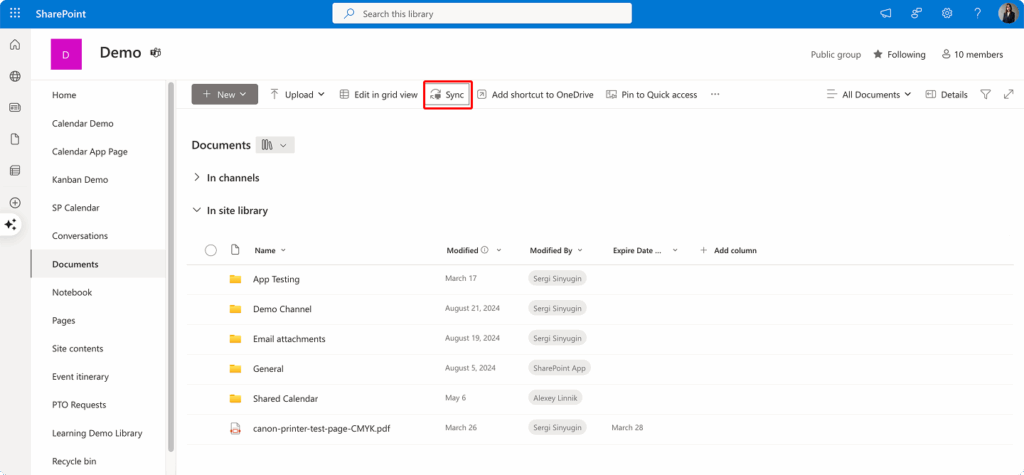
- Click Sync and confirm the OneDrive launch. Your browser will ask permission to open the OneDrive application. Click “Allow” or “Open OneDrive” to proceed. If OneDrive isn’t installed on your computer, you’ll be directed to download it first.

- Complete the OneDrive setup process. If this is your first time syncing SharePoint content, OneDrive may ask you to sign in with your Microsoft 365 credentials and choose sync settings. The default settings work well for most users, but you can customize the sync location if needed.
- Wait for initial synchronization. Depending on the library size and your internet connection, initial sync can take anywhere from a few minutes to several hours. OneDrive shows progress notifications, and you can continue working while sync happens in the background.
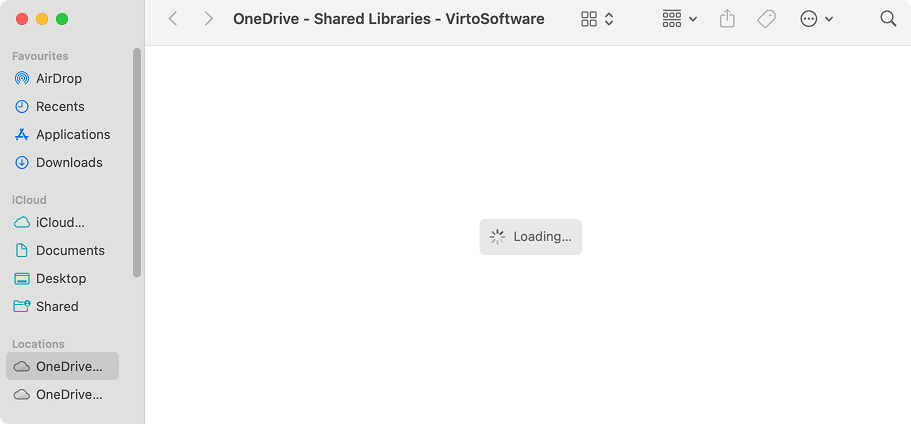
- Access files through File Explorer. Once sync completes, the SharePoint library appears under “OneDrive – [Your Organization Name]” in File Explorer. The folder structure mirrors exactly what you see in the SharePoint web interface.
Why this method works well:
Offline access stands out as the primary advantage. Unlike other connection methods, synced files remain available even without internet connectivity. You can edit documents during flights, work from locations with poor connectivity, and never worry about losing access to critical files. When you reconnect to the internet, OneDrive automatically syncs your changes back to SharePoint.
Performance feels snappy because you’re working with local files rather than streaming content from the cloud. Large documents open immediately, file searches happen instantly, and operations like copying or moving files complete without network delays.
Integration with desktop applications works seamlessly. Microsoft Office applications recognize synced SharePoint files and maintain full feature compatibility, including real-time collaboration when you’re online. Third-party applications can also work with synced files, though some advanced SharePoint features may not be available through external programs.
Limitations to consider:
Storage consumption can become significant with large libraries. Each synced file takes up space on your local hard drive, potentially filling up smaller SSDs quickly. OneDrive’s “Files On-Demand” feature helps by keeping file placeholders locally while storing actual content in the cloud, but this requires Windows 10 version 1709 or later.
Sync applies only to document libraries, not other SharePoint content types like lists, wikis, or custom applications. If your SharePoint site contains mixed content, only the file libraries will appear in File Explorer.
Permission boundaries remain in effect even after sync. If SharePoint restricts your access to certain files or folders, those restrictions carry over to the local copies. Attempting to access restricted content through File Explorer results in the same permission errors you’d see in the web interface.
Network dependency affects sync reliability. While you can work offline, changes don’t propagate to SharePoint until connectivity returns. In environments with frequent network interruptions, this can lead to sync conflicts when multiple people edit the same files offline.
👉 So, how to sync SharePoint to File Explorer? Navigate to your SharePoint document library in a web browser and click the “Sync” button in the top toolbar. When prompted, allow the OneDrive application to open and sign in with your Microsoft 365 credentials if needed. OneDrive will download the files to your computer and create a local folder that appears under “OneDrive – [Your Organization]” in File Explorer. The folder will automatically sync changes between your computer and SharePoint in both directions. Once synced, you can access and edit files offline, with changes uploading automatically when you reconnect to the internet.
How do I map SharePoint to File Explorer? Network drive setup
Network drive mapping connects SharePoint directly to a drive letter in File Explorer, creating the illusion that your SharePoint library is actually a local disk drive. This approach uses WebDAV (Web Distributed Authoring and Versioning) technology to translate file operations between Windows and SharePoint’s web-based storage.
Unlike OneDrive sync, mapping creates a live connection to SharePoint. When you open a file, you’re accessing the actual cloud version rather than a local copy. This means you always see the most current content, but it also means you need a stable internet connection for all file operations.
How to map a SharePoint folder to File Explorer: Step-by-step mapping process
- Open your SharePoint document library in Microsoft Edge with Internet Explorer mode enabled, or use Internet Explorer 11 if still available. Other browsers lack the WebDAV integration necessary for network mapping.
- Copy the library’s WebDAV URL. This requires some URL manipulation. Start with your library’s standard SharePoint URL (something like https://yourcompany.sharepoint.com/sites/project/Shared%20Documents/Forms/AllItems.aspx) and trim it to just the library path: https://yourcompany.sharepoint.com/sites/project/Shared%20Documents.
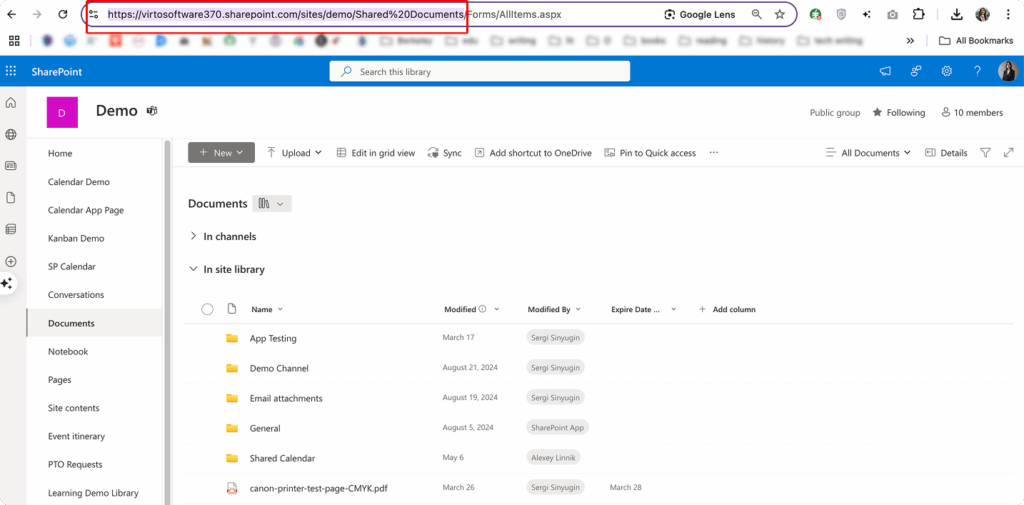
- Open File Explorer and navigate to “This PC.” Right-click in the main area and select “Map network drive” from the context menu.
- Choose an available drive letter from the dropdown menu. Letters like Z: or Y: work well since they’re typically unused. Avoid letters that might conflict with existing drives or USB devices.
- Paste the SharePoint URL into the “Folder” field. Make sure you’re using the trimmed URL that points directly to the document library, not the full SharePoint page URL.
- Enable “Reconnect at sign-in” if you want the drive to appear automatically when you start Windows. This setting maintains the mapping across computer restarts.
- Click “Finish” and provide credentials when prompted. Use your Microsoft 365 username and password. If your organization uses multi-factor authentication, you may need to complete additional verification steps.
- Wait for the connection to establish. Windows will test the connection and display the SharePoint library contents if successful. The mapped drive now appears in File Explorer with your chosen drive letter.
Advantages of network mapping:
Real-time access ensures you’re always working with current files. Changes made by colleagues appear immediately when you refresh the folder view, and your edits are visible to others as soon as you save. This eliminates the sync delays that can occur with OneDrive, making mapped drives ideal for fast-moving collaborative projects.
Storage efficiency appeals to users with limited local disk space. Since files remain in SharePoint rather than downloading locally, network mapping doesn’t consume hard drive space. You can access massive document libraries without worrying about filling up your computer’s storage.
Familiar drive letter access feels natural to users accustomed to traditional network shares. Applications that expect to work with drive letters (like some legacy software) can access SharePoint content without modification.
Mapping limitations:
Network dependency makes mapped drives unusable without internet connectivity. Unlike synced files that remain accessible offline, mapped drives simply fail when network connections drop. This can interrupt workflows and cause application errors if programs expect continuous file access.
Performance depends entirely on internet speed and SharePoint server responsiveness. Opening large files can be slow, and operations like copying multiple documents may time out on slower connections. Network latency affects every file operation, making mapped drives feel sluggish compared to local storage.
Browser dependency limits mapping to specific configurations. WebDAV mapping requires Internet Explorer components that aren’t available in modern browsers like Chrome or Firefox. Even Microsoft Edge requires IE mode enabled, which many organizations disable for security reasons.
Authentication complexity increases with modern security requirements. Multi-factor authentication, conditional access policies, and modern authentication protocols can interfere with WebDAV connections. Some organizations block WebDAV entirely, making this method unavailable regardless of user preferences.
👉 So, how to map SharePoint to File Explorer? Open your SharePoint library in Microsoft Edge with Internet Explorer mode enabled and copy the library’s URL, removing everything after the library name. In File Explorer, right-click “This PC” and select “Map network drive,” then choose an available drive letter like Z: and paste the SharePoint URL into the folder field. Click “Finish” and enter your Microsoft 365 username and password when prompted. The SharePoint library will now appear as a network drive in File Explorer, providing direct access to files stored in the cloud. Note that this method requires a constant internet connection and may not work with all modern authentication methods.
How do I add a SharePoint shortcut to File Explorer? Quick access method
The shortcut method offers a middle ground between full synchronization and direct mapping. When you add a SharePoint shortcut to OneDrive, you’re creating a link that appears in File Explorer without downloading the entire library to your local computer. This approach combines the convenience of File Explorer access with the storage efficiency of cloud-based files.
Shortcuts work through OneDrive’s existing sync infrastructure, but instead of mirroring file content locally, they create lightweight pointers to SharePoint libraries. The shortcut appears in your OneDrive folder structure and behaves like a regular folder, but the files themselves remain in SharePoint until you specifically choose to download them.
How to add SharePoint folder to File Explorer: Step-by-step shortcut creation
- Open the SharePoint library you want to access through File Explorer. Any modern web browser works for this method—you’re not limited to Edge or Internet Explorer.
- Find the “Add shortcut to OneDrive” button in the library’s top toolbar. This option typically appears near the Sync button, though its exact location may vary depending on your SharePoint configuration.
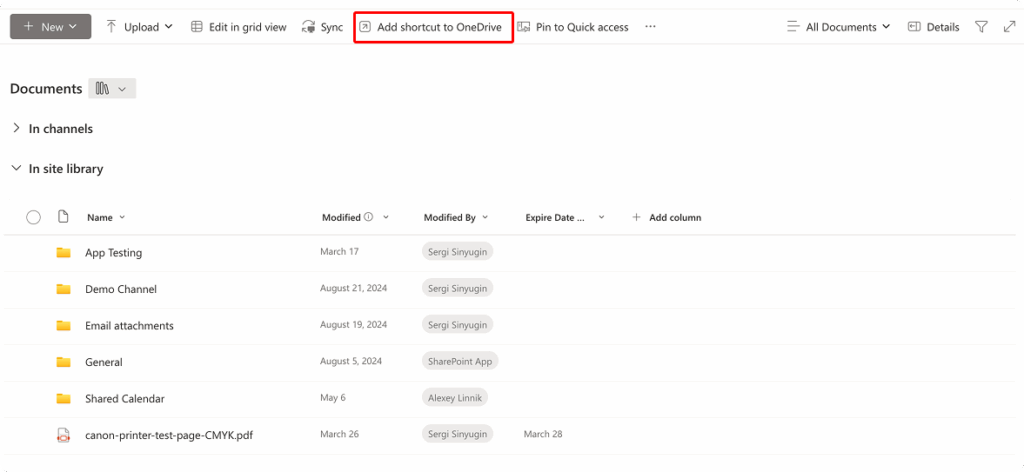
- Click the shortcut button and confirm the action. SharePoint will display a brief confirmation message indicating that the shortcut is being created. This process usually completes within a few seconds.
- Wait for the shortcut to propagate to OneDrive. The shortcut appears in your OneDrive web interface almost immediately, but it may take a few minutes to show up in the File Explorer OneDrive folder. OneDrive sync frequency affects this timing.
- Navigate to the shortcut in File Explorer. Look for the new shortcut under “OneDrive – [Your Organization Name]” in File Explorer. The shortcut folder displays a small arrow icon indicating it’s a link rather than a locally synced folder.
- Access files through the shortcut. Double-clicking the shortcut folder reveals the SharePoint library contents. Files display with cloud icons indicating their online status, and you can work with them just like local files.
Shortcut benefits:
Storage conservation makes shortcuts attractive for users managing multiple SharePoint libraries. Since files don’t download automatically, you can create shortcuts to dozens of libraries without filling your hard drive. OneDrive’s Files On-Demand feature lets you download specific files when needed while keeping the rest in the cloud.
Cross-device accessibility means shortcuts appear on all devices where you’ve signed into OneDrive. Create a shortcut on your desktop computer, and it automatically appears on your laptop, tablet, and phone. This consistency simplifies file access across different devices and locations.
Setup simplicity requires no technical configuration or URL manipulation. The shortcut creation process works through SharePoint’s standard web interface and doesn’t depend on browser compatibility or network settings that might block other connection methods.
Quick access to multiple libraries becomes manageable through a single OneDrive interface. Instead of bookmarking multiple SharePoint sites or remembering complex URLs, all your library shortcuts appear in one organized location within File Explorer.
Shortcut limitations:
OneDrive dependency means shortcuts disappear if you disable OneDrive sync or sign out of your Microsoft 365 account. Unlike mapped drives that maintain independent connections, shortcuts rely entirely on OneDrive’s infrastructure and authentication.
Internet connectivity requirements apply to all file operations. While shortcuts appear in File Explorer, attempting to open files without internet access results in error messages. This method doesn’t provide the offline capabilities that full synchronization offers.
Propagation delays can cause confusion when shortcuts don’t appear immediately in File Explorer. OneDrive sync cycles vary based on system load and network conditions, sometimes creating gaps between shortcut creation and File Explorer availability.
Limited offline functionality restricts shortcuts to connected scenarios. While OneDrive’s Files On-Demand can cache recently accessed files for brief offline periods, shortcuts don’t provide reliable offline access for extended work sessions.
👉 How to link SharePoint to File Explorer? The most reliable way to link SharePoint to File Explorer is through OneDrive sync by clicking the “Sync” button in any SharePoint document library. This creates a persistent connection that keeps files synchronized between SharePoint and a local folder in File Explorer. For lighter integration, use the “Add shortcut to OneDrive” option, which creates a link without downloading files to your computer. You can also map SharePoint as a network drive using the “Map network drive” feature in File Explorer with the library’s WebDAV URL. Each linking method offers different benefits regarding offline access, storage usage, and connection reliability.
Open SharePoint in File Explorer
File Explorer mode provides temporary access to SharePoint libraries through a Windows Explorer interface that opens directly from your web browser. This method creates a short-term connection that allows traditional file operations—dragging, dropping, copying, and organizing—without establishing permanent sync or mapping relationships.
The Explorer mode connection leverages ActiveX controls and WebDAV protocols to essentially embed a File Explorer window within your browser session. When you close the browser or navigate away from SharePoint, the connection terminates, making this approach ideal for one-time file operations rather than ongoing access.
How to access SharePoint from File Explorer: Step-by-step explorer mode access
- Open SharePoint in Microsoft Edge with IE mode enabled or use Internet Explorer 11 if available. This method absolutely requires IE-compatible browsers due to its dependency on ActiveX controls that modern browsers have discontinued for security reasons.
- Navigate to the document library you want to access. Make sure you’re viewing the library’s main page, not individual file details or other SharePoint areas.
- Locate the “View in File Explorer” option. This command might appear in the library’s main toolbar, in a dropdown menu, or in the “Actions” section depending on your SharePoint configuration. Some organizations hide this option by default.
- Click “View in File Explorer” and handle security prompts. Your browser will likely display security warnings about opening external applications or allowing ActiveX controls. Click “Allow” or “Yes” to proceed.
- Wait for the File Explorer window to open. A new Windows Explorer window appears, displaying the SharePoint library contents in the familiar folder interface. This window operates independently of your browser, though it maintains the connection established by the web session.
- Perform file operations as needed. You can drag files between folders, copy documents to local storage, rename items, and delete content using standard Windows Explorer techniques. Changes appear immediately in both the Explorer window and the SharePoint web interface.
- Close the Explorer window when finished. The connection terminates when you close the File Explorer window or end your browser session. Files remain in SharePoint, but the temporary local access ends.
Explorer mode advantages:
No configuration required makes this method immediately accessible to users who need quick file operations. Unlike sync setup or drive mapping, Explorer mode works through standard web interfaces without modifying local computer settings.
Full file operation support allows traditional Windows file management techniques. You can perform bulk operations, drag-and-drop transfers, and complex folder reorganization that might be cumbersome through SharePoint’s web interface.
Temporary access benefits users who need occasional SharePoint file management without ongoing integration. This approach doesn’t create persistent connections, sync relationships, or local storage consumption.
Immediate availability means you can access SharePoint files through File Explorer within seconds of opening the web interface. No waiting for sync initialization, drive mapping authentication, or shortcut propagation.
Explorer mode limitations:
Browser dependency severely restricts this method’s availability. Most modern web browsers have removed ActiveX support, leaving only Edge with IE mode or actual Internet Explorer as viable options. Many organizations disable IE mode for security reasons.
Session dependency means the connection dies when you close your browser or navigate away from SharePoint. This makes Explorer mode unsuitable for extended work sessions or situations where you need persistent file access.
Security restrictions often block this method entirely. ActiveX controls and WebDAV protocols face increasing scrutiny from corporate security policies, and many organizations disable these features to prevent potential security vulnerabilities.
Performance limitations affect large file operations. Since Explorer mode streams data directly from SharePoint servers, copying large files or performing bulk operations can be slow and may timeout on unreliable connections.
👉 How to access SharePoint from File Explorer? After setting up OneDrive sync or shortcuts, you can access SharePoint content by opening File Explorer and navigating to the “OneDrive – [Your Organization]” section in the left sidebar. Your synced SharePoint libraries will appear as regular folders that you can browse, search, and manage like any local directory. For mapped network drives, SharePoint libraries appear under “This PC” with assigned drive letters like Z: or Y:. You can also access SharePoint through the Quick Access section if you’ve pinned frequently used folders. Once connected, all standard File Explorer operations work normally—double-clicking files opens them in appropriate applications, drag-and-drop moves files between folders, and right-click menus provide familiar management options.
How do I add Teams SharePoint to File Explorer? Team integration guide
Microsoft Teams integrates tightly with SharePoint, storing all team files in associated SharePoint sites. Each Teams channel maintains its own folder within the team’s SharePoint document library, creating a direct bridge between chat-based collaboration and traditional file management. Accessing these files through File Explorer requires navigating through Teams to the underlying SharePoint infrastructure.
Understanding this relationship helps explain why Teams files sometimes behave differently than traditional SharePoint libraries. When you upload a file to a Teams channel, you’re actually storing it in a specific SharePoint folder that corresponds to that channel. This integration enables powerful collaboration features but can create confusion when files don’t appear where expected in File Explorer.
How to add SharePoint site to File Explorer: Step-by-step Teams integration
- Open Microsoft Teams and navigate to the target team. Select the team from your Teams list and click on the specific channel where you want to access files.
- Click the “Files” tab at the top of the channel interface. This tab displays all documents associated with the current channel, stored in the corresponding SharePoint folder.
- Select “Open in SharePoint” from the Files tab toolbar. This button takes you directly to the SharePoint site that houses your team’s files, opening the specific document library in your web browser.
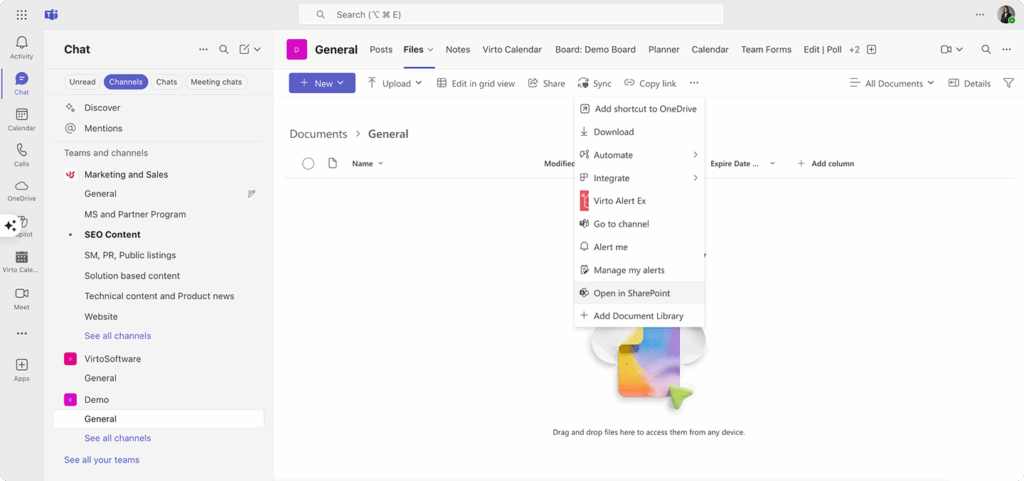
- Identify the channel folder structure. In SharePoint, you’ll see a folder for each Teams channel within the main Documents library. The “General” channel typically maps to the root Documents folder, while other channels have their own subfolders.
- Click the “Sync” button in the SharePoint library toolbar to initiate OneDrive synchronization. This process follows the same steps as regular SharePoint sync, connecting the entire team site’s document library to your local computer.
- Complete OneDrive setup if prompted. First-time sync may require signing into OneDrive and configuring sync preferences. The default settings work well for most Teams integrations.
- Access team files through File Explorer. The synchronized folder appears under “OneDrive – [Your Organization Name]” with a folder structure that mirrors your Teams organization. Each channel’s files appear in appropriately named subfolders.
Teams integration benefits:
Unified file access streamlines workflows between Teams conversations and document editing. You can quickly access files discussed in chat, edit them using desktop applications, and return to Teams for further collaboration without losing context.
Channel organization translates naturally to folder structures in File Explorer. The logical separation of files by Teams channel makes it easy to locate relevant documents and maintain project organization across both platforms.
Collaborative features remain intact when accessing Teams files through File Explorer. Version history, co-authoring capabilities, and sharing permissions continue to work normally, even when you’re working with files outside the Teams interface.
Offline productivity becomes possible with Teams files once they’re synchronized to your local computer. You can continue working on team documents during travel or network outages, with changes syncing automatically when connectivity returns.
Teams integration considerations:
Multiple team synchronization can quickly consume local storage space. Each team you sync creates a separate folder structure on your computer, and active teams tend to accumulate large numbers of files over time.
Channel reorganization in Teams affects File Explorer folder structures. If your team renames channels or restructures its organization, the corresponding folders in File Explorer change as well, potentially breaking shortcuts or disrupting established workflows.
Permission complexity increases with Teams integration. File access depends on both your Teams membership and SharePoint permissions, creating multiple layers of security that can sometimes conflict or produce unexpected access restrictions.
Sync conflicts become more likely in highly collaborative Teams environments. When multiple team members edit files simultaneously, OneDrive may struggle to resolve conflicts, especially if people are working both online and offline with the same documents.
👉 How to add a SharePoint folder to File Explorer? To add SharePoint folder to File Explorer, follow the steps: Open the SharePoint site containing your desired folder and navigate to the document library where it’s located. Click the “Sync” button to sync the entire library, which will include your folder, or click “Add shortcut to OneDrive” for quick access without local storage. The folder will appear in File Explorer under “OneDrive – [Your Organization]” within a few minutes of setup. If you only need a specific subfolder, you can navigate to it within the synced library structure in File Explorer. This method maintains the folder’s connection to SharePoint while providing familiar Windows file management capabilities.
How to Browse SharePoint via File Explorer
Once you’ve established a connection between SharePoint and File Explorer, the experience shifts from web-based file management to the familiar Windows interface you’ve used for years. However, SharePoint libraries in File Explorer aren’t quite the same as regular folders on your hard drive. Understanding these differences helps you work more effectively and avoid common frustrations.
The visual cues in File Explorer tell an important story about your SharePoint files. Synced files display cloud icons that indicate their status—green checkmarks for fully downloaded files, cloud outlines for Files On-Demand placeholders, and sync arrows for files currently updating. Mapped drives show different indicators, typically displaying files as if they were on a network location with potential connectivity symbols.
Working with files the Windows way
Once SharePoint appears in File Explorer, the experience feels remarkably similar to working with local folders—but with some important cloud-specific nuances that can either surprise or frustrate users who expect purely local behavior:
Drag and drop operations work largely as expected, but with some important nuances. When you drag files between folders within the same SharePoint library, you’re performing a move operation that updates the file’s location in SharePoint. Dragging files from your local computer into a SharePoint folder uploads them to the cloud, while dragging from SharePoint to local folders downloads copies.
The behavior changes slightly depending on your connection method. With OneDrive sync, dragging feels instantaneous because you’re manipulating local copies, but the changes need time to propagate to SharePoint. With mapped drives, every drag operation communicates directly with SharePoint servers, making the process slower but immediately visible to other users.
Copy and paste functions maintain their familiar keyboard shortcuts (Ctrl+C, Ctrl+V) and right-click menu options. However, large copy operations may take significantly longer than you’d expect with local files. SharePoint needs to process each file transfer, apply security checks, and update metadata, all of which adds time to bulk operations.
Pasting files into SharePoint folders automatically applies the folder’s default permissions and metadata requirements. If your organization has configured automatic tagging or approval workflows, these processes trigger during paste operations, potentially causing delays or requiring additional user input.
File deletion and management works through the standard Windows interface, but deleted files don’t go to your local Recycle Bin. Instead, they move to SharePoint’s Recycle Bin, which has different retention policies and recovery procedures than Windows. This distinction becomes important when you accidentally delete files—recovery happens through SharePoint’s web interface, not through local Windows tools.
Renaming and moving files updates both the local File Explorer view and the SharePoint library simultaneously. However, if other users have the same files open in web browsers or other applications, they may experience disruption when files suddenly change names or locations. This real-time synchronization can create coordination challenges in busy collaborative environments.
Creating new content
File Explorer’s right-click menus and keyboard shortcuts work seamlessly with SharePoint libraries, allowing you to create folders and documents using the same methods you’ve always used—though SharePoint’s cloud architecture adds some interesting capabilities and occasional complexity to these familiar operations:
- New folder creation works exactly like local folders—right-click and select “New Folder” or use the Ctrl+Shift+N keyboard shortcut. New folders inherit the parent library’s permissions and appear immediately in both File Explorer and SharePoint’s web interface. However, some organizations configure libraries to require specific folder naming conventions or approval processes that may interfere with direct folder creation.
- Document creation through File Explorer depends on your installed applications and SharePoint configuration. Right-clicking to create new documents (Word, Excel, PowerPoint) generates files that automatically sync to SharePoint, but the initial creation happens locally before uploading. This process works seamlessly with Office applications but may not function properly with third-party software that doesn’t understand SharePoint integration.
Template-based document creation becomes more powerful when working through File Explorer. If your SharePoint library includes custom document templates, these often appear in the “New” context menu, allowing you to create properly formatted documents without navigating to SharePoint’s web interface.
Opening files in applications
The true test of SharePoint File Explorer integration comes when you double-click a document and expect it to open seamlessly in your preferred application. While some programs handle SharePoint files as naturally as local documents, others reveal the complexity of working with cloud-based storage that masquerades as a local file system:
- Microsoft Office integration represents the strongest aspect of SharePoint File Explorer integration. Word, Excel, and PowerPoint files open directly from File Explorer with full collaboration features intact. Multiple users can co-author documents simultaneously, even when some people access files through File Explorer while others work through SharePoint’s web interface or Office Online.
The integration maintains version history, comments, and sharing permissions regardless of how you open the file. Saving documents updates both your local copy (if synced) and the SharePoint version, triggering notifications and workflows configured in SharePoint.
- Third-party applications face more limitations when working with SharePoint files through File Explorer. While basic file operations usually work, advanced SharePoint features like custom metadata, workflow triggers, or approval processes may not function properly when files are opened through non-Microsoft applications.
Some applications struggle with the temporary file paths that OneDrive uses for cloud files, especially when working with Files On-Demand. If you encounter issues opening files in specific applications, downloading the full file locally often resolves compatibility problems.
Understanding SharePoint vs. local folders
While SharePoint libraries in File Explorer look and feel like regular Windows folders, the cloud-based architecture underneath creates subtle but important differences in how files behave, appear, and respond to various operations. Recognizing these distinctions helps explain why certain features work differently than you might expect from purely local storage:
- Visual indicators help distinguish SharePoint content from regular folders in File Explorer. OneDrive folders display organization names in their paths, while mapped drives show URL-based locations. Cloud status icons appear next to filenames, providing immediate feedback about sync status and online availability.
The folder hierarchy in File Explorer mirrors SharePoint’s library structure, but not all SharePoint features translate to the file system view. Custom views, metadata filters, and content type organization that exist in SharePoint’s web interface don’t appear in File Explorer, which shows only the basic folder and file structure.
- Permissions and access control remain fully active even when browsing through File Explorer. Files you can’t access in SharePoint won’t appear in folder listings, and attempting to open restricted documents produces permission error messages. This security layer operates transparently but can create confusion when expected files seem to be missing from File Explorer views.
- Metadata and properties display differently in File Explorer compared to SharePoint’s web interface. Right-clicking files and selecting “Properties” shows basic file information, but SharePoint-specific metadata like custom columns, content types, and workflow status requires accessing the web interface. This limitation makes File Explorer ideal for file manipulation but less useful for metadata management.
Performance considerations
The responsiveness of SharePoint files in File Explorer depends heavily on factors that don’t affect local file systems—internet speed, server load, sync status, and connection method all influence how quickly operations complete. Understanding these performance variables helps set realistic expectations and choose optimal workflows for different scenarios:
Network dependencies affect every operation when working with SharePoint through File Explorer. Even with OneDrive sync, some operations require internet connectivity to complete properly. Mapped drives and shortcuts depend entirely on network connections, making performance directly tied to internet speed and stability.
File operation speed varies significantly based on your connection method and network conditions. Local operations on synced files feel instant, but the background sync process may lag behind your changes. Mapped drive operations process in real-time but depend on SharePoint server responsiveness and network latency.
Cache and sync behavior influences how quickly changes appear across different access methods. When you modify files through File Explorer, other users may not see changes immediately in SharePoint’s web interface or other connected applications. OneDrive’s sync cycles typically range from a few seconds to several minutes, depending on file size and system load.
Large file operations—uploading videos, copying extensive folder structures, or working with complex documents—may time out or fail on slower connections. Understanding these limitations helps you plan work sessions and choose appropriate times for major file operations.
The browsing experience through File Explorer transforms SharePoint from a web-based collaboration platform into an extension of your local file system. While this integration provides familiar tools and workflows, remembering the underlying cloud architecture helps you work more effectively and troubleshoot issues when they arise. The key is leveraging File Explorer’s strengths for file manipulation while returning to SharePoint’s web interface for features that don’t translate well to the traditional folder paradigm.
Managing Access and Security When Working with File Explorer
Connecting SharePoint to File Explorer creates an interesting security paradox. While you’re working with files through the familiar Windows interface, every action you take remains subject to SharePoint’s cloud-based security policies. This invisible security layer protects organizational data but can create confusion when File Explorer operations suddenly fail for seemingly no reason.
Think of it this way: File Explorer becomes a window into SharePoint, but SharePoint still controls what you can see through that window. Your permissions, your organization’s security policies, and SharePoint’s built-in protections all remain active, even when you’re dragging and dropping files like they’re stored on your local hard drive.
Understanding permission boundaries
The familiar File Explorer interface can create a false sense of total control over SharePoint files, but every action you take remains governed by SharePoint’s sophisticated permission system:
- Individual file permissions operate exactly as they do in SharePoint’s web interface. If you can’t edit a document through your browser, you won’t be able to modify it through File Explorer either. The difference is that permission restrictions in File Explorer often manifest as cryptic error messages rather than the clear access denied notifications you see in SharePoint’s web interface.
When you encounter permission errors, the file system typically displays generic messages like “Access is denied” or “You don’t have permission to save in this location.” These messages don’t explain whether the restriction comes from SharePoint permissions, organizational policies, or temporary authentication issues.
- Folder-level access control determines which files and subfolders appear in your File Explorer view. If SharePoint restricts your access to certain areas of a library, those folders simply won’t show up in the synchronized or mapped directory structure. This invisible filtering can make it seem like files are missing when they’re actually just hidden by permission settings.
The inheritance model from SharePoint carries over to File Explorer, meaning that permissions you have on parent folders generally apply to child folders and files. However, unique permissions on individual items can override this inheritance, creating inconsistent access patterns that aren’t immediately obvious when browsing through the file system.
- Content type restrictions may prevent certain file operations even when you have general access to a library. Some organizations configure SharePoint to require specific metadata or approval workflows for certain document types. These requirements can block file uploads or modifications performed through File Explorer, even though the same operations might work when performed through SharePoint’s web interface where users can complete the required metadata fields.
How SharePoint security translates to file operations
SharePoint’s web-based permission system doesn’t disappear when you access files through File Explorer—instead, it translates into Windows file system behaviors that enforce the same security boundaries through different mechanisms. Understanding how cloud permissions manifest as local file attributes helps explain why certain operations succeed or fail in ways that might seem inconsistent with the desktop file experience:
- Read-only enforcement prevents file modifications at the operating system level when SharePoint permissions restrict editing. Files appear in File Explorer with read-only attributes, and attempts to modify them fail immediately. However, this protection only works reliably with synced files—mapped drives may allow temporary local changes that later fail to save back to SharePoint.
- Version control integration continues to function when working through File Explorer, but the experience differs from web-based editing. SharePoint automatically creates new versions when you save changes to documents, but you won’t see the version numbering or check-in/check-out workflows that are visible in the browser interface. Major versions, minor versions, and approval status remain hidden from the file system view.
- Deletion protection operates through SharePoint’s Recycle Bin system rather than Windows’ local Recycle Bin. When you delete files through File Explorer, they move to SharePoint’s two-stage recycle system where they can be recovered by users or administrators according to organizational policies. This protection mechanism works transparently but requires understanding SharePoint’s recovery procedures rather than relying on local Windows recovery tools.
Library-level security configuration
Beyond individual file permissions, SharePoint administrators control entire libraries through policy settings that can enable or disable File Explorer integration methods. These organizational controls often operate invisibly to end users, who may find that certain connection options simply don’t appear or work as expected, depending on how their IT department has configured SharePoint security and compliance policies:
Sync permissions can be disabled entirely for specific libraries or user groups. Organizations often restrict OneDrive sync for sensitive document libraries containing confidential information, financial data, or regulated content. When sync is disabled, the “Sync” button disappears from SharePoint’s interface, and attempting to sync through other methods fails with authentication errors.
These restrictions typically apply uniformly across connection methods—if your organization disables sync for a library, you usually can’t map it as a network drive either. The restriction operates at SharePoint’s API level, blocking all File Explorer integration methods simultaneously.
Download restrictions may prevent Files On-Demand from downloading full file content to local storage. Some organizations configure SharePoint to block file downloads for certain content types or user roles. In these cases, files appear as placeholders in File Explorer but fail to open when you attempt to access them offline.
External sharing controls affect how files behave when you copy them from SharePoint folders to local or external locations. Files with restricted sharing policies may lose their protection when copied outside of SharePoint’s controlled environment, but some organizations implement Rights Management Services (RMS) that maintain protection even after files leave SharePoint.
Authentication and session management
File Explorer connections to SharePoint rely on the same authentication systems that secure web-based access, but the desktop environment handles credential management differently than browsers. This creates unique challenges when modern security requirements like multi-factor authentication and conditional access policies intersect with traditional Windows file system expectations:
Multi-Factor Authentication (MFA) requirements can disrupt File Explorer connections, especially with mapped drives and Explorer mode access. While OneDrive sync handles modern authentication flows gracefully, older connection methods may struggle with MFA requirements or time out during extended authentication processes.
When MFA challenges interrupt File Explorer operations, the solutions usually involve re-authenticating through SharePoint’s web interface or clearing stored credentials in Windows Credential Manager. The specific steps depend on your organization’s authentication configuration and the connection method you’re using.
Token expiration affects long-running File Explorer sessions, particularly with mapped drives. Authentication tokens typically expire after several hours of inactivity, causing previously working connections to suddenly fail. Unlike web browsers that can silently refresh tokens, File Explorer connections often require manual re-authentication when tokens expire.
Conditional access policies may block File Explorer access based on device compliance, location, or other organizational security requirements. These policies can prevent sync from starting, cause existing connections to fail, or limit functionality even when basic authentication succeeds. Conditional access restrictions often appear as generic network errors rather than clear policy violation messages.
Organizational policy enforcement
Modern enterprise security extends far beyond simple permission checks, encompassing sophisticated policy engines that scan content, monitor user behavior, and enforce compliance requirements in real-time. These advanced security measures operate seamlessly in SharePoint’s web interface but can create unexpected friction when the same policies apply to File Explorer operations, often manifesting as mysterious failures or blocked operations that lack clear explanations:
- Data Loss Prevention (DLP) policies can interfere with file operations performed through File Explorer. When you attempt to upload files containing sensitive information like credit card numbers or social security numbers, DLP scanning may block the operation or quarantine the files. These protections work at the SharePoint level but may not provide clear feedback when operations fail through File Explorer.
- Information Rights Management (IRM) extends document protection beyond SharePoint’s boundaries, potentially affecting how files behave when accessed through File Explorer. IRM-protected documents may refuse to open in certain applications, prevent copying to local folders, or display watermarks and access restrictions even when opened through the file system.
- Retention policies continue to operate on files accessed through File Explorer, automatically deleting or preserving content according to organizational schedules. While these policies work transparently, they can cause files to disappear from File Explorer views when retention periods expire or legal holds are applied.
Best practices for secure File Explorer usage
Maintaining reliable and secure SharePoint File Explorer connections requires adopting proactive habits that account for the underlying cloud authentication and policy systems. These practices help prevent the common frustrations that arise when security tokens expire, policies change, or authentication states become inconsistent between different Microsoft 365 services:
- Regular authentication refresh helps prevent token expiration issues that can disrupt File Explorer connections. Periodically opening SharePoint in your web browser and confirming your access helps maintain authentication for File Explorer sessions. This practice is particularly important for mapped drives and long-running sync operations.
- Understanding error messages requires recognizing that File Explorer may not clearly communicate SharePoint-specific restrictions. When file operations fail unexpectedly, checking the same operation through SharePoint’s web interface often provides more detailed error information and suggested solutions.
- Monitoring sync status through OneDrive’s system tray icon helps identify when security policies or authentication issues affect file synchronization. The OneDrive client provides more detailed error reporting than File Explorer’s generic messages, making it easier to diagnose and resolve access problems.
- Respecting organizational boundaries means understanding that File Explorer integration doesn’t circumvent security policies—it simply provides an alternative interface for authorized operations. When certain features don’t work through File Explorer, the restrictions likely serve important security or compliance purposes that shouldn’t be bypassed.
The security architecture underlying SharePoint File Explorer integration demonstrates that convenience and security can coexist, but only when users understand the boundaries and work within them. File Explorer provides familiar tools for authorized operations while maintaining the robust security framework that makes SharePoint suitable for enterprise collaboration. The key is recognizing when security requirements necessitate returning to SharePoint’s web interface for operations that require enhanced security controls or administrative oversight.
Advanced Scenarios and Recommendations for Working with SharePoint in File Explorer
Moving beyond basic connection setup reveals where SharePoint File Explorer integration truly shines—and where it encounters practical limitations. Real-world usage often involves managing multiple libraries, handling connection problems, and optimizing workflows that span both local productivity tools and cloud collaboration features. Understanding these advanced scenarios helps you build sustainable practices that work reliably over time.
How to remove SharePoint and File Explorer connections
Disconnecting SharePoint from File Explorer requires different approaches depending on your original connection method. The process isn’t always straightforward, and incomplete disconnection can leave remnants that cause confusion or consume system resources unnecessarily.
- Removing OneDrive sync connections involves stopping the sync relationship between your local computer and the SharePoint library. This process preserves your local copies while ending the automatic synchronization that keeps them updated with SharePoint’s cloud versions.
Open the OneDrive application from your system tray (the cloud icon near your computer’s clock) and click the settings gear icon. Navigate to the “Account” tab where you’ll see a list of all synchronized locations. Find the SharePoint library you want to disconnect and click “Choose folders” or “Stop sync” depending on your OneDrive version.
The newer OneDrive applications sometimes hide the direct “Stop sync” option, requiring you to uncheck the library from the folder selection list instead. After unchecking, click “OK” to confirm the change. OneDrive will stop synchronizing the library, but your local files remain on your computer until you manually delete them.
- Disconnecting mapped network drives happens through Windows’ standard network drive management. Open File Explorer, navigate to “This PC,” and locate the mapped SharePoint drive (usually showing as a network location with your chosen drive letter). Right-click the drive and select “Disconnect” from the context menu.
Windows immediately removes the drive mapping, but cached credentials may persist in Windows Credential Manager. If you encounter authentication prompts when trying to reconnect later, clearing these stored credentials resolves most authentication confusion.
- Removing OneDrive shortcuts requires accessing OneDrive’s web interface rather than the local File Explorer. Log into OneDrive through your web browser, locate the SharePoint shortcut in your file list, right-click it, and select “Remove” or “Delete shortcut.” This action only removes the shortcut link—the original SharePoint library and its contents remain completely unaffected.
The shortcut disappears from your OneDrive folder structure within a few minutes, though OneDrive’s sync cycle may cause brief delays before the change appears in File Explorer.

Best practices for organizing your workspace
Effective SharePoint File Explorer integration requires thoughtful organization that accounts for both local productivity and cloud collaboration requirements. Poor organization patterns that work fine with local folders can create significant problems when applied to SharePoint libraries accessed through File Explorer.
- Strategic folder naming becomes crucial when working across multiple SharePoint sites and libraries. Unlike local folders where you control the entire directory structure, SharePoint folders exist within organizational hierarchies that other users also navigate. Choose names that remain clear and useful both in File Explorer’s flat view and SharePoint’s metadata-rich web interface.
Avoid special characters that might cause sync problems or URL encoding issues. Characters like &, %, #, and + can disrupt OneDrive sync or create broken links when SharePoint generates URLs for shared access. Stick to alphanumeric characters, hyphens, and underscores for maximum compatibility across all access methods.
Keep folder names concise but descriptive. SharePoint and OneDrive have path length limitations (typically around 400 characters total), and deeply nested folder structures with long names can trigger sync errors or prevent file access. Front-load the most important identifying information in folder names so they remain useful even when truncated in various interfaces.
- Minimizing structural complexity prevents the navigation confusion that often develops when SharePoint libraries grow organically. Deep folder hierarchies that make sense during initial setup can become unwieldy as projects expand and team membership changes. Plan for growth by creating broader categories with fewer nesting levels.
Consider how folder structures will appear to users with different access levels. Folders that are logical when you can see the complete hierarchy may seem arbitrary or confusing to users who only have access to specific subfolders. Design structures that make sense from partial views, not just complete overviews.
- Leveraging library hierarchies means using SharePoint’s library structure to separate different types of content rather than relying solely on folder organization. Multiple libraries with simple folder structures often work better than single libraries with complex hierarchies. This approach simplifies permissions management, improves search performance, and makes it easier to apply different policies to different content types.
Each library can have its own sync settings, permission structure, and retention policies. Separating content by function (active projects vs. archived materials) or sensitivity (public vs. confidential) into different libraries provides more flexible management options than trying to handle everything through folder permissions.
Avoiding common access errors
SharePoint File Explorer integration introduces failure points that don’t exist with purely local file systems. Understanding common error patterns helps you quickly diagnose problems and implement preventive measures that minimize disruption to your workflow.
- Authentication token refresh represents the most frequent source of mysterious connection failures. Modern authentication systems use time-limited tokens that eventually expire, causing previously working connections to suddenly fail. The symptoms vary by connection method—OneDrive sync may pause with “sign-in required” notifications, while mapped drives simply become inaccessible with network error messages.
Proactive token refresh involves periodically accessing SharePoint through your web browser to maintain active authentication sessions. This practice is particularly important for mapped drives and File Explorer mode connections that don’t handle token renewal as gracefully as OneDrive sync.
When authentication errors occur, the solution often involves signing out of all Microsoft 365 applications and signing back in to refresh your authentication state. Windows Credential Manager may also store outdated credentials that interfere with new authentication attempts, requiring manual cleanup of stored SharePoint and OneDrive credentials.
- Path length management prevents the file access errors that occur when combined folder and filename lengths exceed system limitations. While modern Windows systems support longer paths than older versions, SharePoint and OneDrive still impose practical limits that can cause sync failures or prevent file operations.
Monitor path lengths as folder structures evolve, especially in collaborative environments where multiple team members may create nested folders without considering cumulative path impact. OneDrive provides warnings about path length issues during sync, but these notifications are easy to miss if you’re not actively monitoring sync status.
When path length becomes problematic, shortening folder names often provides the quickest solution. Moving deeply nested content to shallower locations or restructuring folder hierarchies may be necessary for severely problematic structures.
- Conflict resolution strategies become essential when multiple users edit the same files through different access methods. OneDrive handles most conflicts automatically, but some situations require manual intervention to resolve competing changes. Understanding conflict patterns helps you avoid situations that create resolution difficulties.
Office documents with real-time collaboration features rarely create conflicts when all users work through supported applications. Conflicts typically arise when some users work offline while others make online changes, or when non-Office applications modify files without proper SharePoint integration.
When conflicts occur, OneDrive typically saves both versions with modified filenames that indicate the conflict source. Manual review and merging becomes necessary to create a single authoritative version, though the specific steps depend on the file type and the nature of the conflicting changes.
| Error type | Likely cause | File Explorer behavior | Solution |
| Access denied | SharePoint permissions | Generic “Access denied” message | Check permissions in SharePoint web interface |
| Authentication failed | Expired tokens | Sync stops, files become inaccessible | Sign out/in from Microsoft 365 apps |
| Path too long | Windows path limits | Files won’t open or sync | Shorten folder names or restructure hierarchy |
| Network timeout | Poor connectivity | Operations hang or fail silently | Check internet connection, retry operation |
| Policy blocked | DLP/conditional access | Files quarantined or upload blocked | Contact IT administrator |
Managing multiple SharePoint sites
Organizations often require access to multiple SharePoint sites, each potentially containing several document libraries. Effective multi-site management requires strategies that prevent confusion while maintaining efficient access to all necessary resources.
- Unique library identification helps prevent the confusion that arises when multiple SharePoint sites contain similarly named libraries. OneDrive sync creates local folders using library names, and identical names from different sites can create conflicts or make it difficult to identify which library you’re actually accessing.
Develop naming conventions that incorporate site or project identifiers into library names when you have control over library creation. When working with existing libraries that you can’t rename, use OneDrive’s selective sync features to organize which libraries appear in your local folder structure.
- Drive letter management for mapped connections requires planning to avoid conflicts and maintain consistency across different computers. Choose drive letters systematically—perhaps using letters that correspond to project names or departmental identifiers. Document your drive letter assignments to maintain consistency when working across multiple devices.
Avoid drive letters that might conflict with removable media (A:, B:) or common network drives (F:, G:, H:) that your IT department might assign. Letters toward the end of the alphabet (X:, Y:, Z:) typically remain available for user assignments.
- Sync volume monitoring becomes critical when connecting multiple large SharePoint libraries to OneDrive. Each synced library consumes local storage space, and the cumulative impact can quickly fill available disk space on computers with smaller SSDs.
Use OneDrive’s Files On-Demand feature selectively, fully syncing libraries that you access frequently while keeping occasional-use libraries as online-only placeholders. Monitor sync status regularly to identify libraries that consume disproportionate space relative to their actual usage.
Consider the network impact of multiple simultaneous sync operations, especially when working from locations with limited bandwidth. OneDrive can throttle sync speed to prevent interference with other network activities, but multiple large libraries syncing simultaneously can still impact overall network performance.
- Cross-site workflow integration requires understanding how different SharePoint sites interact with your local productivity tools. Some workflows benefit from having related content from multiple sites available locally, while others work better when content remains segmented by site boundaries.
Plan integration strategies that align with your actual work patterns rather than trying to sync everything available. Selective integration often provides better performance and less complexity than comprehensive synchronization, especially when working with SharePoint sites that serve different organizational functions.
The key to successful advanced integration lies in understanding that when you connect SharePoint to File Explorer, you’re managing a hybrid system—part local file system, part cloud collaboration platform. The most effective approaches leverage the strengths of both environments while minimizing the friction that occurs at their intersection. This requires ongoing attention to organization, proactive maintenance of connections, and realistic expectations about what works well through File Explorer versus what requires SharePoint’s web interface.
Successful long-term usage often involves developing personal workflows that smoothly transition between File Explorer for file manipulation and SharePoint’s web interface for metadata management, advanced collaboration features, and administrative tasks. The goal isn’t to do everything through File Explorer, but to use it effectively for the tasks where it provides genuine advantages over web-based alternatives.
Improving the File Experience in SharePoint with Virto Multiple File Solutions
Working with files via Windows Explorer does indeed simplify access to SharePoint libraries, transforming cloud-based collaboration into familiar desktop workflows. However, even the most seamless SharePoint File Explorer integration reveals limitations when you’re dealing with large document volumes or need to perform sophisticated bulk operations like filtering hundreds of files by category, downloading specific document types, or previewing content before making batch decisions.
The standard functionality of File Explorer, while excellent for basic file operations, wasn’t designed for the complex metadata management and bulk processing that modern SharePoint environments demand. Even SharePoint’s built-in tools can feel cumbersome when you’re trying to upload dozens of files with specific metadata requirements, organize large document migrations, or perform systematic file operations across multiple libraries. These limitations become particularly apparent in enterprise environments where document management involves more than simple drag-and-drop operations.
This is where specialized tools like Virto’s file management solutions bridge the gap between File Explorer’s simplicity and SharePoint’s advanced capabilities, providing the sophisticated functionality that standard tools lack.
Virto Multiple File Operations for SharePoint On-Premises
For organizations running SharePoint on-premises, Virto Multiple File Operations transforms routine file management from a tedious series of individual actions into streamlined bulk operations. This solution addresses the reality that enterprise document management often involves working with hundreds or thousands of files simultaneously, particularly in government agencies, NGOs, and large enterprises where document volumes can be overwhelming.
Explore Virto Multiple Operations
Try Virto Calendar to Sync all data
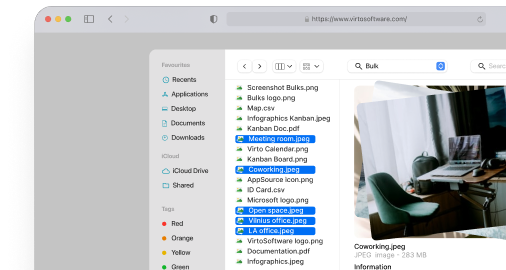
Advanced bulk processing capabilities extend far beyond what File Explorer or standard SharePoint can offer. The tool handles comprehensive file operations—upload, download, delete, copy, move, check-in, approve, and edit—all through batch processing that can handle massive document volumes. When you need to migrate legacy file systems to SharePoint, update metadata across entire document collections, or perform systematic cleanup operations, these bulk capabilities become essential.
Drag-and-drop upload with intelligence simplifies the process of adding large numbers of files to SharePoint while maintaining organizational structure. Unlike basic File Explorer uploads, Virto’s approach preserves folder hierarchies, applies consistent metadata during upload, and handles complex scenarios like duplicate detection and version management automatically. This intelligent handling prevents the organizational chaos that often results from large-scale file migrations.
Customizable configurations allow organizations to establish consistent file handling policies across different libraries and user groups. Administrators can set file size limits, restrict specific file types, and configure metadata requirements that apply automatically during bulk operations. This configurability ensures that file management remains compliant with organizational policies while reducing the manual oversight typically required for large-scale document operations.
Workflow integration and automation connects file operations directly to SharePoint’s approval and review processes. When bulk operations trigger SharePoint workflows—such as document approval sequences or notification systems—the integration ensures that established business processes continue to function correctly even during large-scale file management activities.
Enterprise security and compliance operates entirely within your SharePoint on-premises infrastructure, maintaining full control over sensitive data while meeting strict compliance requirements. For government agencies and regulated industries, this on-premises operation ensures that document management enhancements don’t compromise security or regulatory compliance.
| Feature | Multiple File Operations (On-Premises) | Multiple File Upload (Online/M365) |
| Target environment | SharePoint On-Premises | SharePoint Online & Microsoft 365 |
| Primary use case | Enterprise bulk operations | Enhanced upload capabilities |
| Drag-and-drop | ✅ Advanced with intelligence | ✅ Simplified interface |
| Metadata management | ✅ Bulk editing and assignment | ✅ Upload-time assignment |
| Workflow integration | ✅ Full SharePoint workflow support | ✅ Microsoft 365 ecosystem |
| Security model | On-premises controlled | Cloud-based with compliance |
| Pricing | Starts at $6,500 per WFE | Contact for pricing |
Virto Multiple File Upload App for SharePoint Online & Microsoft 365
Organizations using SharePoint Online and Microsoft 365 face different challenges, particularly around the limitations of browser-based file uploads and the complexity of managing metadata during bulk operations. Virto Multiple File Upload App addresses these cloud-specific limitations while integrating seamlessly with Microsoft 365’s collaborative features.
Explore Virto Multiple File Upload
File and folder structure preservation ensures that complex directory hierarchies transfer intact from local systems to SharePoint Online. When migrating from traditional file servers or organizing large document collections, maintaining familiar folder structures reduces user confusion and preserves established organizational logic. The app uploads entire folder trees while maintaining relationships and applying appropriate SharePoint library settings.
The user-friendly drag-and-drop interface eliminates the frustration of SharePoint Online’s standard upload limitations. Instead of dealing with browser restrictions on file selection and upload volumes, users can drag entire folders directly into SharePoint libraries. This interface works consistently across different browsers and devices, providing the reliability that distributed teams require.
Metadata assignment during upload allows users to apply custom metadata to files as they upload, eliminating the time-consuming process of adding metadata to individual files after upload. This capability becomes crucial when organizing large document collections or ensuring that uploaded files meet organizational tagging and categorization requirements from the moment they enter SharePoint.
Upload preferences and controls provide administrators with the flexibility to establish consistent upload policies across different libraries and user groups. File type restrictions, size limitations, and overwrite protection settings ensure that bulk uploads don’t compromise library organization or accidentally overwrite important documents.
Cross-browser compatibility ensures that file management capabilities work consistently whether users access SharePoint through Edge, Chrome, Firefox, or other browsers. This compatibility becomes particularly important in organizations where users work across different devices and platforms, maintaining productivity regardless of their technical environment.
Integration with Microsoft 365 ecosystem leverages the collaborative features that make SharePoint Online attractive—real-time co-authoring, version history, and sharing controls—while eliminating the file management bottlenecks that can slow down collaborative workflows. Files uploaded through Virto’s enhanced interface immediately participate in Microsoft 365’s collaborative features without requiring additional configuration.
👉 Check out VirtoSoftware’s multiple file management use case: Secure document management and SharePoint file approval workflow with ease
When to consider VirtoSoftware solutions
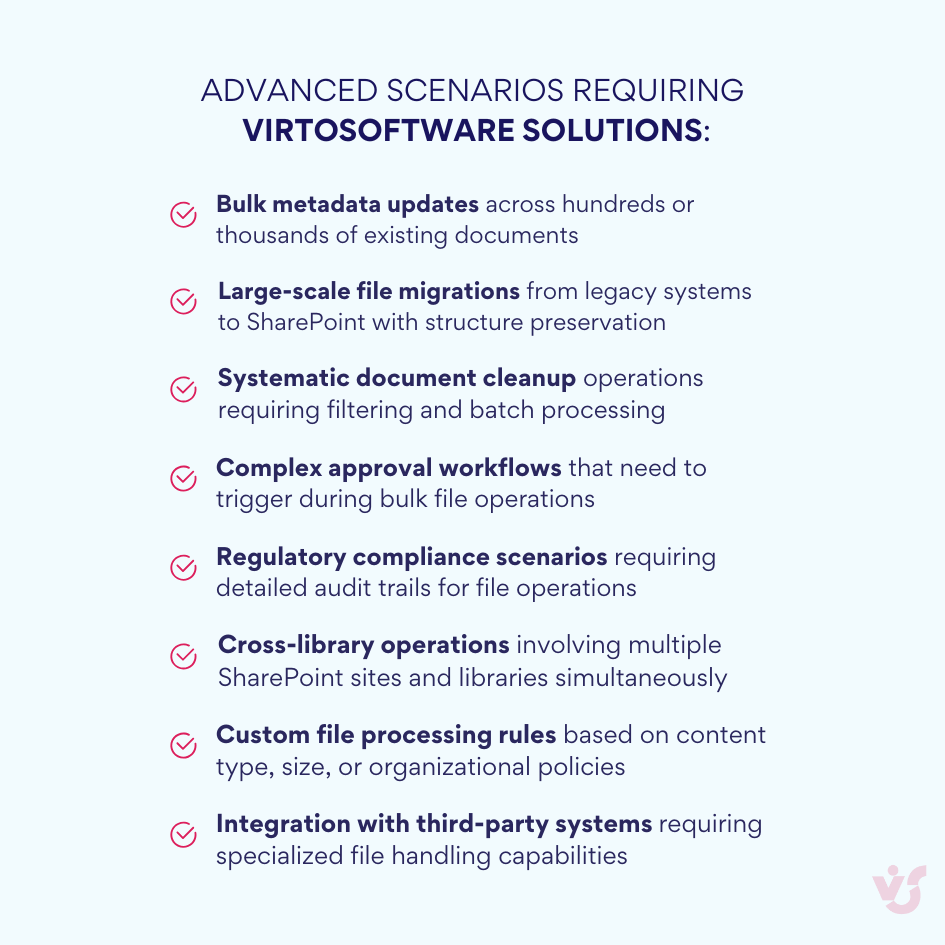
High-volume document operations represent the primary use case where Virto solutions provide clear advantages over standard File Explorer integration. When you’re regularly working with hundreds or thousands of files, managing large-scale migrations, or performing systematic document organization projects, the bulk processing capabilities become essential for maintaining productivity.
Metadata-intensive environments benefit significantly from Virto’s ability to apply complex metadata schemes during file operations. Organizations that rely heavily on document categorization, compliance tagging, or sophisticated organizational schemas find that Virto solutions eliminate much of the manual work typically required to maintain metadata consistency.
Workflow-dependent processes see immediate value when file operations need to integrate with SharePoint’s approval, review, and notification systems. Rather than treating file management as separate from business processes, Virto solutions ensure that bulk operations trigger appropriate workflows and maintain business process continuity.
Compliance and audit requirements make Virto solutions particularly valuable for organizations where document handling must meet specific regulatory or security standards. The ability to perform bulk operations while maintaining audit trails, applying consistent security policies, and preserving compliance metadata helps organizations manage large document volumes without compromising regulatory requirements.
These specialized tools transform SharePoint file management from a basic cloud storage solution into a comprehensive document management system that scales with organizational needs. While File Explorer integration provides excellent day-to-day access to SharePoint files, VirtoSoftware solutions add the sophisticated bulk processing and workflow integration capabilities that enterprise document management demands. The combination creates a complete file management ecosystem that supports both individual productivity and organizational-scale document operations.
Conclusion on How Do I Get SharePoint in File Explorer
SharePoint integration with Windows Explorer transforms cloud-based collaboration into familiar desktop workflows, bridging the gap between modern cloud platforms and traditional file management approaches. Throughout this guide, we’ve explored multiple methods to establish this connection, each serving different organizational needs and technical requirements.
The path from SharePoint browser tabs to File Explorer folders involves choosing the right connection method for your specific situation. OneDrive synchronization provides the most robust solution when offline access is essential, creating local mirrors of SharePoint libraries that remain accessible even without internet connectivity. Network drive mapping offers continuous integration for users who need real-time access to cloud files and can maintain stable internet connections. Shortcut creation delivers quick access without local storage consumption, ideal for occasional use and multi-device workflows.
Each method comes with its own technical requirements and limitations. Understanding these distinctions helps you avoid the frustration that occurs when expectations don’t align with technical reality. File Explorer integration excels at familiar file operations—dragging, dropping, organizing, and editing—while SharePoint’s web interface remains necessary for advanced collaboration features, metadata management, and administrative functions.
Security and access control remain paramount throughout any File Explorer integration. The familiar Windows interface doesn’t bypass SharePoint’s permission structure or provide additional access rights. Instead, it offers an alternative way to work with content you’re already authorized to access. This security architecture protects organizational data while providing the productivity benefits that make File Explorer integration valuable.
For organizations dealing with large document volumes or complex file operations, standard integration methods may not suffice. VirtoSoftware solutions extend File Explorer’s capabilities into enterprise-scale document management:
- Virto Multiple File Operations for SharePoint On-Premises provides comprehensive bulk processing capabilities for organizations requiring full control over their SharePoint infrastructure
- Virto Multiple File Upload App for SharePoint Online & Microsoft 365 addresses the specific challenges of cloud-based SharePoint environments with enhanced upload capabilities and metadata management
These tools bridge the gap between File Explorer’s simplicity and SharePoint’s enterprise requirements, enabling sophisticated document workflows while maintaining the familiar interface that users prefer.
Whether you’re managing a small team’s project files or overseeing enterprise document repositories, the key is matching your technical approach to your actual workflow requirements. Simple file access might require only basic synchronization, while complex document management scenarios benefit from specialized tools that extend beyond standard integration capabilities.
Consider scheduling a quick demo call with VirtoSoftware to explore how our solutions can streamline your document workflows, or install a free trial of our applications directly from the website to experience the enhanced capabilities firsthand.
For deeper technical guidance and troubleshooting, consult these official Microsoft resources:
- View SharePoint files in File Explorer
- How to access SharePoint library in File Explorer
- Sync SharePoint files and folders
For advanced file management techniques and practical tips, explore our comprehensive guides:
- SharePoint Multiple Files: Edit & Share Guide
- SharePoint Multiple Files: Delete & Copy Guide
- SharePoint Multiple Files: Upload & Download Guide
- How to Delete Multiple Files from SharePoint
The intersection of cloud collaboration and desktop productivity continues to evolve, but the fundamental principle remains constant: the best file management solution is the one that adapts to your workflow rather than forcing you to adapt to its limitations. By understanding your options and choosing the appropriate integration method, you can create a SharePoint File Explorer experience that enhances productivity while maintaining the security and collaboration benefits that make SharePoint valuable for modern organizations.