How to Automate Active Directory User Creation: Scripts, Tools, Cloud
New hires shouldn’t wait on a wizard. This guide turns repetitive AD clicks into a clean, auditable pipeline—from attribute templates to cloud sync—so onboarding actually keeps pace with the business.

Managing users in Active Directory is a core responsibility for IT teams in medium and large organizations. It underpins access control, compliance, and day-to-day productivity—every account must be accurate, secure, and ready when an employee starts.
Manual account creation slows all of that down. It consumes staff time, invites typos and misconfigurations, and often leads to inconsistent group membership or missed policies. The result: delayed onboarding, extra help desk tickets, and avoidable risk.
This article shows how to automate user creation in Active Directory using scripts, built-in Windows Server tools, and specialized solutions. We’ll also highlight options for SharePoint On-Premises, including relevant Virto products, so you can pick an approach that fits your environment and scale.
Understanding Active Directory User Creation Automation
Automating user creation in Active Directory means using scripts, utilities, or dedicated tools to add new accounts quickly and consistently. Instead of opening Active Directory Users and Computers and typing each field by hand, an administrator defines rules once—then a script or tool fills in the attributes, places the account in the right OU, and assigns the correct groups every time.
This is especially valuable in medium and large organizations. When dozens of people join each week (and many change roles), manual work doesn’t scale. Automation turns repetitive clicks into a reliable, repeatable process.
What actually gets automated
Automation isn’t just about calling New-ADUser; it’s about deciding which parts of provisioning the system will handle every time. In most environments that breaks down into a few repeatable buckets—attributes, placement, access, and passwords/lifecycle. Use the checklist below to make those choices explicit before you write a line of code:
- Core attributes: first/last name, display name, sAMAccountName, UPN, email, department, title, manager.
- Account placement: moving the user into the correct OU based on department, location, or role.
- Access and policy: adding the user to default security groups, applying GPO scopes, setting profile paths or home folders.
- Password handling: generating a compliant temporary password and forcing change at first logon.
- Optional integrations: creating a mailbox (if applicable), kicking off directory sync, and logging changes for audit.
| Area | What it covers | Typical source of truth | Common tools/cmdlets |
| Core attributes | First/last name, display name, sAMAccountName, UPN, email, department, title, manager | HR export / request form | New-ADUser, Set-ADUser |
| Account placement | Put user in correct OU by department/location/role | Mapping rules | New-ADUser -Path, Move-ADObject |
| Access and policy | Default security groups, GPO scope, home/profile paths | Role templates | Add-ADGroupMember, GPO links |
| Password handling | Compliant temp password, force change at first logon | Security policy | Secure string creation, account options |
| Optional integrations | Mailbox, directory sync, audit logging | Messaging/IdM systems | Exchange cmdlets, log export |
How the flow usually works
Think of provisioning as a repeatable rhythm, no matter the tool. Data arrives, you validate and standardize it, the system creates the account and assigns access, then you notify and log. The steps below break that into clear checkpoints you can automate one by one.
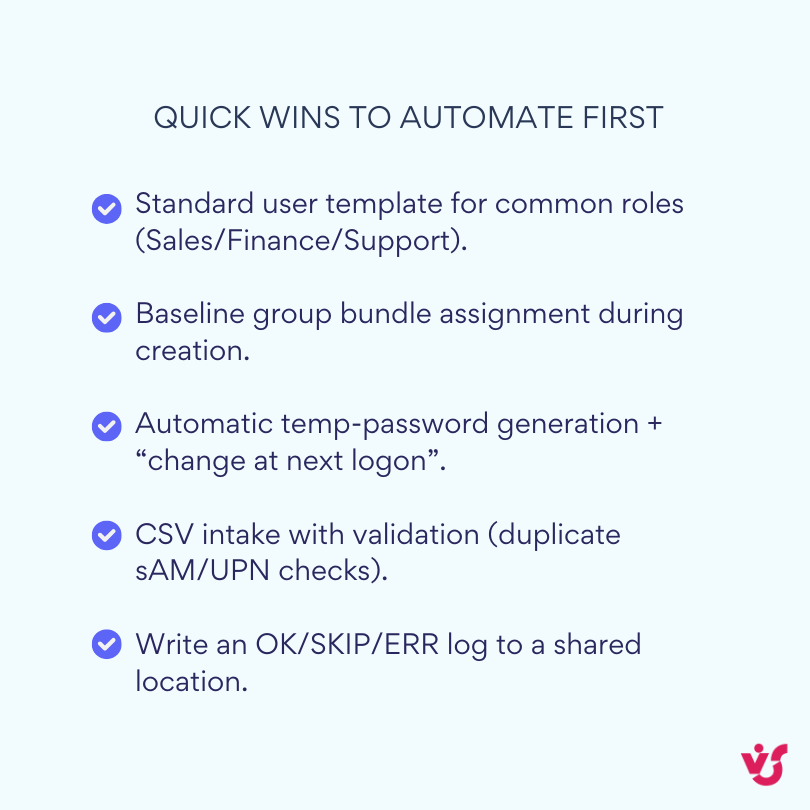
- Intake: data arrives from HR (file export), a request form, or a SharePoint list.
- Validation: the process checks for required fields and duplicates; names and UPNs are standardized to your naming rules.
- Creation: a script (for example, PowerShell with the Active Directory module) runs New-ADUser, sets attributes, and places the account in the right OU.
- Access assignment: default groups are added based on role/department; optional resources (home drive, mailbox) are provisioned.
- Confirmation: the system writes to a log/ticket, emails the manager with credentials/instructions, and—if hybrid—lets directory sync pick up the new user.
| Step | Input | Action | Output / log |
| Intake | HR export, form, SharePoint list | Receive and queue request | Ticket/request ID |
| Validation | Required fields, uniqueness, allowed values | Normalize names/UPNs, check groups | “VALID” or reason to reject |
| Creation | Validated record | New-ADUser, set attributes/OU | AD object GUID, enabled status |
| Access assignment | Role/department | Add to default groups, set paths | Group list snapshot |
| Confirmation | Created user | Notify manager/requester; archive log | Email/slack + CSV log row |
Why automation matters
Automation turns a multistep, error-prone task into a predictable workflow. The payoff is immediate: less admin time, cleaner data, faster access for new hires, and more consistent security. Here’s what improves first:
- Time savings for IT: creating one account manually can take several minutes; at scale this becomes hours or days. Automation cuts the per-user time to seconds.
- Fewer errors: predefined templates and validation rules prevent typos and bad formats (like incorrect UPNs or emails).
- Faster onboarding: new hires get access as soon as the request or HR record appears, not when an admin has time to click through forms.
- Better security and consistency: uniform password policies, naming conventions, OU placement, and group membership reduce permission drift and audit findings.
In short, automation replaces slow, error-prone steps with a controlled, documented workflow—laying the groundwork for the scripts, built-in tools, and specialized solutions (including VirtoSoftware options for SharePoint On-Premises) covered in the next sections.
👉What does automate user creation active directory mean? Automating user creation in Active Directory means replacing manual account setup in the AD Users and Computers console with a repeatable process driven by scripts or tools. Instead of typing every attribute by hand, you define templates and rules—naming formats, UPN/email, OU placement, default groups, password policy—and the system creates the account, enables it, and logs the result. The process usually pulls data from an authoritative source such as HR, validates it, checks for duplicates, and applies your standards consistently. In hybrid environments it also triggers synchronization to Microsoft Entra ID so licenses and cloud access attach automatically. The goal is faster onboarding, fewer mistakes, and a predictable, auditable workflow that scales.
Automating AD User Creation with Scripts
PowerShell is the most widely used way to automate user creation in Active Directory. It’s included with Windows Server and available through RSAT on Windows, it speaks the native AD cmdlets, and it handles templates, loops, and error checking without extra software.
Why PowerShell is the primary automation tool
As mentioned, PowerShell is the default surface for automating AD. It’s easy to test, version, and secure, which makes it a practical choice for day-to-day provisioning. Here’s why it stands out:
- Built in and free: ships with Windows Server; RSAT brings the same tools to admin workstations.
- Purpose-built cmdlets:
New-ADUser, Set-ADUser, Add-ADGroupMember, and dozens more cover the full lifecycle. - Scriptable patterns: read a CSV, validate fields, create users, add groups, and write logs in one run.
- Good guardrails:
-WhatIf, -Confirm, Try/Catch, and exit codes make it safe to test and easy to schedule.
With the foundations in place, let’s put them to work. The next two examples show a straightforward one-off user create and a scalable bulk import from CSV. Start by running them with -WhatIf, then tailor the OU paths, UPN suffixes, groups, and logging to match your standards.
Example 1: create a single user (PowerShell)
This first example walks through a minimal end-to-end create: it sets core attributes, generates a compliant temporary password, places the account in the right OU, enables the user, and adds baseline groups. Run it in 64-bit PowerShell with delegated rights; update the OU, UPN suffix, and group names for your environment. For a safe trial, add -WhatIf to the creation and group-membership commands.
# Run in 64-bit PowerShell with an account that has delegated rights to create users
Import-Module ActiveDirectory
$ou = "OU=Sales,OU=Users,DC=contoso,DC=com"
$sam = "jdoe"
$upnSuffix = "@contoso.com"
# Generate a temporary, compliant password
$plain = [System.Web.Security.Membership]::GeneratePassword(14,3)
$pwd = ConvertTo-SecureString $plain -AsPlainText -Force
New-ADUser -Name "John Doe" `
-GivenName "John" -Surname "Doe" `
-SamAccountName $sam `
-UserPrincipalName ($sam + $upnSuffix) `
-DisplayName "John Doe" `
-EmailAddress "john.doe@contoso.com" `
-Department "Sales" -Title "Account Executive" `
-AccountPassword $pwd -ChangePasswordAtLogon $true `
-Enabled $true -Path $ou
# Baseline access
Add-ADGroupMember -Identity "GG_Sales_RW" -Members $sam
# Securely communicate the temp password to the manager/help desk (don’t print it to the console or logs)
Example 2: bulk creation from a CSV
Bulk onboarding follows the same pattern at scale. We’ll treat a CSV as the source of truth—one row per user—then validate required fields, check for duplicates, apply defaults (OU, baseline groups), create and enable the account, add groups, and write a clear OK/SKIP/ERR log for each record. Start by standardizing the CSV schema you’ll share with HR.
Sample CSV (headers first row):
GivenName,Surname,SamAccountName,UPN,OU,Department,Title,Email,Groups John,Doe,jdoe,jdoe@contoso.com,OU=Sales,OU=Users,DC=contoso,DC=com,Sales,Account Executive,john.doe@contoso.com,"GG_Sales_RW;GG_VPN_Users" Jane,Smith,jsmith,jsmith@contoso.com,OU=Marketing,OU=Users,DC=contoso,DC=com,Marketing,Designer,jane.smith@contoso.com,"GG_Mktg_Read"
Bulk script with validation and logging:
Import-Module ActiveDirectory
Set-StrictMode -Version Latest
$ErrorActionPreference = 'Stop'
$csvPath = "C:\Secure\newhires.csv"
$defaultOU = "OU=NewStarters,OU=Users,DC=contoso,DC=com"
$defaultGroups = @("GG_VPN_Users")
$upnSuffixes = @("@contoso.com", "@emea.contoso.com") # accepted suffixes
$logPath = "C:\Logs\ad_create_{0}.csv" -f (Get-Date -Format yyyyMMdd_HHmmss)
# Start log
"SamAccountName,Result,Message" | Out-File -FilePath $logPath -Encoding UTF8
# Helper: ensure groups exist
function Resolve-Groups($groupString) {
$result = @()
foreach ($g in ($groupString -split ';' | Where-Object { $_ -and $_.Trim() })) {
$name = $g.Trim()
$null = Get-ADGroup -Identity $name -ErrorAction Stop
$result += $name
}
return $result
}
# Helper: create a secure temp password
function New-TempPasswordSecure {
$p = [System.Web.Security.Membership]::GeneratePassword(14,3)
return ,(ConvertTo-SecureString $p -AsPlainText -Force),$p
}
# Process rows
$rows = Import-Csv -Path $csvPath
foreach ($r in $rows) {
try {
$sam = $r.SamAccountName.Trim()
if (Get-ADUser -Filter "SamAccountName -eq '$sam'") {
Add-Content $logPath "$sam,Skipped,User already exists"
continue
}
# UPN
$upn = if ($r.UPN) { $r.UPN.Trim() } else { "$sam@contoso.com" }
if (-not ($upnSuffixes | Where-Object { $upn.ToLower().EndsWith($_) })) {
throw "UPN suffix not allowed: $upn"
}
# OU
$ou = if ($r.OU) { $r.OU.Trim() } else { $defaultOU }
# Groups
$groups = @()
if ($r.Groups) { $groups += Resolve-Groups $r.Groups }
$groups += $defaultGroups | Where-Object { $_ }
$groups = $groups | Sort-Object -Unique
# Temp password
$pwdSecure,$pwdPlain = New-TempPasswordSecure
# Create user
New-ADUser -Name "$($r.GivenName) $($r.Surname)" `
-GivenName $r.GivenName -Surname $r.Surname `
-SamAccountName $sam -UserPrincipalName $upn `
-DisplayName "$($r.GivenName) $($r.Surname)" `
-EmailAddress $r.Email -Department $r.Department -Title $r.Title `
-Path $ou -AccountPassword $pwdSecure -Enabled $true -ChangePasswordAtLogon $true
# Group membership
foreach ($g in $groups) { Add-ADGroupMember -Identity $g -Members $sam }
# Log success (never log plain passwords in real use—deliver via a secure channel)
Add-Content $logPath "$sam,Success,Created in $ou; Groups: $(($groups -join '|'))"
}
catch {
Add-Content $logPath "$($r.SamAccountName),Error,$($_.Exception.Message)"
}
}
Write-Host "Done. See log: $logPath"
Step-by-step process using PowerShell
Before you write a single cmdlet, line up the moving parts. The steps below turn your provisioning plan into a repeatable workflow: define the data you’ll accept, validate it, set sensible defaults, create users safely, and log every outcome. We’ll start with the inputs—your CSV.
CSV preparation
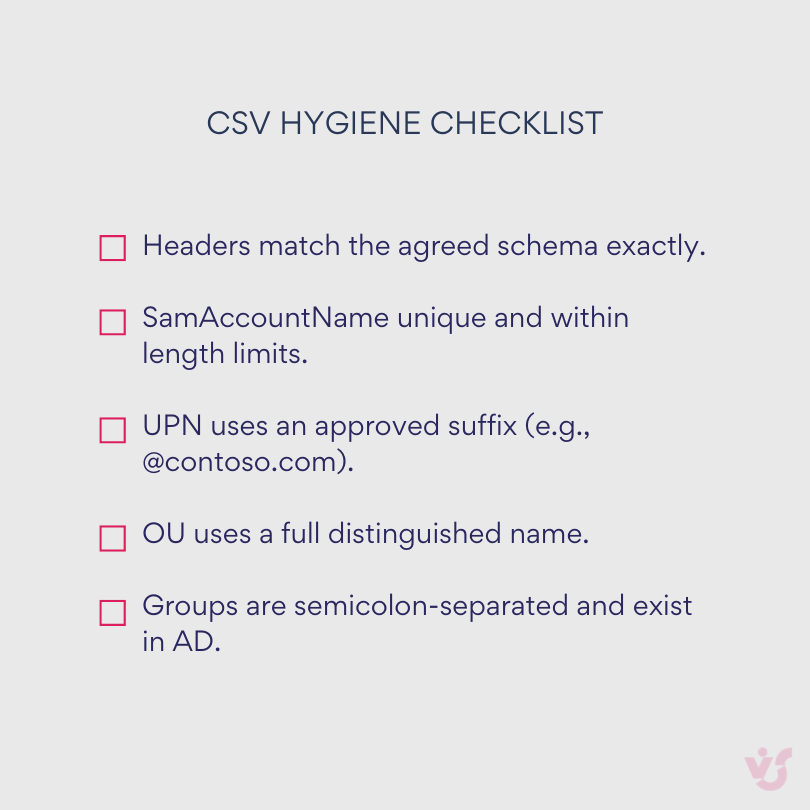
Treat the CSV as a contract between IT and HR. Lock down the headers, formats, and allowed values so every file you receive is predictable and machine-readable:
- Agree with HR on the fields you’ll receive: GivenName, Surname, SamAccountName, UPN, OU, Department, Title, Email, Groups.
- Ensure SamAccountName is unique; reserve your format (e.g.,
jdoe, j.doe). - Validate the UPN suffix against allowed domains (for example
@contoso.com). - For Groups, require approved names and verify they exist before the run.
Writing a script
Now translate those rules into code. Structure the script to validate inputs, create users, assign groups, and write clear logs, with safeguards for duplicates and bad data:
Import-Module ActiveDirectory,read the CSV withImport-Csv, and loop through rows.- Before creation, check for existing users by sAMAccountName and UPN.
- Create with
New-ADUser, set attributes, generate a secure temporary password, and enable the account. - Add baseline security groups, wrap operations in Try/Catch, and log results (CSV or event log).
- Include defaults in parameters (default OU, default groups) so missing values don’t derail the run.
- During testing, add
-WhatIfto creation and group cmdlets to simulate changes.
Execution
Moving from the lab to production requires care. Run with least privilege, secure credentials, and decide how and when the job will run in your environment:
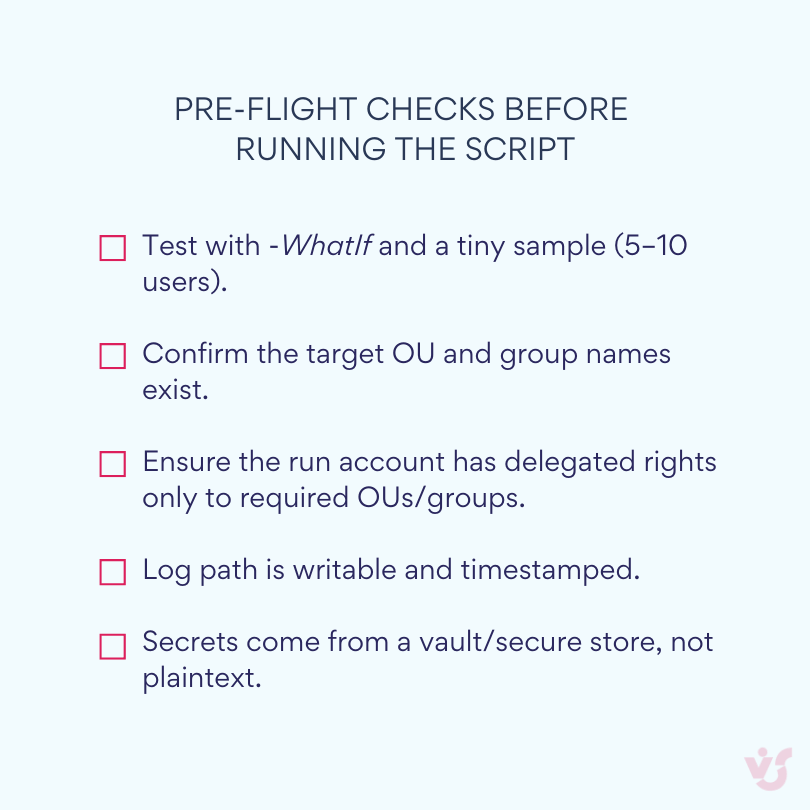
- Run in 64-bit PowerShell under an account with delegated privileges to the target OUs and groups.
- For regular onboarding, create a Task Scheduler task that runs daily or hourly with a service account. Point it to a secure folder containing the CSV.
- Keep secrets safe: avoid plaintext in scripts or CSV. Prefer a vault (Windows Credential Manager, SecretManagement) or inject credentials at runtime
Verifying the result
Verification closes the loop on automation—don’t assume “completed” means correct. Confirm the account exists in the right OU, key attributes are set, and baseline groups are present; if you’re hybrid, make sure sync and licensing kicked in. Start with a quick spot check, then review your logs for any SKIP/ERR entries.
- Spot-check a few records:
Get-ADUser jdoe -Properties * | Select Name,Enabled,EmailAddress,Department,MemberOf - Confirm the account is Enabled and the expected MemberOf groups are present.
- In hybrid environments, verify the user appears in Microsoft Entra ID after the next sync cycle (Connect Sync or Cloud Sync).
How do I bulk create users in Active Directory automatically?
You can bulk create users by importing a CSV into a PowerShell script (as shown above) or by using automation tools that read HR exports and call New-ADUser under the hood. For reliability, validate fields, use secure password creation, add Try/Catch with clear logging, and schedule the job in Task Scheduler.
When scripting is the better choice
Scripts shine when you need fine-grained control and fast iteration without waiting on a platform’s roadmap. If your rules are unique or change frequently, code lets you capture them precisely and ship on your timeline. Here’s when that approach pays off:
- Flexibility: handle any attribute set, naming rule, or branching logic; pull from CSVs, APIs, or HR exports.
- Availability: no extra licenses or installers—PowerShell and the AD module are already there.
- Control: encode corporate standards for OUs, default groups, and formats in one place and version them alongside infrastructure code.
Next, we can cover built-in tools (like ADAC and templates) and when specialized solutions—such as VirtoSoftware options for SharePoint On-Premises—make more sense.
Using specialized automation tools
PowerShell covers the mechanics of creating accounts. When you need richer business processes—approvals, visual design, delegated portals, and reporting—specialized tools are a better fit. These platforms give you a user-friendly interface, connectors to common systems, and built-in governance so you can stand up a production workflow quickly.
How tools differ from scripts
At a high level, these platforms trade code for configuration. Instead of hand-crafting logic in PowerShell, you assemble reusable pieces. The contrasts show up in a few practical areas, starting with the interface and how quickly you can launch.
- User-friendly interface and speed of launch: Visual designers, request forms, and no-code rule builders let you assemble a process in hours. With scripts, every condition and screen must be written and tested by hand.
- Out-of-the-box business logic: Multi-step approvals, conditional branches, SLAs, and escalations are configured with clicks. In a script, each approval path, timeout, and reminder requires custom code and careful testing.
- Coding-free integrations: Connectors for Microsoft 365, email, calendars, and enterprise systems (ServiceNow, SAP SuccessFactors, Workday, Jira) remove most of the API work. With scripts, you own the authentication, error handling, and API drift.
- Management and auditing: Centralized logs, role-based access, versioning, and compliance reports come with the product. Script-only approaches need repositories, deployment pipelines, and custom telemetry to reach the same standard.
- Scalability and support: One platform can cover dozens of provisioning scenarios. Maintaining many separate scripts increases drift and support overhead.
- Cost and resources: Tools require licenses, but they save engineering time and reduce operational risk. Scripts are license-free, but you pay in development, testing, documentation, and long-term maintenance.
Active directory user creation tools: Examples of specialized tools and when to use them
Here are the go-to options you’ll see in real environments. For each, we’ll outline core strengths, typical use cases, and when it’s the right fit. We’ll start with general-purpose orchestration, then move to directory-centric suites and full identity platforms.
Power Automate
Power Automate is Microsoft’s low-code workflow service in Microsoft 365. It connects hundreds of apps and services, listens for triggers (forms, emails, list changes), and runs cloud or on-prem actions through connectors, gateways, or runbooks—ideal for building approval-driven, auditable processes without writing full scripts.
- What it’s good at: intake forms (Microsoft Forms/SharePoint/Power Apps), approvals, notifications, and orchestration.
- Typical pattern: request submitted → manager/IT approval → flow calls an Azure Automation runbook or on-premises script (via gateway/Hybrid Runbook Worker) → account created → confirmation email and log entry.
- Best for: standard joiner/mover/leaver flows where the heavy lifting runs in PowerShell but business logic lives in a visual flow.
💡 Learn more here:
- Official Microsoft Power Automate documentation
- On-premises data gateway – Power Automate | Microsoft Learn
ManageEngine ADManager Plus
ManageEngine ADManager Plus is a web-based Active Directory management and reporting suite. It centralizes user provisioning, group/OU changes, delegation, and approval workflows, giving help desks and IAM teams a point-and-click way to run day-to-day AD tasks and audits.
- Capabilities: bulk creation with templates; role-based delegation; request/approval workflows; detailed reports; CSV imports; scheduled jobs.
- Best for: service desk teams and HR-driven onboarding where non-admins must request or approve accounts without touching AD consoles.
💡 Learn more here:
- Unified Active Directory and Microsoft 365 management and reporting solution
- Active Directory Management Tool | ADManager Plus
Adaxes (Softerra)
Adaxes by Softerra is a directory management and automation platform for Active Directory and Microsoft 365. It adds a web portal, workflow and approval engine, and policy enforcement so you can standardize joiner/mover/leaver processes and delegate safely to help desk staff or managers.
- Capabilities: advanced naming rules, automated lifecycle policies, approval workflows, self-service portal, web UI for delegated admins, fine-grained automation triggers.
- Best for: multi-domain environments with strict naming/OU policies and self-service needs.
💡 Learn more here: Adaxes
One Identity Active Roles
One Identity Active Roles is a delegated administration and policy enforcement platform for Active Directory and Entra ID. It adds structured approvals, change control, and auditing so large or regulated environments can provision and modify identities safely at scale.
- Capabilities: delegated administration at scale, change control, policy enforcement, and complex approval workflows; strong auditing and compliance features.
- Best for: organizations with tight segregation-of-duties requirements and compliance audits.
💡 Learn more here:
Microsoft Identity Manager / Entra ID provisioning
Microsoft Identity Manager (MIM) and Entra ID provisioning are Microsoft’s identity lifecycle solutions. MIM runs on-premises to synchronize directories and drive joiner/mover/leaver workflows across systems, while Entra ID provisioning extends lifecycle automation to cloud apps—connecting HR systems to downstream services with standards-based connectors.
- Capabilities: identity lifecycle across systems; attribute synchronization; HR-driven provisioning into directories and apps.
- Best for: enterprises standardizing on Microsoft identity where HR is the source of truth and many downstream systems must stay in sync.
💡 Learn more here:
- Microsoft Identity Manager documentation
- What is automated app user provisioning in Microsoft Entra ID
System Center Orchestrator / ServiceNow workflows
System Center Orchestrator and ServiceNow workflows handle automation from different angles: Orchestrator runs datacenter runbooks that execute scripts and tasks on-prem, while ServiceNow drives ticket-centric flows with approvals and catalog items. Together they let you trigger PowerShell or API calls from a controlled, auditable process.
- Capabilities: ticket-driven orchestration, service catalogs, approvals, and runbooks that call PowerShell or REST.
- Best for: ITIL-aligned shops where every action starts as a ticket and must remain traceable end-to-end.
💡 Learn more here:
Native portals on SharePoint / Power Apps (including VirtoSoftware for SharePoint On-Premises)
SharePoint and Power Apps can serve as the front door for provisioning—request forms, approval pages, and dashboards that business users already know. The portal collects and validates data; back-end actions run through PowerShell, Azure Automation, or REST APIs. For SharePoint On-Premises, VirtoSoftware provides ready-made web parts that streamline user creation and profile synchronization without exposing AD consoles.
- Capabilities: request forms, validation rules, approval pages, and dashboards; creation actions executed by APIs, runbooks, or custom actions.
- Best for: organizations that want a familiar portal for HR/managers and need on-premises options. Virto components for SharePoint On-Premises can power request forms, notifications, and approval steps while your runbook handles the actual AD creation.
💡 Learn more here:
- Official Microsoft Power Apps documentation
- User Profile service overview – SharePoint Server | Microsoft Learn
- Virto Active Directory Create & Copy User Web Part | Try now
- Virto Active Directory User Profile Sync Web Part | Try now
When to choose specialized software
Pick a platform when the process must support non-technical users, handle approvals, and produce reliable audit trails at scale. If you’re juggling multiple directories, complex naming, or strict compliance, specialized software is the safer, faster path.
- You need approvals, delegation, and auditing without building them from scratch.
- You operate multiple domains/forests, enforce complex naming rules, or use different templates by role/location.
- Compliance requires detailed reporting, change control, and segregation of duties.
- You want self-service for HR or managers who should not have AD console access.
Recommended implementation process
Treat this as a blueprint for moving from ideas to a running service. Work through the steps in order—scope the scenarios, choose the architecture, model the rules, build the flow, lock down security, test thoroughly, then operate with monitoring and audits.
- Classify scenarios: Map joiners, movers, bulk intakes, and offboarding. Identify the source of truth (usually HR) and define required attributes.
- Choose an architecture
- Cloud-first: use Microsoft Entra ID for cloud apps; call runbooks for on-premises steps.
- Hybrid: run on-premises creation through a Hybrid Worker or gateway; keep one orchestration layer.
- Model business rules: Build role templates and mapping rules: Department/Title/Location → OU + groups. Encode naming, password, and mailbox/home-folder policies.
- Implement the flow: Trigger (form/CSV/API) → approvals → account creation → group/licensing assignments → notifications → centralized logs and dashboards.
- Security and access: Grant minimum necessary privileges. Store secrets in a vault or managed identity. Separate orchestration rights from human operators.
- Testing: Use a sandbox and realistic CSVs. Include negative cases (missing data, duplicates, invalid UPN). Load-test bulk uploads.
- Operations: Add monitoring and alerts, incident runbooks, and scheduled audits of group membership and stale accounts.
Common pitfalls and how to avoid them
Even robust designs stumble on a few repeat offenders—messy HR data, missing audit trails, unsafe secret handling, and non-idempotent runs. Build checks and guardrails up front so a single bad row can’t ripple into AD or the cloud. Watch for these issues first, then apply the fixes below.
- Inconsistent HR attributes → mapping errors
Fix: add validation at intake; maintain reference lists for departments, locations, and group packages.
- No rollback or single log of failures
Fix: log each step transactionally; write compensating steps (remove groups/delete user) when downstream actions fail.
- Secrets embedded in flows or scripts
Fix: move credentials to a secure store and use managed identities where possible.
- Lack of idempotency → duplicate accounts
Fix: pre-check SamAccountName/UPN and key attributes before creation; make runs safe to repeat.
With the right toolset, you keep PowerShell for precise control while the platform handles forms, approvals, integrations, and compliance. Next, we’ll outline built-in options and patterns so you can pick the approach that matches your scale and governance needs.
Hybrid Model: AD Automation and Cloud Integration
Most companies run a hybrid identity model. On-premises Active Directory stays the source of truth for user objects and security groups, while cloud services—Microsoft 365, Azure, and AWS—deliver apps and infrastructure. The aim is a single lifecycle: create the account once, sync it automatically, and have the right access and licenses appear everywhere without manual touch.
Common hybrid scenarios
Hybrid identity typically follows a few repeatable patterns. The scenarios below show how accounts move from on-prem AD to the cloud and when each approach makes sense.
- Create in on-premises AD, sync to Microsoft Entra ID: New users are created in a designated OU, then synchronized to Entra ID. Group membership in AD drives access and licensing in Microsoft 365 and Azure resources.
- Integrate with AWS Directory Service: Your on-prem AD remains authoritative. AWS uses Managed Microsoft AD (hosted in AWS) or AD Connector (a proxy to your on-prem AD) to authenticate and to map AD groups to AWS permissions.
- Use Microsoft Entra Connect Sync or Cloud Sync: Connect Sync runs on-prem and supports full attribute flows and filtering. Cloud Sync uses lightweight agents and is well-suited to multi-forest or distributed environments. Both publish users/groups to Entra ID.
Key steps for Azure and AWS integration
Successful hybrid integration follows a clear sequence. First, establish reliable directory synchronization. Next, define naming, UPN, password, and access-mapping policies. Then, implement a unified automation flow that creates users, assigns groups/licenses, and logs actions. Finally, verify outcomes and set up ongoing audit. Here’s how to work through those steps.
Synchronization setup
Begin by defining how identities flow between directories and which objects you’ll publish. Confirm prerequisites—network reachability, service accounts, and verified domains—then choose the sync technology, scope the OUs and attributes, and validate UPN formats. With that groundwork, the platform-specific steps are straightforward.
For Azure (Microsoft Entra ID):
- Choose sync technology: Microsoft Entra Connect Sync (full on-prem engine) or Cloud Sync (agent-based).
- Verify domains: ensure your UPN suffix (for example, @contoso.com) is a verified domain in Entra ID.
- Filter OUs: scope synchronization to the OUs that contain production users; exclude test or service accounts.
- Validate UPNs: standardize naming; block invalid characters and duplicate UPNs before creation.
For AWS:
- Pick a directory option:
- AWS Managed Microsoft AD: a managed AD in AWS. You can create and manage users/groups in AWS AD or establish a trust with on-prem AD.
- AD Connector: a pass-through that relies on your on-prem AD for auth—no password sync, no user copy in AWS.
- Plan automation location: with Managed AD, you can automate inside AWS (runbooks, Lambda, Systems Manager). With AD Connector, keep automation in on-prem AD and use group mapping for AWS access.
Policy definition
Before you automate, lock down the rules that shape every account. Treat these policies as a contract between HR, IT, and security—clear naming and UPN formats, required attributes, and how roles map to groups and licenses. Write them down first so your scripts and tools can enforce them consistently.
- Naming and password standards: codify SamAccountName/UPN patterns, allowed suffixes, and password requirements.
- Attribute-to-access mapping: define templates like Department/Title/Location → OU + AD groups. Mirror these in Entra ID (dynamic groups, group-based licensing) or in AWS (group→permission set mapping in IAM Identity Center).
- Security policies: enforce MFA and Conditional Access in Azure; apply least-privilege roles and session policies in AWS.
Unified automation process
With policies agreed and sync configured, stitch the steps into one repeatable pipeline. Each run should follow the same path—ingest data, validate it, create the account, assign baseline access, and record what happened—so cloud licensing and permissions can attach automatically downstream.
- Intake: HR export, service catalog form, or API sends a new-hire record.
- Validation: check required attributes, unique SamAccountName/UPN, and allowed values (departments, locations, group bundles).
- Creation in AD: run your script/tool to create the user in the correct OU, set attributes, generate a temporary password, and enable the account.
- Baseline access: add default AD groups that correspond to apps and roles.
- Logging and notifications: write structured logs (OK/SKIP/ERR), and notify the requester/manager.
- Cloud assignment:
- Azure: rely on group-based licensing and dynamic groups keyed off department, title, or location; Conditional Access picks up the user once synced.
- AWS: tie AD groups to permission sets in IAM Identity Center; monitor with CloudTrail/CloudWatch.
- Success verification: confirm the user shows in Entra ID or AWS within the expected sync window and can reach required apps.
Control and audit
Strong operations need visibility and clear ownership. Define how you’ll track changes, who can run them, and how long you’ll keep evidence. The controls below turn ad-hoc scripts into an auditable service your security and compliance teams can trust.
- Centralized logs: capture per-user steps with timestamps and outcomes (OK/SKIP/ERR). Keep the log searchable and exportable.
- Regular reviews: compare HR org data to AD/Entra/AWS mappings. Adjust group bundles when departments or roles change.
- Rollback plan: define how to disable or remove an incorrect account, reverse group/permission assignments, and document the action.
In a hybrid model, keep one place of creation—on-premises AD—apply strict attribute and naming standards, and let synchronization and group-driven policies handle cloud access. With clear templates and automated licensing/permission mapping, users appear in Microsoft 365, Azure, and AWS on time, with the right access, and without manual intervention.

Best practices and recommendations
Start by understanding how things work today before introducing automation. Map the joiner–mover–leaver flow end to end: where requests originate, who approves, which OUs and groups are used, and how long each step takes. Look for patterns that cause the most pain—mass onboarding, seasonal hiring, frequent department moves, offboarding, and repeated access requests. These are usually the fastest wins for automation.
Document time and error hotspots
Before you change anything, measure it. Capture where time is spent and where mistakes occur so you can target the biggest wins first—and have a baseline to show improvement after automation.
- Time study: measure the minutes spent per new hire, per transfer, and per offboard. Include waiting time for approvals and rework.
- Error log: note where typos, wrong OUs, and missing groups occur. Track duplicate SamAccountNames and invalid UPN suffixes.
- Data quality review: check HR exports for consistency. Identify free-text fields that should be controlled (department, title, location).
Standardize account attributes
Consistency starts with the data model. Decide exactly how each attribute should look and how duplicates are handled, then codify those rules so every script and tool applies them the same way.
- Define naming rules: set a clear format for login (SamAccountName) and UPN/email (for example, jdoe + @contoso.com). Write down how you handle special characters and long names.
- Single dictionary: maintain one controlled list for departments and job titles to avoid spelling variations. Keep it in a place your scripts and tools can read.
- Duplicate policy: decide how to format duplicates ahead of time (for example, jdoe2, j.doe2). Implement the rule in code so it is consistent.
- Required fields: make GivenName, Surname, UPN, OU, Department, Title, Email mandatory. Validate values at intake to prevent bad records entering AD.
Use templates or groups to assign permissions
Groups are the backbone of predictable access. Instead of granting permissions user by user, define reusable bundles and attach them to roles so one assignment delivers the right file shares, apps, and policies. This speeds onboarding and makes audits far simpler.
- Role templates: define standard roles such as Sales, Finance, Support. For each role, list the AD groups that grant baseline access to file shares, apps, and VPN.
- Group-driven permissions: add people to roles (which map to groups) instead of granting rights one by one. This speeds up provisioning and simplifies audits.
- Dynamic mapping: codify simple rules like Department/Title/Location → OU + groups. Keep the mapping in a data file so you can update it without editing code.
Test before production
Prove the process in a safe environment before it touches production. Run controlled trials, simulate common failure cases, and confirm that logging, idempotency checks, and rollbacks behave as expected. Once you’re confident, move gradually to live data.
- Use a test domain or a test OU: point early runs at a safe location.
- Trial run on a small sample: import five to ten users first. Verify Enabled status, MemberOf, and attribute formatting.
- Validate email and UPN: check suffixes and uniqueness.
- Dry runs: when possible, use -WhatIf to simulate changes.
- Simple, readable logs: record OK/SKIP/ERR, the OU used, groups assigned, and any error message. Make logs easy to open in Excel.
Combine built-in Microsoft tools with additional solutions
Start with what you already own, then add only what you need. Use Microsoft’s native capabilities for the core plumbing, and layer specialized solutions when you want friendlier forms, approvals, or broader integrations. Here’s a sensible baseline to build on.
- Baseline tools: PowerShell, the Active Directory module, Microsoft Entra Connect Sync or Cloud Sync, and group-based licensing in Microsoft 365.
- SharePoint On-Premises front ends: add a user-friendly portal and automatic profile updates with Virto solutions—
- Virto Active Directory Create & Copy User: request forms, consistent templates, and quick cloning of an existing user to reduce manual entry.
- Virto Active Directory User Profile Sync: scheduled synchronization of AD attributes to SharePoint profiles to keep people data current.
These reduce manual work for service desks and speed up onboarding while keeping AD as the source of truth.
Strengthen security and governance
Security isn’t a final step—it’s baked into every action your automation takes. Set clear guardrails for permissions, secrets, and audit trails so the process is safe to run unattended and easy to verify later.
- Least privilege: give automation accounts only the rights they need for the target OUs and groups.
- Secret handling: store credentials in a secure vault or managed identity, not in scripts or CSV files. Rotate regularly.
- Auditability: centralize logs and keep them for an appropriate retention period. Include who requested, who approved, and what changed.
- Standards alignment: apply password and MFA policies consistently; use Conditional Access for cloud apps.
Operate and improve the process
Once your automation is in production, manage it like a service. Track runs, failures, and latency; alert on anomalies; and keep a feedback loop with HR and support. The items below keep the engine healthy day to day.
- Scheduling and monitoring: run onboarding jobs on a predictable schedule and alert on failures.
- Idempotency: make scripts safe to rerun. Always pre-check for existing SamAccountName and UPN to avoid duplicates.
- Change control: version your scripts and templates; document changes and rollback steps.
- Periodic reviews: compare HR structure to OU and group mappings quarterly. Remove stale groups and entitlements.
Quick checklist
Use this quick preflight to confirm the essentials—if each item is true, your process is ready for scale.
- Clear naming and UPN rules are documented and enforced.
- Departments and titles come from one controlled dictionary.
- Role templates map to AD groups; onboarding adds users to roles, not to individual rights.
- Test runs are performed in a safe OU with small samples first.
- Logs capture OK/SKIP/ERR with enough detail to troubleshoot.
- Secrets are stored securely; automation runs with least privilege.
- VirtoSoftware tools provide a friendly portal and profile sync for SharePoint On-Premises.
- Reviews and audits are scheduled; mappings stay aligned with HR.
Follow these practices and you’ll reduce manual effort, cut errors, and deliver predictable onboarding times while keeping AD and cloud access in sync.
Active Directory User Creation Tools: Extending Automate Active Directory User Creation with VirtoSoftware for SharePoint On-Premises
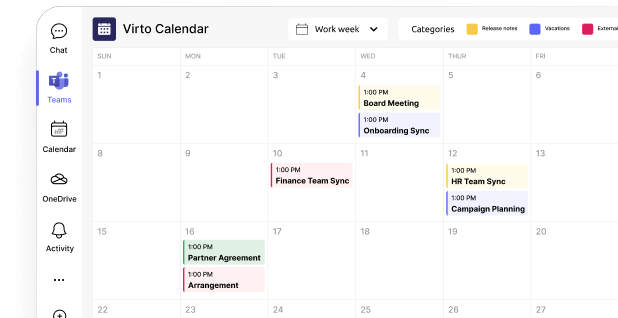
If you run SharePoint on-premises, you can push more of the day-to-day provisioning and profile upkeep out of the AD console and into a familiar portal. Virto’s on-prem web parts add a clean UI on top of your existing processes so HR or delegated admins can request, create, and maintain accounts without touching MMC snap-ins or remote servers.
Virto Active Directory Create & Copy User
What the VirtoSoftware apps add
These on-prem SharePoint web parts layer a clean UI over your existing AD process so non-technical staff can help safely. Here’s what each one does and where it fits.
- Virto Active Directory Create & Copy User: A SharePoint web part that lets you create new AD users from a form or clone an existing user to copy the right fields and memberships—ideal for fast, consistent onboarding. It’s built specifically for SharePoint on-prem and supports SharePoint 2013, 2016, 2019, and Subscription Edition (SE), with current builds listed per version. It also works on classic and modern pages.
- Virto Active Directory User Profile Sync: A SharePoint web part for keeping employee details in sync between AD and SharePoint profiles. It enables self-service updates (where appropriate), admin updates, and scheduled synchronization so people data stays current across sites and search. Like Create & Copy, it’s available for SharePoint 2013/2016/2019/SE.
The two components are designed to work together—Create & Copy handles new accounts, while User Profile Sync keeps SharePoint profiles accurate over time. The documentation explicitly calls out this integration.
Virto Active Directory User Profile Sync
Why they help in an on-premises environment
In on-prem environments, SharePoint is often the front door for HR and managers. By surfacing AD actions in that portal, Virto removes MMC/RDP hops, standardizes data entry, and turns routine provisioning into a guided, auditable task.
- User-friendly interface for HR and admins: Request forms and cloning reduce clicks and prevent data entry mistakes compared with manual creation in ADUC.
- Data stays up to date: Automated sync ensures titles, departments, and other attributes are reflected in SharePoint profiles without manual edits.
- Less manual work, faster onboarding: Cloning reuses a “known-good” template user; scheduled sync removes repetitive profile maintenance.
- Built for SharePoint Server: Both web parts publish installers for 2013, 2016, 2019, and SE and note compatibility with classic and modern experiences, which aligns with current SharePoint Server support.
Where each fits in your automation flow
Think of these components as bookends for your joiner flow—one handles creation, the other keeps profiles current. Here’s how they slot into a typical request-to-ready process.
- Intake (request or HR export) in SharePoint.
- Create the account with Create & Copy User, using cloning for role-consistent attributes and group membership.
- Post-creation: run your PowerShell or runbook to add any system-specific entitlements (mailbox, home folder), if needed.
- Profile currency handled by User Profile Sync on a schedule so SharePoint’s people cards, search, and audiences reflect AD updates.
Quick deployment notes
Before rollout, cover the basics—confirm compatibility, plan configuration, and decide who can use the web parts. Then work through these essentials.
- Version-matched installers are provided per SharePoint release (2013/2016/2019/SE), with straightforward setup and offline activation options in the docs.
- Configuration includes AD connection settings, allowed creator groups, and user cloning settings; Profile Sync docs cover field management, security, and scheduling.
For SharePoint on-premises, Virto Active Directory Create & Copy User and Virto Active Directory User Profile Sync provide a practical, UI-driven layer for account creation and profile upkeep. They shorten onboarding, keep profile data accurate, and let you operate inside your secure on-prem boundary—exactly what many regulated or data-sensitive environments require.
Conclusion
Automating user creation in Active Directory cuts repetitive work for administrators, speeds up onboarding, and reduces avoidable errors. Whether you handle five hires a month or hundreds, turning manual steps into a repeatable workflow pays off immediately.
There isn’t one right approach for every team. You can script with PowerShell, adopt ready-made tools with forms and approvals, or plug automation into a hybrid model that synchronizes on-premises AD with cloud services.
Choose the method that fits your environment:
- Scripts suit smaller teams and bespoke rules where you want full control in code.
- Specialized tools make sense when you need approvals, dashboards, connectors, and audit trails with less engineering effort.
- Hybrid integrations are essential when on-premises AD remains the source of truth and cloud apps must be licensed and accessible right away.
For companies running SharePoint On-Premises, VirtoSoftware’s solutions are often the most practical path. They let you automate creation and keep profiles current from a familiar portal—without giving up data control or security.
If you’d like to see these apps in action, schedule a demo or install a free trial from our website. And if you’re digging deeper, these resources are a good next stop:
Official Microsoft resources:
- New-ADUser (ActiveDirectory) | Microsoft Learn
- Get-ADUser (ActiveDirectory) | Microsoft Learn
- Install and Manage Remote Server Administration Tools in Windows | Microsoft Learn
- about_CommonParameters – PowerShell | Microsoft Learn
- about_Try_Catch_Finally – PowerShell | Microsoft Learn
- What is Microsoft Entra Connect and Connect Health. – Microsoft Entra ID | Microsoft Learn
- https://learn.microsoft.com/en-us/entra/identity/hybrid/cloud-sync/what-is-cloud-sync
- Microsoft Entra licensing
- Manage rules for dynamic membership groups in Microsoft Entra ID
- What is automated app user provisioning in Microsoft Entra ID
- Microsoft Identity Manager documentation
- Official Microsoft Power Automate documentation
- On-premises data gateway – Power Automate | Microsoft Learn
- Learn to manage on-premises data gateways – Power Automate
- Official Microsoft Power Apps documentation
- User Profile service overview – SharePoint Server | Microsoft Learn
Relevant pages on the VirtoSoftware blog: