How to Do a Poll in Teams: Setup, Results & Best Practices
This comprehensive guide explores everything you need to know about Teams polling—from basic setup to advanced strategies—and introduces powerful alternatives that overcome these constraints.

Microsoft Teams has become a go-to platform for collaboration and communication, and polls are one of its most effective tools for driving engagement and collecting feedback. Whether you’re looking to quickly gauge opinions during a meeting, gather input from team members in a chat, or organize votes in a channel, polls provide a simple yet powerful way to interact with your audience.
However, creating and managing polls in Teams isn’t always straightforward. Many users struggle with questions like: how do you launch a poll? Can it be prepared in advance? How do you share it effectively? What limitations should you be aware of? These challenges often leave users searching for clearer guidance and more efficient solutions.
This article is here to help. We’ll provide a step-by-step guide on how to create polls in Teams, explore the available methods and tools, and showcase different use cases for polls. Additionally, we’ll introduce you to a convenient and enhanced solution—Virto Polls for Teams—designed to make creating and managing polls easier and more effective. Whether you’re a beginner or looking to optimize your workflow, this guide has everything you need to get started.
What Are Polls in Microsoft Teams and Why Are They Needed
Polls in Microsoft Teams are a versatile communication tool designed to facilitate efficient information gathering and boost team engagement in various contexts. By understanding their functionality and applications, you can significantly enhance collaboration and decision-making within your team.
Understanding Teams polls: Can you do a poll in Teams?
Polls in Microsoft Teams are interactive tools that allow you to quickly collect opinions, conduct votes, or gather feedback from team members, chat participants, or meeting attendees. They help transform static, one-way communication into dynamic, interactive conversations by providing instant feedback mechanisms that engage all participants.
Polls can be created using Microsoft’s built-in Forms app, which integrates seamlessly with Teams, or through third-party solutions. These tools ensure that polls remain part of your workflow, eliminating the need to switch between platforms or use external software.
When to use Teams polls
The flexibility of Teams polls makes them useful in a variety of scenarios:
- Before meetings: Create polls to set agendas, determine optimal meeting times, or gather input on discussion topics.
- During meetings: Use real-time polls to engage attendees, check comprehension, or facilitate quick decision-making.
- After events: Distribute follow-up polls to collect feedback, measure satisfaction, or plan next steps effectively.
Poll features and options
Microsoft Teams polls can be customized to suit a wide range of needs, with options such as:
- Single-question polls or multi-question surveys
- Single-choice or multiple-choice response formats
- Advanced features (depending on the polling tool) like:
- Rating scales
- Open-ended text fields
- Quiz functionality with correct answers for assessments
These features make Teams polls adaptable to various use cases, from simple feedback collection to more detailed surveys or quizzes.
Practical applications for Teams polls
- Comprehension checks: Verify if participants have understood key points, identify areas needing clarification, or determine whether topics require additional explanation.
- Idea collection: Use polls to gather input for brainstorming sessions, such as suggestions for process improvements, tool selections, or preferred work formats.
- Satisfaction measurement: Assess engagement levels, gauge team mood, or measure perceptions of events and initiatives with targeted polling questions.
- Collaborative decision-making: Streamline group decisions by voting on event formats, task prioritization, or project directions, ensuring that everyone’s input is considered.
👉 Can you create a poll in Microsoft Teams? Yes, Microsoft Teams provides built-in polling functionality through its Microsoft Forms integration. With this feature, you can create and distribute polls directly within Teams during meetings, in channels, or through chats—without the need for additional software installations. Additionally, third-party tools are available to enhance the polling experience with advanced features and greater flexibility.
Recent Updates to Microsoft Teams Polls: What’s Changed and What’s Stable
Microsoft Teams has become an essential collaboration platform for organizations worldwide, with its polling functionality serving as a vital tool for gathering feedback and making collective decisions. Let’s explore the latest developments in Teams polling capabilities and what they mean for users in 2025.
Evolution of Teams polling features
The most significant changes to Microsoft Teams polls were implemented in 2022, marking a substantial improvement to the polling experience. Since then, Microsoft appears to have maintained stability in this feature set, with no major polling-specific updates announced in 2025.
The 2022 transformation
The introduction of the dedicated Polls app in 2022 represented a pivotal shift in how Teams approaches polling functionality. This standalone app, still powered by Microsoft Forms, replaced the previous Forms integration with several notable enhancements:
- Improved discoverability: The Teams-branded Polls app icon made the functionality significantly more visible and accessible within the interface
- Enhanced user experience: Users gained the ability to reposition suggested polls for better visibility and view poll results directly within the app
- Efficiency features: The addition of “Recently Created Polls” allowed users to reuse existing polls, eliminating redundant work for recurring meetings
- Expanded question types: A new “Rating” question type featuring a five-star scale was introduced, complete with aggregate scoring for easier feedback interpretation
These improvements addressed key user pain points, particularly around the “out of sight, out of mind” issue that had previously limited poll adoption among Teams users.
Current state in 2025
As of April 2025, Microsoft Teams polling functionality appears to be in a period of stability. The latest Microsoft Teams Blog posts for January and February 2025 focus on other collaboration features and AI integrations, with no mention of poll-related updates.
This stability suggests that Microsoft may consider the polling feature sufficiently mature for current needs. The company’s development resources appear to be directed toward other areas like chat enhancements, Copilot integration, and device compatibility improvements.
What this means for Teams users
For organizations using Microsoft Teams, the current polling capabilities provide a solid foundation for gathering feedback during meetings and within channels. The Polls app continues to support:
- Creating polls before or during meetings
- Multiple-choice questions with up to 12 options
- Setting due dates and restricting results visibility
- Downloading poll data for further analysis
- Cross-platform availability on desktop, web, and mobile endpoints
Teams Free users also maintain access to polling functionality in group chats and community chats, with features like multiple-answer toggles and real-time response summaries.
Looking ahead: The future of Teams polls
While no imminent updates have been announced, Microsoft’s pattern of feature development suggests that future enhancements to polling may depend on:
- User feedback and feature requests
- Integration with Microsoft’s expanding AI capabilities
- Competition from third-party solutions like Polly.ai that offer more advanced polling features
Organizations requiring more sophisticated survey capabilities than what native Teams polls currently offer might consider exploring these third-party integrations, which can provide additional functionality like trend analysis and advanced data visualization.
For most users, however, the current Polls app represents a stable, mature solution that effectively meets the need for quick feedback collection and decision-making within the Teams environment.
Creating a Poll in Teams: How to Create a Poll in Teams and Display Results
As discussed, creating polls in Microsoft Teams is an effective way to engage participants and collect valuable feedback. Whether you’re planning ahead or seeking on-the-spot input during a meeting, Teams offers flexible polling options tailored to your requirements. This guide will walk you through the steps to create, manage, and analyze polls in Microsoft Teams.
How to create a poll in Teams using Microsoft Forms
Microsoft Forms is seamlessly integrated into Teams, making it easy to create polls in chats, channels, or meetings. Follow these steps to create a poll:
- Open the target location: Navigate to the desired chat, channel, or meeting in Microsoft Teams where you want to conduct your poll.
- Add the polling functionality:
- For channels: Click the “+” icon at the top to add a new tab.
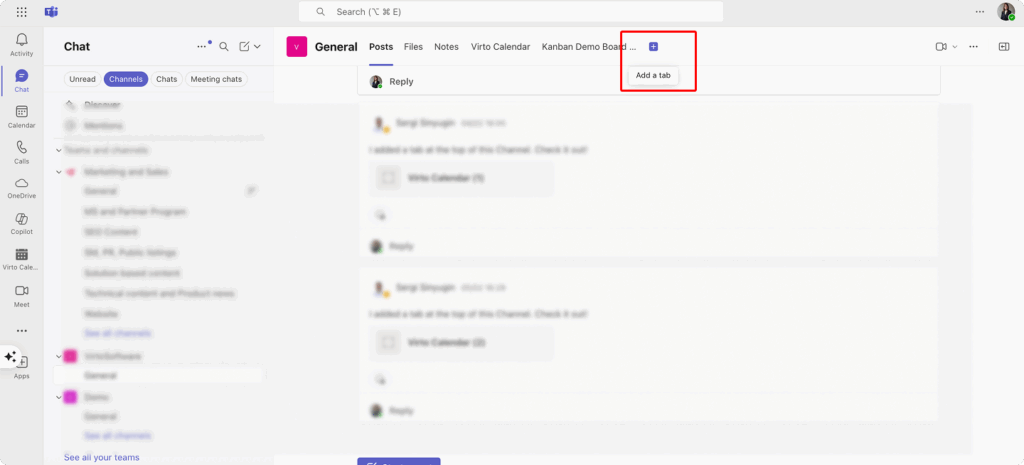
- For meetings: Click the “Forms” button in the meeting interface.
- Select forms: From the app list, choose Forms to activate polling functionality.

- Create your poll:
- Enter your question in the text field.
- Add answer options, choosing either single-choice (radio buttons) or multiple-choice (checkboxes), depending on your needs.

- Configure poll settings:
- Navigate to poll settings and choose who can fill the form
- Add additional options for responses (like start and end dates, shuffle questions, etc.)
- Select response receipts options like email notifications after each response, etc.
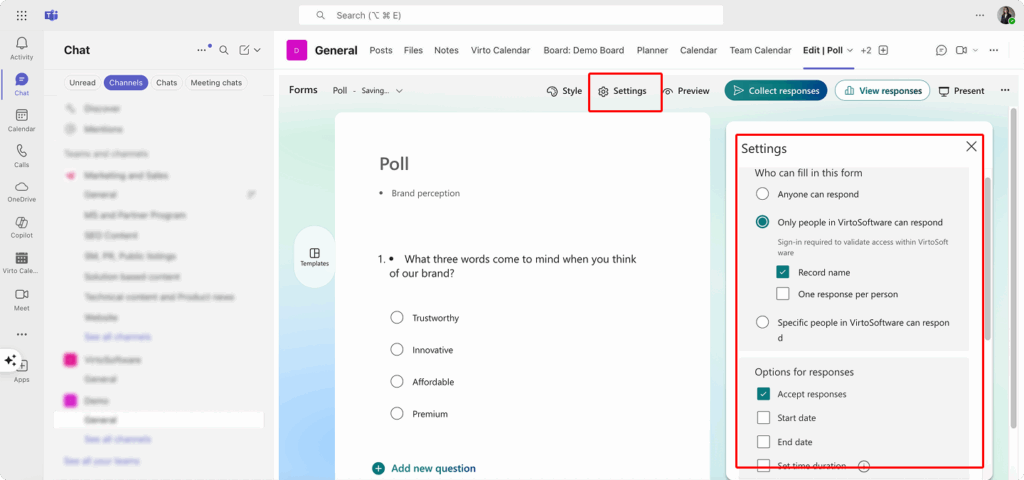
- Publish and monitor your poll:
- Click Submit or Save to share your poll in the channel, chat, or meeting.
- Monitor responses in real-time as participants engage with the poll.
- Access detailed results either in Teams or by opening the poll in Microsoft Forms.
- Export results (optional): Download response data to Excel for further analysis if needed.
💡 Quick tip: To create a quick poll in Microsoft Teams, open the target location, click “+” or Forms, enter your question and answer options, adjust the poll settings, and click Submit to share it. Results update in real-time as participants respond.
How to create poll in Teams during a meeting
Polling during live meetings is an excellent way to boost engagement and gather instant feedback. Here’s how to create polls while your meeting is in progress:
- Access polling tools: During the meeting, click the Apps button in the meeting control bar.
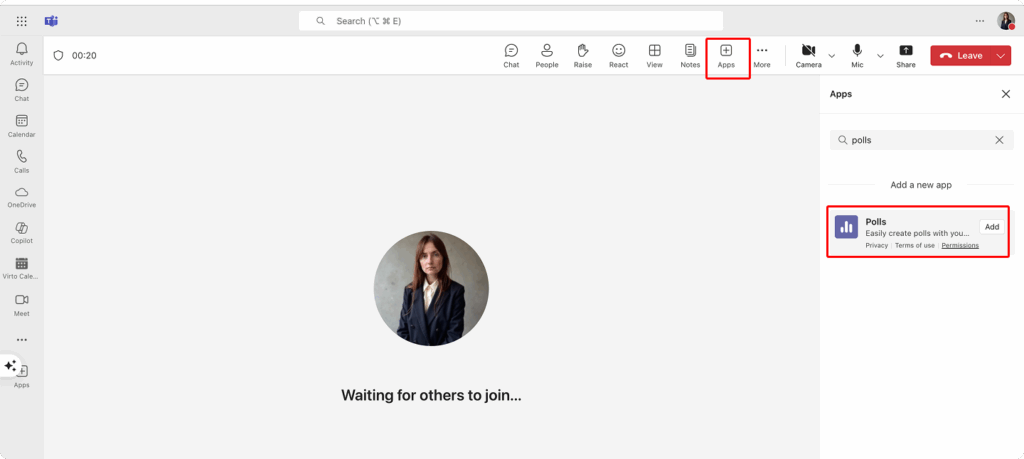
- Select polls: Choose the Polls icon from the apps panel to open the polling interface.
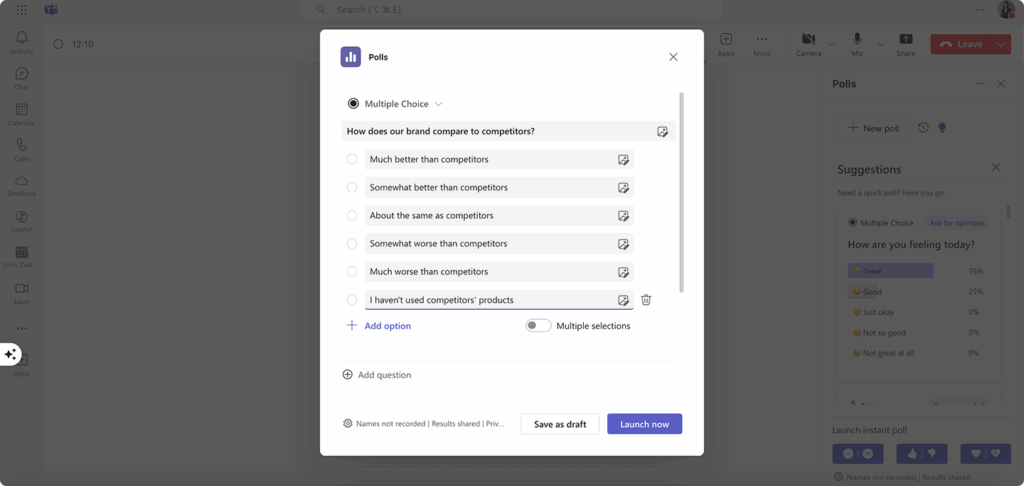
- Create a new poll:
- Click New poll to set up your question.

- Choose the format of your poll (multiple choice, quiz, rating, etc.)
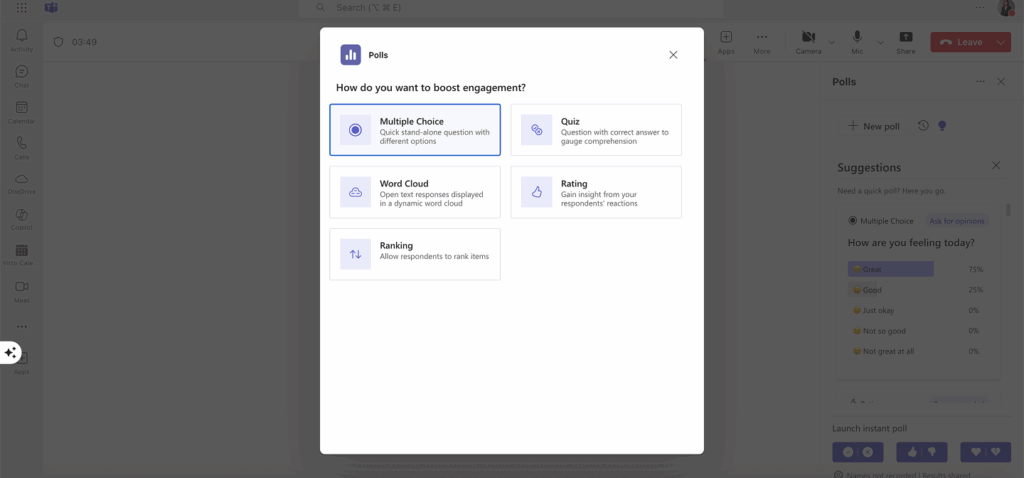
- Enter your question text and add answer options.
- Launch the poll:
- Click Launch to make the poll visible to all meeting participants.
- The poll will appear in the meeting chat or on the right side of participants’ screens.
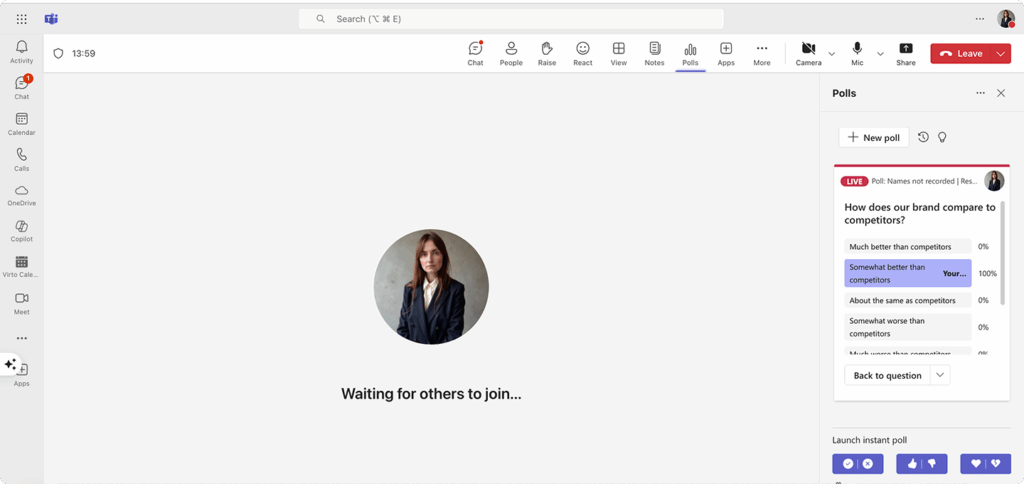
- Monitor responses in real-time: Watch as participants respond, with results updating automatically in real-time.
- Close the poll and share results: Once enough responses are collected, end the poll and share the results with participants to facilitate further discussion.
👉 What’s the difference between “how to set up a poll in Teams” and “how to create a poll in Microsoft Teams“? There is no significant difference between “how to set up a poll in Teams” and “how to create a poll in Microsoft Teams,” as both phrases refer to the same process of making and sharing a poll within Microsoft Teams—the process we extensively document throughout this article.
Can I set up Teams polls in advance?: Planning polls in advance
If you’re asking, “Can you prepare Polls in advance in Teams,” then yes, you can. For structured meetings, you can save time by creating polls beforehand:
- Open the scheduled meeting: Navigate to your scheduled meeting in the Teams calendar.
- Add the polls tab: Click the “+” icon at the top of the meeting tab, then select Polls from the app options.
- Prepare your polls:
- Click New poll and follow the standard poll creation process.
- Save your polls as drafts.
- Launch during the meeting: When ready, click Launch on any pre-created poll during the meeting.
👉 Can you prepare polls in advance in Teams? Yes, you can prepare polls in advance by creating them as drafts in the Polls tab of a scheduled meeting. During the meeting, simply launch the polls with a single click, ensuring smooth delivery and efficient time management.
Visibility of poll results
Microsoft Teams provides flexible options for controlling how poll results are displayed, allowing you to balance transparency and privacy.
Result display options:
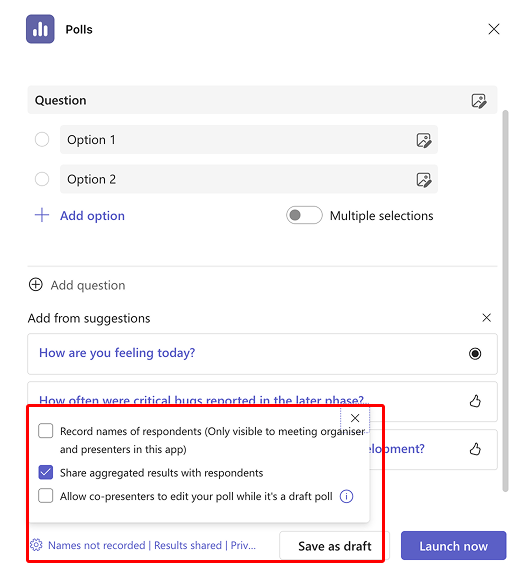
- Anonymous polling: Collect responses without revealing participants’ identities.
- Named responses: Display who selected each answer option.
- Visibility settings: Choose whether results are visible to all participants or only to you.
Customizing results display:
- In Microsoft Forms: Use the “Response settings” toggle to control whether participants can see aggregate results.
- In MS Teams Polls: Select the “Share results with attendees” option during poll setup.
- Third-party apps may offer additional customization, such as advanced visualizations.
Best practices for result visibility
Choose the appropriate results display setting based on your polling purpose:
- Transparent results work best for:
- Team decision-making processes
- Voting on meeting agenda items
- Brainstorming sessions
- Quick temperature checks
- Hidden or limited results are ideal for:
- Sensitive feedback collection
- Leadership assessments
- Engagement surveys
- Performance evaluations
- Situations where participants might be biased by others’ responses
By thoughtfully configuring poll visibility settings, you can ensure honest feedback and foster a more productive and respectful environment.
Recurring Polls in Teams: Streamlining Regular Feedback Collection
Collecting consistent feedback over time is crucial for fostering team engagement and driving continuous improvement. While Microsoft Teams offers robust polling capabilities, managing recurring polls requires careful planning to ensure consistency and effectiveness. This section discusses the importance of recurring polls, practical use cases, and strategies for implementing them effectively within Teams.
Why recurring polls matter
Recurring polls provide valuable longitudinal data, enabling teams to track trends, monitor progress, and make informed decisions. By establishing a regular polling cadence, organizations can:
- Build data-driven insights over time
- Monitor progress toward team and organizational goals
- Identify emerging challenges before they escalate
- Foster a culture of continuous feedback
- Establish benchmarks for comparison
- Normalize feedback as part of routine team operations
Effective use cases for recurring polls
When leveraged effectively, recurring polls can transform routine feedback into actionable intelligence. Let’s explore some of the most impactful ways teams can implement regular polling cycles to improve collaboration, measure progress, and enhance decision-making processes.
- Regular feedback check-ins: Weekly or bi-weekly polls can help teams monitor key metrics like morale, workload distribution, or stress levels. These regular check-ins allow managers to proactively address potential burnout or disengagement before they affect productivity.
- Assessing progress: In Agile or Scrum workflows, recurring polls at the end of sprints can assess confidence in meeting sprint goals, identify blockers, and evaluate how well team collaboration is progressing.
- Retrospectives and planning: Structured polls asking questions like “What went well?”, “What could be improved?”, and “What actions should we take next?” are invaluable for retrospectives. When conducted consistently, these polls help teams refine processes and facilitate continuous learning.
- Team decision-making: Recurring polls can simplify routine decisions, such as selecting topics for upcoming demos, determining preferred meeting times, or gathering input on team priorities. This democratizes decision-making and ensures all voices are heard.
Managing recurring polls in Teams: Challenges and solutions
While Microsoft Teams’ native polling functionality is user-friendly, it lacks built-in tools specifically designed for recurring polls. For example, polls created during meetings or in channels are preserved in the message feed, but there’s no direct option to copy or rerun them. Below are solutions to address these limitations:
- Manual recreation approach: The simplest method involves manually recreating polls:
- Locate a previously used poll in your chat or channel history.
- Copy the text and parameters from the original poll.
- Create a new poll with identical questions and options at the appropriate time.
While straightforward, this method is time-consuming and prone to inconsistencies, especially for recurring polls.
- Templates with reminders: A more structured approach involves creating reusable templates:
- Develop a library of poll templates in tools like OneNote, Teams Wiki, or a shared document.
- Set up calendar reminders to deploy specific polls at regular intervals.
- Copy from the templates to ensure consistency in wording and options.
- Maintain a central repository of templates organized by purpose or goal.
This method improves consistency but still requires manual intervention.
- Power Automate integration: For advanced users, Microsoft Power Automate can streamline recurring polls with automation:
- Create flows to send reminders for deploying polls at scheduled intervals.
- Automatically distribute links to pre-created Microsoft Forms polls in designated Teams chats or channels.
- Generate poll cards directly within Teams for easy access.
- Collect and organize poll data in SharePoint or Excel for trend analysis.
While this approach reduces manual effort, it requires initial setup and familiarity with Power Automate.
- Third-party solutions: Specialized third-party apps provide the most comprehensive solution for recurring polls. For instance, Virto Polls for Teams: Offers advanced features tailored for recurring polls, including:
- Automatic poll scheduling for regular deployment.
- Template libraries for consistent poll creation.
- Cross-poll result tracking for trend analysis over time.
- Dynamic content updates for refreshing poll questions or options.
These tools eliminate manual effort and enhance the native MS Teams polling experience. However, they may involve additional licensing costs.
Best practices for recurring polls
To maximize the effectiveness of recurring polls, follow these best practices:
- Maintain consistency: Use the same question wording to ensure valid comparisons over time.
- Keep polls concise: Shorter polls encourage higher response rates.
- Schedule predictably: Deploy polls at regular, predictable intervals to normalize participation.
- Share results and actions: Demonstrate the value of participation by sharing results and any actions taken based on feedback.
- Review and refine: Periodically evaluate your polling strategy to improve participation rates and the quality of feedback.
Getting regular feedback doesn’t have to be complicated despite Teams’ basic polling options. Try these workarounds, and you’ll notice your team opens up more. When people see their input actually matters, they contribute more freely. Plus, nothing builds trust faster than showing people their opinions actually change things.
Technical Limitations and Issues with Polls in Microsoft Teams
Users should be aware of certain technical constraints and common issues that may impact their experience with polls in Teams. Understanding these limitations and troubleshooting techniques can help you plan more effective polls and resolve problems as they arise.
Technical limitations
While useful for basic feedback collection, Microsoft Teams polls have several limitations that may affect their implementation and functionality.
Question and answer constraints:
- Limited answer options: Each poll supports a maximum of six answer options per question. This limitation can be restrictive for polls requiring a broader range of choices, such as selecting event locations, topics, or categories for feedback.
- Single question format: Teams polls are limited to one question per poll. Unlike survey tools, multi-question surveys or questionnaires cannot be created within a single poll. For complex data collection, users must create multiple individual polls or use Microsoft Forms.
- Restricted question types: Teams polls only support multiple-choice questions. Fill-in-the-blank responses, rating scales, and “other” answer fields for custom inputs are not available.
Meeting and environment constraints
- Scheduled meetings only: Polls are available only in scheduled meetings. They cannot be used in impromptu channel meetings, limiting their flexibility for spontaneous feedback collection.
- Limited anonymity controls: While polls can be set to anonymous, privacy controls lack granularity. For example, there is no option for partially anonymous responses or detailed visibility settings often found in advanced polling tools.
- Environment-specific restrictions: In specialized environments like GCC High and DoD, certain poll features may be unavailable due to compliance restrictions. Users in these environments should refer to Microsoft documentation for updates.
Results management challenges
- Individual export requirement: Poll results must be exported individually as Excel files, one poll at a time. This can be time-consuming for meetings with multiple polls, making comprehensive analysis more labor-intensive.
- Vote change limitations: Participants can change their votes via the meeting chat card while the poll is open, but not through the poll pop-up. This can lead to confusion about final results if the poll is not closed promptly.
- Cross-platform inconsistencies: MS Teams polls may behave differently across desktop, web, and mobile versions. Some features might be limited or displayed inconsistently on mobile devices, which can affect the participant experience.
👉 How to add a poll in Teams? To add a poll in Microsoft Teams, open the channel or chat where you want the poll and click on the “Messaging Extensions” (could be a plus sign or three dots) below the message box. Select “Forms” or “Polls” from the list of apps, depending on availability. Enter your question, provide the response options, and choose any settings like allowing multiple answers. Once ready, click “Send” to post the poll for participants to vote. The results will update in real-time as users submit their responses.
Troubleshooting issues when creating polls in Microsoft Teams
Even within the technical limitations, users may encounter operational issues when creating and distributing polls in Teams. Below are common problems and solutions to address them effectively.
- Interface and visibility issues
Problem: The Poll or Forms button doesn’t appear in the Teams interface.
Solutions:
- Verify that the Forms app is installed in your Teams environment.
- Add the Forms app manually from the Teams app store if it’s missing.
- Check if you’re using the latest version of Teams.
- Look under “Messaging Extensions” or “More apps” if the Forms option isn’t visible in the main toolbar.
- Permission and access constraints
Problem: Access rights restrictions prevent poll creation.
Solutions:
- Confirm you have the necessary permissions in the channel or meeting.
- Request the channel owner or admin to grant the required permissions.
- Ensure your organization hasn’t restricted Forms functionality.
- Verify whether you’re a guest user, as guests typically have limited poll capabilities.
- Distribution and collection issues
Problem: The poll doesn’t appear in message threads or only partially displays.
Solutions:
- Refresh the chat or channel window.
- Reopen the meeting interface.
- Check your internet connection for stability.
- Recreate the poll if the issue persists.
Problem: Responses aren’t collected or displayed correctly.
Solutions:
- Ensure poll settings allow for result visibility.
- Check participants’ internet connections for stability.
- Verify that all participants are using the latest version of Teams.
- Clear the Teams cache and restart the application.
Advanced troubleshooting steps
For persistent issues, these additional steps may help:
- Update the Teams application:
- Ensure you’re running the latest version of Microsoft Teams.
- Check for updates in your device’s app store or download center.
- Try accessing Teams via the web version (Microsoft Edge or Chrome) as an alternative.
- Clear the Teams cache:
- Close the Teams application completely.
- Navigate to the Teams cache folder on your device (varies by OS).
- Delete cache files and restart Teams.
- Check administrative settings:
- Contact your IT administrator to confirm that Microsoft Forms or the Polls app is enabled for your organization.
- Verify that no policy restrictions are affecting poll functionality.
- Use the Microsoft 365 Admin Center to check for app restrictions.
- Consider third-party solutions:
- If standard polling functionality remains insufficient, explore third-party apps like Virto Polls for Teams.
- These solutions often provide enhanced features, better stability, and more customization options.
- Evaluate third-party tools based on your organization’s specific polling needs and compliance requirements.
👉How to send a poll in Teams? To send a poll in Microsoft Teams, go to the chat or channel where you want to create it. Click on the “Messaging Extensions” (three dots) below the message box and select “Forms” or “Polls.” Enter your poll question, add response options, and adjust settings like allowing multiple answers if needed. Once you’ve set it up, click “Send” to share the poll with the group. Participants can vote, and results will update live for everyone to see.
Best Practices for Creating Polls in Teams
Creating effective polls in Microsoft Teams involves more than just technical know-how—it requires thoughtful design and strategic implementation. The following best practices will help you maximize engagement, gather meaningful feedback, and ensure your polls deliver valuable insights regardless of their purpose.
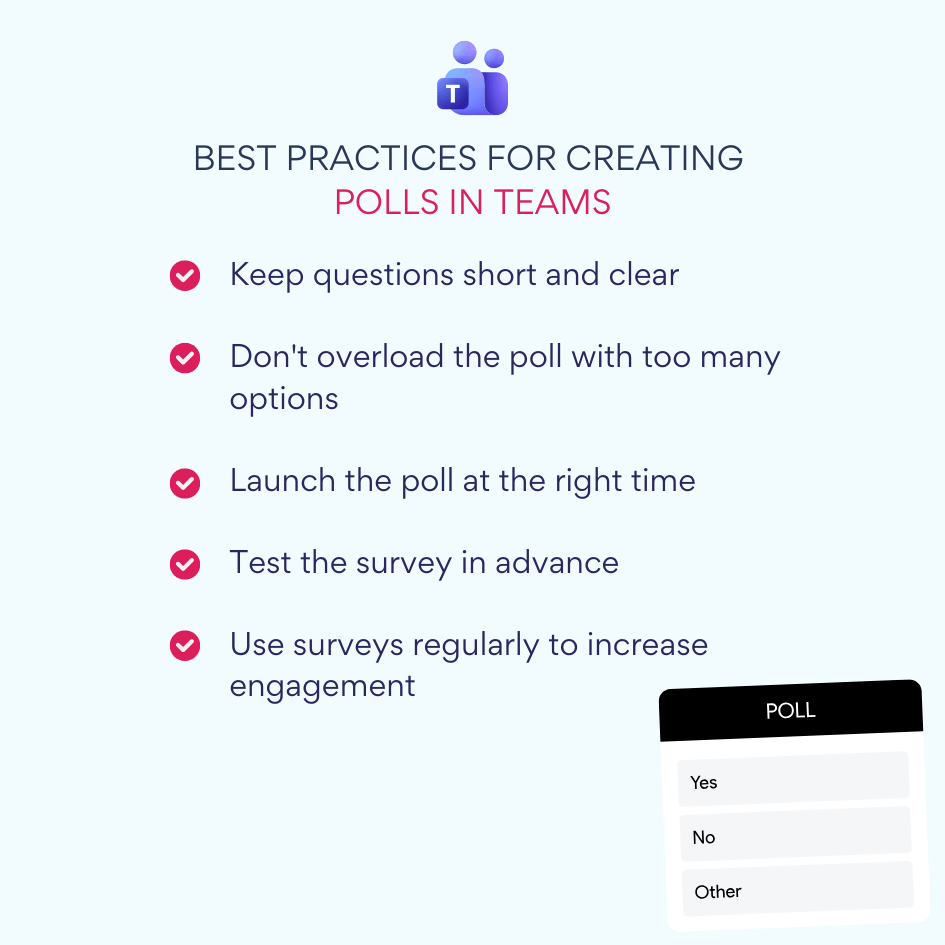
Keep questions short and clear
The quality of responses directly correlates to how well your questions are crafted:
- Eliminate ambiguity with straightforward wording that leaves no room for interpretation. Instead of “Do you think the new process works?” try “How satisfied are you with the new document approval process?”
- Avoid double-barreled questions that ask multiple things at once. For example, instead of asking “How do you rate the workflow and communication on your team?” create separate polls for each aspect: one for workflow assessment and another for communication effectiveness.
- Be specific about context when necessary. If your question relates to dates, tasks, or events, provide the essential details. For instance, rather than asking “Can you attend the event?” specify “Can you attend the product launch meeting on May 15th at 3:00 PM ET?”
- Use plain language and avoid jargon, acronyms, or technical terms that might confuse some participants, especially in cross-departmental polls.
Don’t overload the poll with too many options
Simplicity in answer options leads to higher completion rates and more reliable data:
- Aim for 2-5 options whenever possible. This range typically provides enough choices without overwhelming respondents. Binary choices (Yes/No) work well for straightforward decisions, while 3-5 options allow for nuanced feedback without creating decision fatigue.
- Ensure options are mutually exclusive and don’t overlap. Each option should represent a distinct choice to avoid confusion and split responses. For example, avoid ranges like “1-3 years” and “3-5 years” where the “3” appears in both options.
- Consider pre-filtering for scenarios requiring many options. If you need feedback on numerous possibilities, consider using a preliminary poll to narrow down choices before conducting a final vote on the top contenders.
- Include an “Other” option only when absolutely necessary, recognizing that this isn’t directly supported in Teams polls and would require manual tracking of responses in the meeting chat.
Launch the poll at the right time
Timing significantly impacts participation rates and the quality of responses:
- Schedule polls when participants are most available and engaged. The beginning of meetings often works well, as does mid-morning on weekdays when people are typically most productive.
- Avoid end-of-day or evening polling when fatigue may affect thoughtfulness of responses. Similarly, weekend or holiday polls typically see lower engagement unless they relate directly to those time periods.
- For scheduled events like town halls or retrospectives, create polls in advance and communicate their purpose beforehand. This preparation gives participants time to consider their responses and increases meaningful participation.
- Allow sufficient response time based on the complexity of the question. Simple polls might need only a minute or two during a meeting, while more thoughtful questions might benefit from staying open for several hours or even a day.
Test the survey in advance
Preventing technical issues ensures a smooth polling experience:
- Preview how the poll will appear to participants by checking formatting, especially with longer question text or answer options that might get truncated in different views.
- Verify that all settings are configured correctly, particularly anonymity options and whether results will be shared with all participants.
- If using third-party polling apps like Virto Polls for Teams, test the integration across devices. What looks good on desktop might render differently on mobile, potentially affecting how users interact with your poll.
- Run a test poll with a small group before deploying to a larger audience, especially for high-stakes decisions or all-company surveys. This practice helps identify any unforeseen issues with wording or technical functionality.
Use surveys regularly to increase engagement
Consistent polling builds a feedback culture and improves participation over time:
- Incorporate short polls into your regular team rhythms, such as starting team meetings with quick check-in questions or ending projects with feedback collection.
- Use icebreaker polls to energize meetings and create engagement before diving into substantive discussions. Questions like “What’s one word to describe your week so far?” or “Which upcoming feature are you most excited about?” can set a positive tone.
- Follow up on poll results by sharing key findings and actions taken. When team members see that their input leads to meaningful changes, they’re more likely to participate in future polls.
- Vary your poll types and questions to maintain interest and prevent survey fatigue. Mix practical decision-making polls with occasional lighter topics to keep engagement high.
Craft your polls right and people will actually answer them. You’ll get useful feedback instead of vague responses, and your team will see that speaking up leads to real changes. Before long, surveys won’t feel like busywork—they’ll become a natural part of how your team solves problems together.
How Virto Polls for Teams Helps Conduct Surveys Faster and More Conveniently
While Microsoft Teams offers basic polling capabilities, organizations that regularly gather feedback often need more robust features. Virto Polls for Teams extends Teams’ native polling functionality with advanced options that streamline the entire polling process—from creation to analysis—all without leaving the Teams environment.

Comprehensive polling throughout the meeting lifecycle
Virto Polls for Teams transforms how organizations collect feedback by supporting polls at every stage of team interaction:
Pre-meeting preparation
Virto allows you to create and configure polls well in advance of scheduled meetings. This preparation means:
- Surveys can be thoughtfully designed without time pressure
- Questions can be vetted by stakeholders before deployment
- Complex polls with multiple questions can be prepared systematically
- Polls appear immediately when needed, without disrupting meeting flow
Real-time meeting feedback
During live meetings, Virto Polls enables dynamic interaction through:
- One-click poll deployment to all participants
- Real-time response visualization as votes come in
- Interactive display of results that can be shared instantly
- Ability to create ad-hoc polls based on meeting discussions
Post-meeting follow-up
After meetings conclude, Virto extends the feedback collection process:
- Send follow-up polls to evaluate meeting effectiveness
- Collect additional input on decisions made during the meeting
- Gather suggestions for future agenda items
- Measure participant satisfaction and engagement
Key features that enhance the polling experience
Virto Polls for Teams offers several advantages over standard Teams polling functionality:
Streamlined poll creation
The application dramatically reduces the time needed to create effective polls:
- Intuitive drag-and-drop interface eliminates learning curves
- Pre-built templates for common poll types (feedback, decision-making, planning)
- Quick duplication of previous polls with easy modification
- Rich formatting options for clear, professional-looking questions
Advanced question types
Unlike basic Teams polls, Virto supports multiple question formats:
- Multiple choice with single or multiple selections
- Rating scales for satisfaction or agreement measurement
- Open text responses for qualitative feedback
- Ranking questions to prioritize options
- Knowledge-testing questions with correct answer indicators
Enhanced control and customization
Administrators and poll creators benefit from powerful management features:
- Timed polls that automatically open and close
- Customizable result visibility (public, private, or selective sharing)
- Branded polls that align with company visual identity
- Conditional logic that presents different questions based on previous answers
Seamless Teams integration
The application works entirely within the Microsoft Teams environment:
- No switching between applications during meetings
- Polls appear directly in chats, channels, and meeting interfaces
- Results are stored within Teams for easy reference
- User authentication leverages existing Teams credentials
Comprehensive analytics
Virto takes polling beyond simple response collection with robust analysis tools:
- Visual dashboards showing response trends
- Exportable reports for sharing with stakeholders
- Response comparisons across teams or time periods
- Participant engagement metrics to track involvement
Real-world applications
Virto Polls for Teams particularly excels in several common scenarios:
- Team retrospectives: Collect anonymous feedback about completed projects with multi-question surveys that dig deeper than single polls allow
- Training assessment: Create knowledge checks and quizzes with correct/incorrect answer functionality to verify understanding
- Decision making: Use ranked-choice voting to prioritize features, projects, or initiatives with detailed preference data
- Recurring feedback: Set up template-based polls that deploy automatically at regular intervals to track sentiment over time
- Large-scale events: Deploy polls to hundreds of participants simultaneously with real-time result aggregation for town halls or all-hands meetings
By bringing advanced polling capabilities directly into Microsoft Teams, Virto Polls eliminates the friction that often discourages regular feedback collection. Teams can gather more frequent, higher-quality insights without the disruption of switching between multiple applications or platforms, ultimately leading to better-informed decisions and more engaged participants.
Merge all calendars in one place
Try Virto Calendar to Sync all data
Conclusion on How to Make a Poll in Teams
Polling in Microsoft Teams has evolved from a simple feedback mechanism to an essential component of modern digital collaboration. Throughout this article, we’ve explored various aspects of Teams polling—from basic implementation to advanced strategies, limitations, and enhancements.
The built-in polling capabilities in Microsoft Teams provide convenient options for quick feedback collection during meetings and in channels. These native tools work well for straightforward decisions, simple feedback collection, and basic engagement activities. However, as we’ve discussed, they come with notable limitations in terms of question types, customization options, and management features.
When selecting the appropriate polling method for your team, consider your specific needs:
- For quick, in-the-moment decisions, the native Teams polls provide immediate results with minimal setup
- For recurring feedback collection, consider templates and scheduled polls using more robust solutions
- For complex surveys with multiple question types, specialized polling applications offer necessary functionality
- For data-driven decision making that requires comprehensive analytics, third-party solutions deliver superior insights
As we’ve explored, Virto Polls for Teams addresses many of the limitations of native Teams polling while maintaining the seamless in-Teams experience that makes polls effective in the first place. With its ability to prepare polls in advance, deploy them throughout the meeting lifecycle, and analyze results comprehensively, Virto Polls transforms basic feedback collection into a strategic asset for team development and decision-making.
Key advantages include:
- Advanced question formats beyond simple multiple choice
- Comprehensive templates for common polling scenarios
- Scheduling capabilities for recurring feedback collection
- Enhanced analytics for tracking trends over time
- Seamless integration that doesn’t disrupt the Teams workflow
If your team regularly relies on polls for decision-making, feedback collection, or engagement activities, we recommend:
- Evaluate your current polling practices to identify pain points and opportunities for improvement
- Schedule a quick demo call with Virto Polls for Teams to see how advanced polling capabilities can enhance your team collaboration
- Install a free trial version to experience the difference in your actual team environment without commitment
- Start small with a few strategic polls before expanding to more comprehensive feedback programs
For those looking to deepen their understanding of Teams polling capabilities, these official Microsoft resources provide valuable guidance: