SharePoint Backup: How to Protect Your Data
Relying solely on native SharePoint backup is risky. This article explains why, explores third-party SharePoint backup and restore tools, and shows how VirtoSoftware solutions preserve not just data, but the full logic of your team’s business processes.

Many users assume that data in Microsoft 365 and SharePoint is inherently safe and always available. It’s a comforting thought—but the truth is more nuanced. Built-in protection is limited and doesn’t replace a proper SharePoint backup strategy.
If you want to explore the principles of Microsoft SharePoint backup, check out our previous article here.
In this guide, we’ll cover everything you need to know about SharePoint backup solutions and SharePoint backup and restore processes. From SharePoint Online backup to SharePoint cloud backup, we’ll walk you through backing up SharePoint, including how to backup SharePoint Online, how to backup SharePoint site, and even how to backup SharePoint document library. You’ll also get a practical look at SharePoint backup tools and SharePoint backup software that make backup SharePoint Online simple and reliable.
Whether you’re an admin, business owner, or power user, understanding SharePoint backups and SharePoint Online backup and restore is essential to safeguarding your critical business data. By the end, you’ll know the best practices for backup SharePoint and how to choose the right SharePoint backup solution for your organization.
Start here if you are new to SharePoint:
- SharePoint Overview: Your Ultimate Guide to Collaboration and Document Management
- Sharepoint collaboration: How to Optimize Teamwork
- Building and Managing a SharePoint Extranet for Your Organization
- SharePoint Modern vs. Classic: Key Differences and Reasons to Migrate
SharePoint Backup – What It Is and How Built-In Mechanisms Work
Before diving into the details, it’s important to clarify what SharePoint backup really means and why it matters for anyone managing critical business data. While SharePoint Online backup and SharePoint cloud backup might sound like automatic features, relying solely on built-in tools can leave gaps in data protection. Understanding how to backup SharePoint Online, backup SharePoint sites, and implement effective SharePoint backup solutions is essential to ensure that your content—documents, libraries, lists, and entire sites—can be fully restored when needed.
In the following subsections, we’ll explore the core functions of native mechanisms, their limitations, and why supplementing them with dedicated SharePoint backup software or SharePoint backup tools is often necessary for complete peace of mind.
SharePoint backup and its core functions
SharePoint backup is more than just copying files. It’s the process of creating recoverable copies of all critical SharePoint data: documents, libraries, lists, sites, and workspaces. A proper backup ensures that data can be restored to its original state in case of loss or corruption.
Backing up SharePoint is essential to protect against a range of risks: accidental deletion, permission misconfigurations, hardware or server failures, cyberattacks, and malware such as ransomware.
👉Is there a backup for SharePoint? Yes and no. SharePoint comes with built-in protection features that let users and admins restore documents, lists, and sites after mistakes or accidental deletion. These tools are helpful but do not replace a full SharePoint Online backup or SharePoint cloud backup solution. They help minimize risk, but a comprehensive strategy is always recommended.
Key features of these native mechanisms include:
- Recycle Bin with multi-stage retention: Deleted items first go to the user’s Recycle Bin, then to the site collection’s secondary bin. Default retention is 93 days, allowing recovery even after permanent deletion.
- Version History: SharePoint automatically saves file versions, enabling rollback to previous states—critical for collaborative editing and accidental errors.
- Retention policies and archiving: Admins can enforce rules to prevent deletion of important data for a set period, supporting compliance requirements (GDPR, SOX). Archiving in SharePoint and Exchange allows centralized long-term data management.
- Site and site collection recovery: Admins can restore deleted sites or site collections from the Microsoft 365 admin center within a default 30-day window.
👉Do I need SharePoint backup? Absolutely. Built-in tools are not enough for long-term protection. Without additional SharePoint backup solutions, organizations risk losing data from account compromise, long-term deletion, or policy misconfigurations.
👉How often is SharePoint Online backed up? Microsoft maintains infrastructure-level backups every 12 hours, kept for 14 days. These are only for disaster recovery at the data center level. Users and admins cannot request these backups directly, relying instead on SharePoint backups via Recycle Bin, Version History, and retention policies.
Find out where the document library in SharePoint lives: How to Create and Manage a SharePoint Document Library
Limitations of built-In SharePoint backup
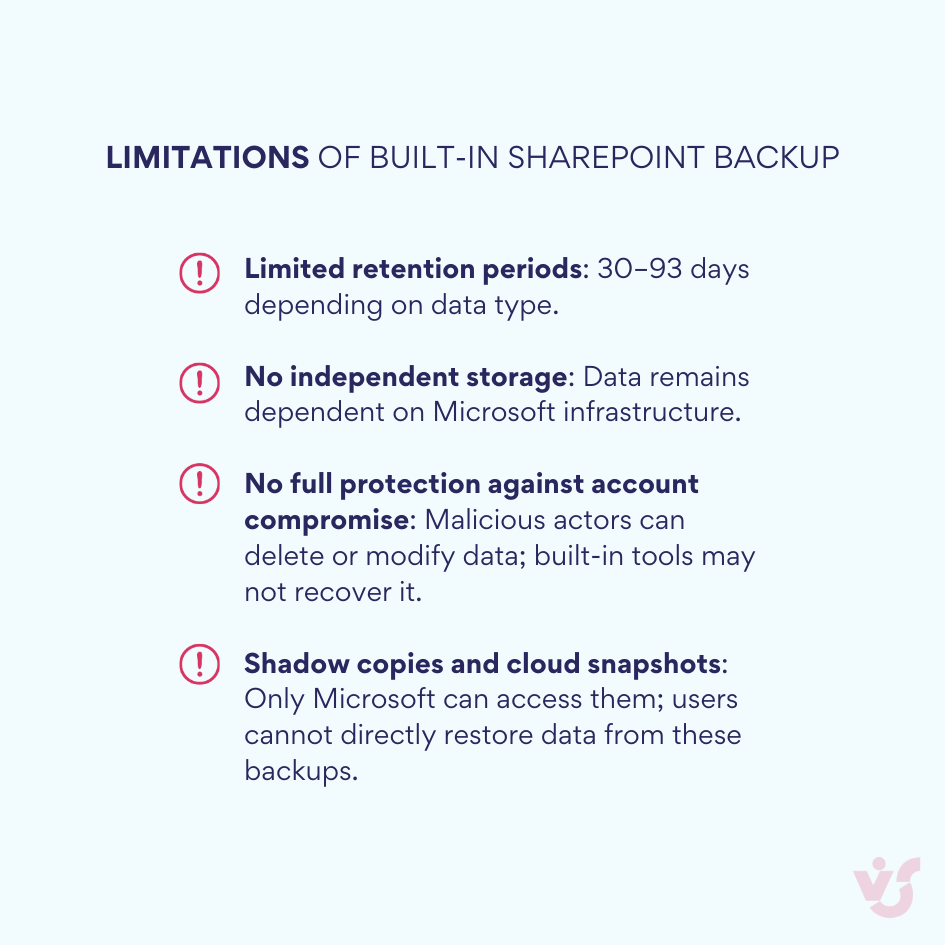
Real users often face the limitations of native SharePoint backup firsthand. As one Office 365 administrator shared: “Hi, we just migrated a lot of data… only to realise that deleted data is only retained for 93 days which is not great for cases where someone accidentally or maliciously deleted data and no one realises till it’s actually too late.” (reddit.com) This example highlights the risks of relying solely on built-in retention policies for SharePoint Online backup.
SharePoint Online vs SharePoint On-Premise backups
SharePoint Online and SharePoint On-Premise differ in backup approaches:

Overview and Comparison of Third-Party Solutions
The limitations of native SharePoint backup mechanisms, highlighted in the previous section, make it clear that relying solely on built-in tools leaves gaps. Human error, ransomware threats, and long-term retention needs mean that organizations often require more robust SharePoint backup solutions.
Key advantages of third-party SharePoint backup solutions
☑️Independent storage: Data can be stored in a separate cloud or on-premise infrastructure, ensuring resilience even if the main platform fails.
☑️Flexible retention policies: From weeks to years, third-party solutions allow businesses to meet compliance requirements and industry standards.
☑️Granular recovery: Restore individual documents, Teams chats, or specific file versions without rolling back an entire site.
☑️Compliance support: Many solutions help meet GDPR, HIPAA, SOX, FINRA, and other regulatory standards.
☑️Ransomware protection: Backups are kept in isolated environments, preventing attackers from encrypting critical data.
Types of third-party SharePoint backup solutions
- Cloud solutions: Tools like Veeam Backup for Microsoft 365, AvePoint Cloud Backup, and Datto SaaS Protection store data in independent data centers, offering fast search and recovery capabilities.
- On-premise solutions: Local backup systems leveraging SharePoint APIs give organizations full control over physical storage and infrastructure.
- Hybrid solutions: Combine cloud and on-premise storage for maximum reliability and redundancy.
Comparing built-in mechanisms and third-party solutions
While native SharePoint Online backup features (Recycle Bin, Version History, retention policies) provide basic protection, third-party solutions offer enhanced security, independent storage, and advanced recovery options. They fill the gaps left by built-in tools, particularly for organizations with stringent business continuity and compliance requirements.
Criteria for choosing the right SharePoint backup solution
When evaluating SharePoint backup tools, consider:
- Compliance with regulatory and industry standards.
- Flexibility in retention, archiving, and long-term backup policies.
- Independence from the main Microsoft 365 environment (separate cloud or on-premise storage).
- Ease of administration and seamless Microsoft 365 integration.
- Licensing cost and scalability to handle growing volumes of data.
For organizations with high demands for security and reliability, third-party SharePoint backup software is not just a “nice-to-have”—it’s a necessity. Choosing the right SharePoint backup solution ensures that your data is protected, recoverable, and compliant, giving peace of mind in an increasingly complex digital environment.
Comparison table
| Feature / Aspect | Built-In SharePoint backup | Third-party SharePoint backup solutions |
| Storage | Dependent on Microsoft 365 infrastructure | Independent cloud or on-premise storage; isolated from primary environment |
| Retention / Archiving | Limited (30–93 days) | Flexible retention policies: weeks to years; supports compliance requirements (GDPR, HIPAA, SOX, FINRA) |
| Recovery options | Recycle Bin, Version History, site collection restore | Granular recovery: individual documents, Teams chats, file versions; no need to restore entire site |
| Ransomware protection | Minimal, data accessible via normal admin tools | Backups stored in isolated environments, protecting against ransomware |
| Compliance support | Limited to native Microsoft 365 tools | Full support for industry standards and regulations |
| Control & Independence | Tied to Microsoft 365 infrastructure | Full control: cloud, on-premise, or hybrid options |
| Administration & Integration | Built into Microsoft 365; basic admin tools | Easy admin, flexible policies, seamless Microsoft 365 integration |
| Scalability | Limited by Microsoft infrastructure | Scalable for growing data volumes; license-based flexibility |
Many organizations also struggle with finding flexible third-party options. One user explained:
“Currently I’ve only found paid services like Datto, Veeam etc. where pricing is scaling with number of user licenses. I only want to back up our common SharePoint data store, so don’t see why I should pay per license.” (reddit.com)
Practical Guide – How to Perform SharePoint Backup and Restore
Before diving into the step-by-step process, it’s important to understand that a solid SharePoint backup strategy goes beyond clicking “export.” Effective backup SharePoint Online practices require planning, knowing your critical data, and choosing the right storage targets—whether in SharePoint cloud backup, on-premise infrastructure, or a hybrid approach.
This preparation ensures that backing up SharePoint is consistent, that your RPO/RTO objectives are met, and that you can rely on both native tools and SharePoint backup solutions for full protection. By combining retention policies, metadata documentation, and automated exports, you create a multi-layered safety net that keeps your sites, libraries, and lists fully recoverable.
Preparation: what to include before backup
Before setting up a SharePoint backup, preparation is key. Ensure versioning is enabled in document libraries, verify the correct permissions structure, and define a clear naming convention for files and folders to avoid errors during export.
Determine your RPO (Recovery Point Objective) and RTO (Recovery Time Objective)—how much data you can afford to lose and how quickly it needs to be restored. Identify the sources (sites, libraries, lists) and target storage locations (cloud, on-premise) for your backup.
It’s important to note that retention policies and compliance labels supplement but do not replace an independent SharePoint backup. A robust protection strategy should operate on multiple levels:
- Regularly review and enforce retention policies.
- Enable MFA and control access.
- Use independent backup storage
- Regularly test recovery procedures.
How to create a SharePoint backup
👉How to create a SharePoint backup? You can perform SharePoint backup using built-in tools:
- Export libraries via the SharePoint interface.
- Configure retention policies.
- Use PowerShell scripts for automation.
👉How to backup SharePoint document library? Options for document libraries include:
- OneDrive Sync: Synchronize the library to a secured file location, then include it in your corporate backup system
- Mass ZIP export: Suitable for smaller libraries; note file size limits.
- PnP PowerShell: Connect to the site, traverse folders recursively, and download files while preserving structure (Get-PnPFile / Get-PnPFolderItem).
- Microsoft Graph / SharePoint REST: Ideal for large libraries and scheduled backups using delta queries to capture changes efficiently.
For consistency, export metadata (CSV/JSON) and document the location of related data such as versions and list attachments.
👉How to backup SharePoint online? Since SharePoint Online lacks a user-accessible “farm snapshot,” a typical strategy includes:
- Microsoft Compliance Center / Purview: Configure retention and data policies for sites and OneDrive.
- Automated export of libraries/lists (PowerShell, Graph, PnP) to separate storage on a schedule.
- Third-party cloud solutions: Create independent copies and support granular restoration of items, versions, and permissions.
For critical data, combine retention policies with independent backups in another cloud or region for maximum safety.
👉How to backup SharePoint locally? For on-premise environments:
- Use Central Administration and SQL Server to backup databases and configurations.
- Store backups on local infrastructure for full control over data and recovery.
How to restore data
👉How do I backup and restore SharePoint? Restoration can be performed step-by-step:
- Recycle Bin recovery: Restore deleted documents and lists.
- Version rollback: Revert a document to a previous version.
- Site or library recovery by admin: Restore entire sites or libraries from backups.
Versioning allows you to correct isolated errors without impacting other files or the overall library structure. Note that version retention depends on library settings; always verify quotas and versioning policies.
Restoring a library or site is critical in case of ransomware infection or mass sync errors, returning the content to a specific point in time.
⚠️ Warning: Changes made after the selected restore point will be lost. Always save critical new files separately before rolling back.
Practical example:
Imagine a Teams-integrated SharePoint library is accidentally deleted or encrypted by ransomware. Using SharePoint Online backup and restore, an admin can:
- Recover the latest versions of affected documents from the Recycle Bin.
- Restore metadata and attachments via exported CSV/JSON.
- Reconstruct the site or library from a third-party SharePoint backup solution if needed, returning it to the pre-incident state.
This multi-layered approach ensures minimal downtime, preserves business continuity, and secures critical corporate data.
| SharePoint Backup & Restore | ||
| 1️⃣ PREPARATION✅ Enable versioning in libraries ✅ Verify permissions & naming conventions ✅ Define RPO/RTO; identify sources & targets ✅ Multi-layer protection: retention policies, MFA, independent backup | 2️⃣ BACKUP CREATION Built-In Tools: Export libraries, configure retention, use PowerShell Document library options – OneDrive Sync → corporate backup – Mass ZIP export (small libraries) – PnP PowerShell → recursive download – Microsoft Graph / REST → delta queries On-Premise – Central Admin + SQL Server Third-party cloud solutions – Independent copies & granular restore | 3️⃣ RESTORATIONRecycle Bin recovery Version rollbackSite or library restore by admin Save critical new files before rollback |
Best Practices for SharePoint Backup and Data Protection
To ensure reliable protection of corporate content and minimize the risk of data loss, it’s essential to build a systematic approach to SharePoint backup. Whether you’re working in SharePoint Online, a hybrid, or an on-premise environment, there’s no single “magic setting.” True resilience comes from combining automation, well-planned retention policies, and regular restore testing.
Below is a summary of key best practices for backing up and protecting SharePoint data, structured for clarity and easy implementation.
| Practice | Key actions | Why it matters |
| ✅Automate with PowerShell | Schedule backup jobs for sites and libraries, perform incremental exports, log every run. | Ensures consistent SharePoint backups without manual effort. |
| ✅Use reliable storage | Save backups to independent targets — another cloud, NAS, or object storage. Apply the 3-2-1 rule. | Protects data if the main environment or account fails. |
| ✅Encrypt and document | Encrypt all SharePoint Online backups, maintain logs, and record restore procedures. | Keeps sensitive data secure and recovery transparent. |
| ✅Test restores regularly | Quarterly — restore a library; twice a year — restore a full test site. | Confirms that your SharePoint backup and restore actually works. |
| ✅Apply multi-layered protection | Combine MFA, access control, retention policies, and independent backup storage. | Strengthens security and minimizes downtime. |
Pro tip: A reliable SharePoint backup solution is not just about storage — it’s about automation, verification, and control. By regularly testing and documenting recovery, you can turn backups into a predictable, trusted process rather than a last-minute scramble.
Find more SharePoint best practices in our article: Best Practices for SharePoint Document Management, Library, Folder Structure and Security
Check out our calendar use cases
Beyond Backup – Protecting Business Processes with VirtoSoftware
While SharePoint backup preserves files and libraries, it doesn’t capture the full business context. Restoring documents alone doesn’t automatically restore workflows, task structures, or deadlines — all critical for business continuity.
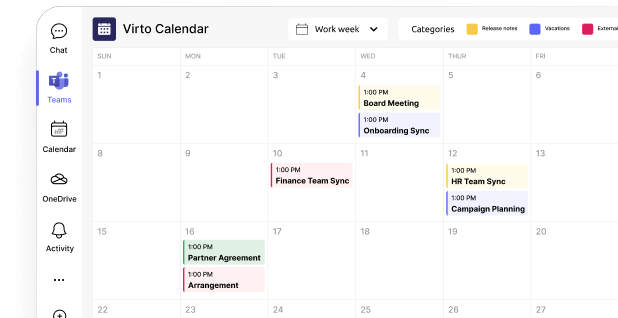
Virto Calendar App (SharePoint Online)
The Virto Calendar App helps maintain your team’s schedules and deadlines during a SharePoint Online backup and restore. When data is restored, calendar events, timelines, and associated tasks are preserved, ensuring that the workflow context remains intact. This turns a simple backup SharePoint Online operation into a seamless continuation of your team’s planning.
Merge all calendars in one place
Try Virto Calendar to Sync all data
Virto Kanban Board App (SharePoint Online)
With the Virto Kanban Board App, task structures, statuses, deadlines, and responsibilities are retained alongside restored documents. Teams can continue work without losing track of project progress, making this solution a key complement to SharePoint backup solutions for Online environments.
Virto Kanban
Try Virto Calendar to Sync all data
Virto Calendar Web Part (SharePoint On-Premise)
For SharePoint On-Premise, the Virto Calendar Web Part ensures that scheduling, milestones, and task dependencies are preserved during a restore. Even after recovering files from a backup SharePoint site, users immediately regain full visibility into timelines and events.

Merge all calendars in one place
Try Virto Calendar to Sync all data
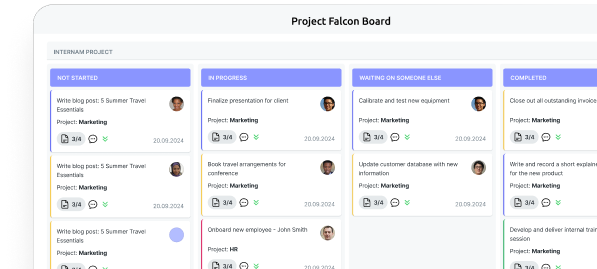
Virto Kanban Board Web Part (SharePoint On-Premise)
The Virto Kanban Board Web Part retains task structures, statuses, and assignments after a Microsoft SharePoint backup restore. This allows on-premises teams to pick up exactly where they left off, turning file-level recovery into a full business process recovery.

Virto Kanban Board Web Part
By combining SharePoint backup with these VirtoSoftware tools, organizations can achieve more than file restoration — they can recover workflows, maintain project continuity, and ensure operational resilience across both Online and On-Premise environments.
Conclusion
Built-in SharePoint backup tools are useful for day-to-day recovery, but their capabilities are limited. They can protect documents, lists, and basic site content, yet they don’t provide long-term retention, independent storage, or full protection against account compromises and ransomware.
For comprehensive data protection and business continuity, it’s essential to combine the native SharePoint backup and restore features with reliable third-party solutions. SharePoint backup solutions provide independent storage, flexible retention policies, and granular restore options that go beyond what Microsoft’s built-in tools can offer.
VirtoSoftware solutions take this further. By integrating tools like the Virto Calendar App, the Virto Kanban Board App, and their On-Premise counterparts, organizations can not only safeguard files but also restore the full workflow logic — tasks, deadlines, statuses, and responsibilities. This ensures that team operations continue seamlessly and that business risks are minimized.
In short, combining Microsoft SharePoint backup, third-party tools, and VirtoSoftware apps creates a robust, multi-layered protection strategy that secures both data and the processes that rely on it.
Official Microsoft resources:
- Overview of Microsoft 365 Backup
- Microsoft 365 Backup
- Overview of backup and recovery in SharePoint Server
Hunt for more expert insights in our blog:
- SharePoint Online Hub
- What Is Ensemble SharePoint? Guide to Features and Use
- OneDrive vs SharePoint: Key Differences Explained
- SharePoint Hub Sites: for Simplified Collaboration and Easy Navigation
- Copilot for SharePoint Explained: Features, Benefits, and Practical Usage
- SharePoint Site Types Explained: Choosing the Right Site for Your Needs
- How to Create and Optimize SharePoint Page: A Complete Guide