How Microsoft 365 Copilot Transforms Work and Productivity for Businesses
This article provides an overview of Microsoft 365 Copilot, an AI-powered assistant integrated into Microsoft 365 applications to improve productivity by automating tasks such as content creation, data analysis, and communication management. It highlights Copilot’s core technology, secure data handling, and business benefits, as well as best practices for deployment and user adoption in corporate environments.

Introduction
Microsoft 365 Copilot is one of the most talked-about innovations from Microsoft, capturing the attention of both users and corporate clients. As organizations worldwide search for ways to improve productivity, this AI-powered assistant has positioned itself at the forefront of the workplace revolution.
M365 Copilot represents Microsoft’s strategic commitment to embedding AI capabilities into everyday work tools. Rather than introducing a standalone app, Copilot seamlessly integrates with familiar applications like Word, Excel, PowerPoint, Outlook, and Teams.
- Office 365 Copilot marks a fundamental shift in how work gets done. By using large language models and company data, it acts as an intelligent assistant that understands context, generates content, and automates repetitive tasks, while maintaining top-notch security.
This guide provides a comprehensive exploration of Microsoft 365 Copilot, covering:
- Complete overview: Understanding what Copilot is and its core technology
- Feature deep-dive: Examining Microsoft 365 Copilot features across different applications
- Technical mechanics: How the system actually works behind the scenes
- Business value: ROI and benefits
- Practical scenarios: Real-world use cases showing Copilot in action
- Implementation steps: Deploying and extending Copilot capabilities in your company
Whether you’re evaluating Copilot for your business or planning its deployment, this article provides the insights you need to understand this transformative technology.
Section 1: Microsoft 365 Copilot – Purpose, Functions, and Features
1.1 What is M365 Copilot and What is it Used For?
M365 Copilot is the main hero of Microsoft’s strategic idea to integrate AI into daily work processes. At its core, Copilot 365 is an AI-powered tool integrated into the Microsoft 365 ecosystem that helps users create, analyze, search, and automate tasks using advanced artificial intelligence.
Understanding the Basics
Microsoft Copilot operates across familiar applications including Word, Excel, PowerPoint, Outlook, Teams, and other Microsoft 365 tools. It’s important to understand that Copilot doesn’t replace the user—it acts as a “co-pilot,” helping you close tasks faster, more accurately, and with less effort.
The technology behind M365 Copilot combines large language models with Microsoft Graph data—your emails, calendars, chats, documents, and meetings. This integration allows Copilot to understand your work context and provide personalized assistance.
What is M365 Copilot Used For?
The primary purpose of M365 Copilot is to reduce cognitive load, and decrease the time required to create and process content. Rather than simply automating processes, Copilot makes them precise and meaningful.
Key capabilities include:
In Word – Document creation, editing, and summarization
- Generate document drafts from brief prompts or outlines
- Create reports and executive summaries
- Edit lengthy texts while preserving the author’s style
- Rewrite content for different audiences or purposes
In Excel – Data analysis, visualization, and forecasting
- Analyze sales data and identify trends
- Build predictive models for forecasting
- Generate charts and graphs with intelligent recommendations
- Prepare analytical summaries with key insights
In PowerPoint – Automated presentation generation
- Create presentations from Word documents or meeting notes
- Suggest visual styles and design elements that match your content
- Transform dense information into engaging visual narratives
- Refine existing presentations
In Outlook – Email creation and management
- Draft professional emails based on brief instructions
- Analyze messages and extract action items
- Create response templates for common scenarios
- Prioritize messages based on importance and context
In Teams – Meeting assistance and collaboration
- Generate concise meeting summaries with key discussion points
- Create task lists from meeting conversations
- Identify decisions made and action items assigned
- Produce follow-up reminders for next steps
The Real Value of M365 Copilot
Beyond automation, M365 Copilot delivers important business benefits:
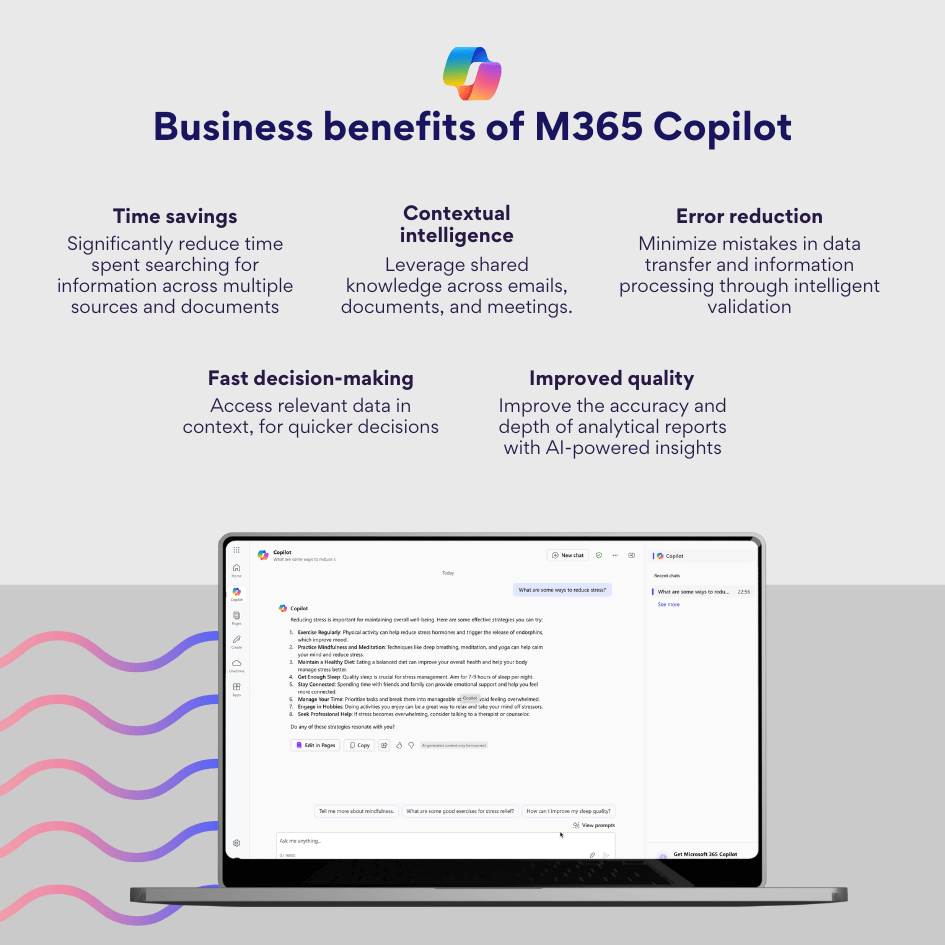
The true power of M365 Copilot lies not in replacing the human brain, but in complementing it—providing users with the information, analysis, and content they need exactly when they need it, allowing them to focus on creative problem-solving rather than repetitive tasks.
1.2 The Technology Behind M365 Copilot
Understanding how does Microsoft Copilot work requires examining its technological architecture. M365 Copilot is built on three fundamental pillars that work together seamlessly:
Large Language Models (LLMs)
At the core of M365 Copilot are advanced large language models that power intelligent query processing. Thanks to these models, Copilot can understand natural language, formulate responses, and generate contextually adequate content. The LLMs allow users to interact with their data and apps using everyday language rather than commands or formulas.
Microsoft Graph
Microsoft Graph serves as the secure data backbone connecting all user information within the Microsoft 365 ecosystem. This data layer includes:
- Email correspondence and attachments
- Calendar events and details
- Documents stored in OneDrive and SharePoint
- Teams chats and channel conversations
- Tasks and project information
- Files and collaboration history
- Organizational relationships and connections between people
M365 Copilot needs it to access the full context of your work environment while maintaining security and compliance standards.
User Context
The third critical component is current user context—information about what you’re working on. This includes open documents, active projects, fresh email threads, and upcoming meetings. This way, M365 Copilot can provide highly relevant assistance.
How the Process Works
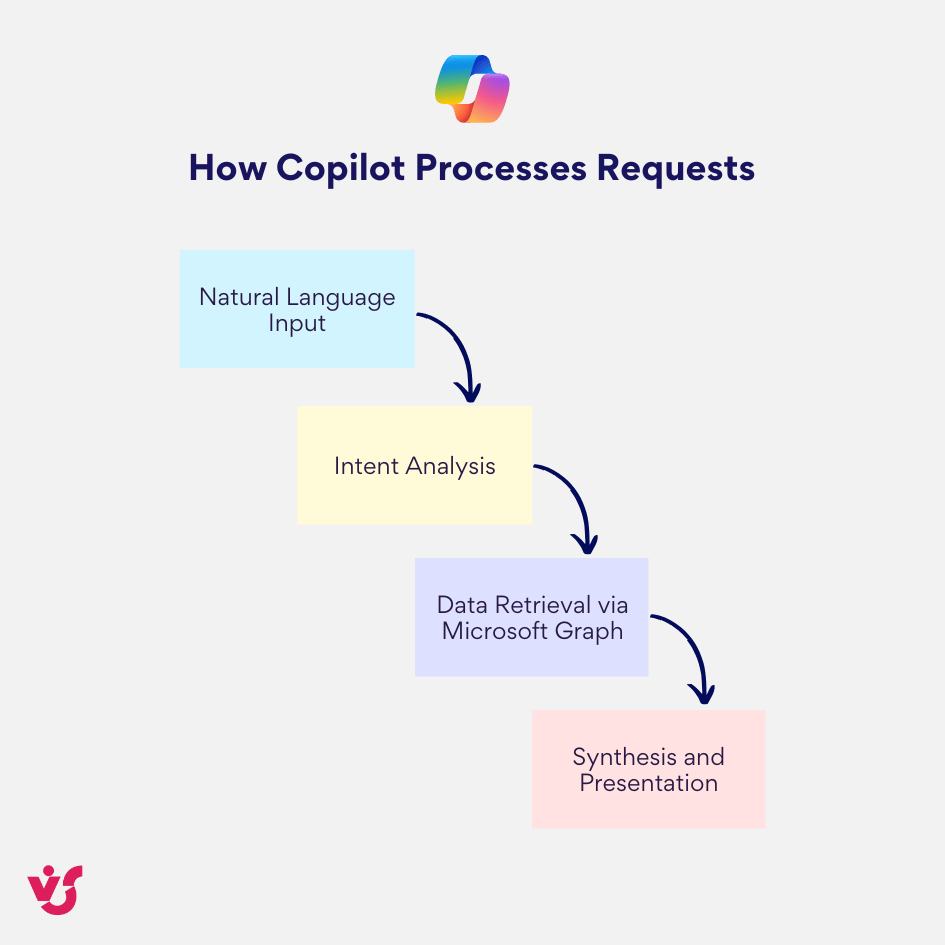
When you make a request to M365 Copilot, here’s what happens:
- User query – You ask a question or request help in natural language
- Analysis and retrieval – The LLM analyzes your request while Microsoft Graph retrieves contextual data
- Response generation – Copilot synthesizes this information and generates a response directly within your app
1.3 How Microsoft 365 Copilot Differs from ChatGPT
While both M365 Copilot and ChatGPT use large language models, there are fundamental differences in their design, purpose, and capabilities.
Is Copilot as Good as ChatGPT?
This question misses an important point: M365 Copilot and ChatGPT aren’t competitors—they serve different purposes. Think of ChatGPT as a general-purpose AI assistant for content generation and ideation, while M365 Copilot is designed as a productivity improvement tool deeply integrated into your work environment.
Key Differences
Integration and Context
M365 Copilot operates within your corporate ecosystem, accessing your emails, documents, meetings, and organizational data. ChatGPT is a standalone tool designed for open-ended queries without access to your work context.
Data Privacy and Security
A critical distinction: M365 Copilot never uses your organizational data to train its models. Your data remains within your organization’s security boundary and is only used locally to generate responses for you.
Purpose-Built Functionality
M365 Copilot provides secure results that are integrated into Microsoft 365 workflows. Rather than generating standalone responses, it works within your applications—drafting in Word, analyzing in Excel, presenting in PowerPoint—making the results actionable.
ChatGPT excels at creative brainstorming, general knowledge queries, and generating content from scratch. M365 Copilot excels at using your existing corporate knowledge, automating work processes, and making your work in Microsoft apps faster.
The Right Tool for the Right Job
The question isn’t whether one is “better” than the other, but which tool fits your specific needs. For creative writing, learning new topics, or exploring ideas, ChatGPT offers flexibility and breadth. For improving daily productivity and analyzing business data within Microsoft 365, M365 Copilot provides targeted assistance that integrates into your work.
Both tools represent powerful AI technology, each optimized for different use cases.
Section 2: How M365 Copilot Works
2.1 How Copilot Processes Requests
Exploring how does Microsoft Copilot work in practice reveals the sophistication behind its simple interface. Let’s walk through the complete journey from request to result.
The Request-to-Result Process
Step 1: Natural Language Input
The process begins when a user formulates a request in natural language. For example: “Create a brief report on all meetings from the past week.” Unlike traditional software that requires specific commands or navigation, M365 Copilot understands simple language requests.
Step 2: Intent Analysis
Microsoft 365 Copilot sends your request to its large language model, which analyzes what you’re asking for. The AI determines:
- What type of content you need (report, summary, analysis)
- What data sources are relevant
- What format would be most useful
- What level of detail is appropriate
Step 3: Data Retrieval via Microsoft Graph
Through Microsoft Graph, M365 Copilot locates relevant information across your entire Microsoft 365 environment:
- Calendar events from Outlook with meeting schedules and attendees
- Meeting notes and transcripts from Teams
- Related documents from SharePoint or OneDrive
- Relevant Email threads
- Task assignments and project updates
All of this happens while respecting your organization’s security permissions—M365 Copilot only accesses information you’re authorized to see.
Step 4: Synthesis and Presentation
Microsoft Copilot 365 combines the retrieved data, structures it logically, and presents the results in the appropriate format. For our meeting report example, you might receive:
- A formatted table in Word listing each meeting
- Participants and their roles
- Key discussion topics
- Final decisions
- Action items and next steps
- Relevant deadlines
The output appears in your working application—whether that’s Word, Teams, Excel, or another Microsoft 365 tool.
Interactive Refinement
What makes the M365 Copilot particularly powerful is its ability to iterate. If the initial result doesn’t meet your needs, you can refine your request:
- “Make it more concise”
- “Add budget discussions”
- “Organize by project instead of date”
- “Include only meetings with the executives”
M365 Copilot adapts, understanding the context of your conversation and adjusting its output accordingly.
The system maintains context throughout your session, meaning you can have a natural back-and-forth dialogue without having to start from scratch with each request.
2.2 Personalization and User Adaptation
M365 Copilot goes beyond generic automation by adapting to individual work styles and patterns.
Learning Your Work Style
M365 Copilot considers how you typically work. The system observes patterns in your behavior:
- Document formats you use frequently
- Types of analyses you perform
- Communication styles in your emails
- Meeting structures you prefer
- Collaboration patterns with colleagues
For example, if a financial analyst creates quarterly budget reports regularly, M365 Copilot will:
- Suggest templates for financial reporting
- Recommend relevant visualizations (charts, graphs, tables)
- Apply consistent formatting
- Include sections like executive summary, detailed analysis, and projections
- Reference historical data from similar reports
Contextual Intelligence Through Microsoft Graph
Thanks to Microsoft Graph integration, M365 Copilot knows where your relevant data resides—whether in emails, SharePoint libraries, OneDrive folders, or Teams channels. This way Copilot finds and connects information automatically.
Critically, this happens within your security boundary. Copilot 365 respects all organizational permissions and data governance policies. If you don’t have access to certain files or information, Copilot won’t access them either.
Team-Wide Benefits
Personalization becomes especially valuable in large organizations where team members work in different contexts but share a common environment. Each employee gets assistance tailored to their role:
- Marketing teams receive help with campaign materials and content creation
- Finance teams get support for data analysis and reporting
- HR teams obtain assistance with document management and communication
- Sales teams benefit from customer interaction insights and proposal generation
All while maintaining security protocols. This means the M365 Copilot becomes more useful over time, adapting to each user’s needs while using collective corporate knowledge.
2.3 Secure Data Handling Principles
One of the most critical aspects of Microsoft 365 Copilot is its enterprise-grade approach to data security and privacy—a fundamental requirement for business adoption.
Data Privacy by Design
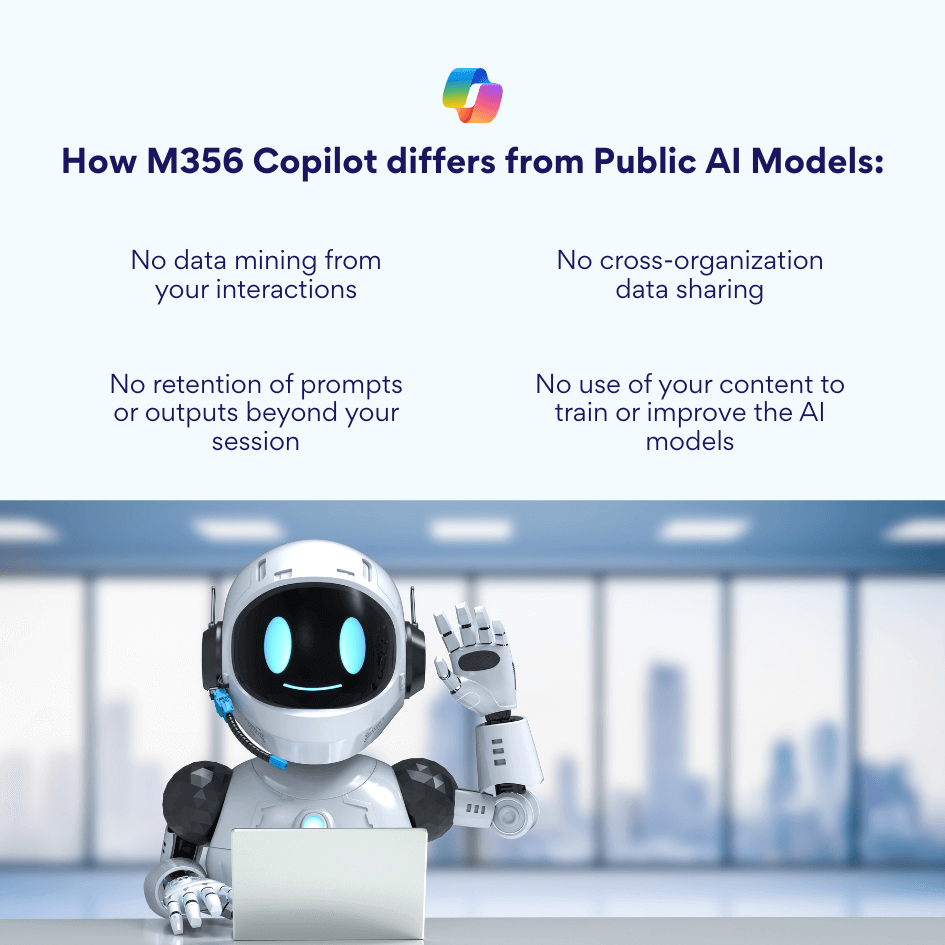
A crucial principle to understand: M365 Copilot does not train on your data and does not retain content created during your work sessions. This is a fundamental idea that distinguishes it from consumer AI services.
When you use Copilot 365, all operations occur within your organization’s existing Microsoft 365 security framework. Your data never leaves your organizational boundary, and it’s protected by the same security protocols that safeguard all Microsoft 365 services.
How This Differs from Public AI Models
This represents a critical distinction between Microsoft Copilot for Microsoft 365 and publicly available AI models on the internet. Public AI services often use user interactions to improve their models, meaning your prompts and generated content contribute to the system’s training data.
M365 Copilot operates under an entirely different model:
Enterprise Security Infrastructure
M365 Copilot doesn’t maintain separate data storage systems. Instead, it uses Microsoft 365’s existing security infrastructure:
- Authentication: Uses the same identity and access management systems (Azure Active Directory) that control access to all your Microsoft 365 services
- Encryption: Applies enterprise-grade encryption both in transit and at rest, consistent with Microsoft 365 security standards
- Compliance: Adheres to your organization’s data loss prevention (DLP) policies, retention rules and requirements
- Permissions: Respects existing access controls—users can only interact with data they’re authorized to access with their role-based permissions
- Audit trails: All Copilot activities are logged within your organization’s compliance and audit systems
Suitable for Regulated Industries
The security-first architecture makes M365 Copilot appropriate for organizations handling sensitive information and operating in regulated industries:
- Financial Services: Banks, investment firms, and insurance companies can deploy Copilot AI while maintaining compliance with regulations like SOX, PCI-DSS, and financial data protection requirements
- Healthcare: Medical institutions can use Copilot’s capabilities while adhering to HIPAA, HITECH, and patient privacy regulations
- Government: Public sector organizations can deploy M365 Copilot in compliance with government security standards and classified information protocols
- Legal: Law firms can use Copilot while maintaining attorney-client privilege and confidentiality requirements
- Manufacturing and IP-sensitive industries: Companies with proprietary information, trade secrets, and intellectual property can safely use Copilot without risk of data exposure
Trust Through Transparency
Microsoft’s commitment to data privacy in M365 Copilot is backed by:
- Clear data processing agreements
- Transparent documentation of how data flows through the system
- Third-party security certifications and compliance attestations
- Customer control over data residency and processing locations
This security approach allows organizations to embrace AI-powered productivity improvements without compromising their security posture, regulatory compliance, or data governance standards. The result is a tool that delivers innovation while maintaining the trust that enterprises require.
Section 3: Microsoft 365 Copilot Integration with the Microsoft Ecosystem
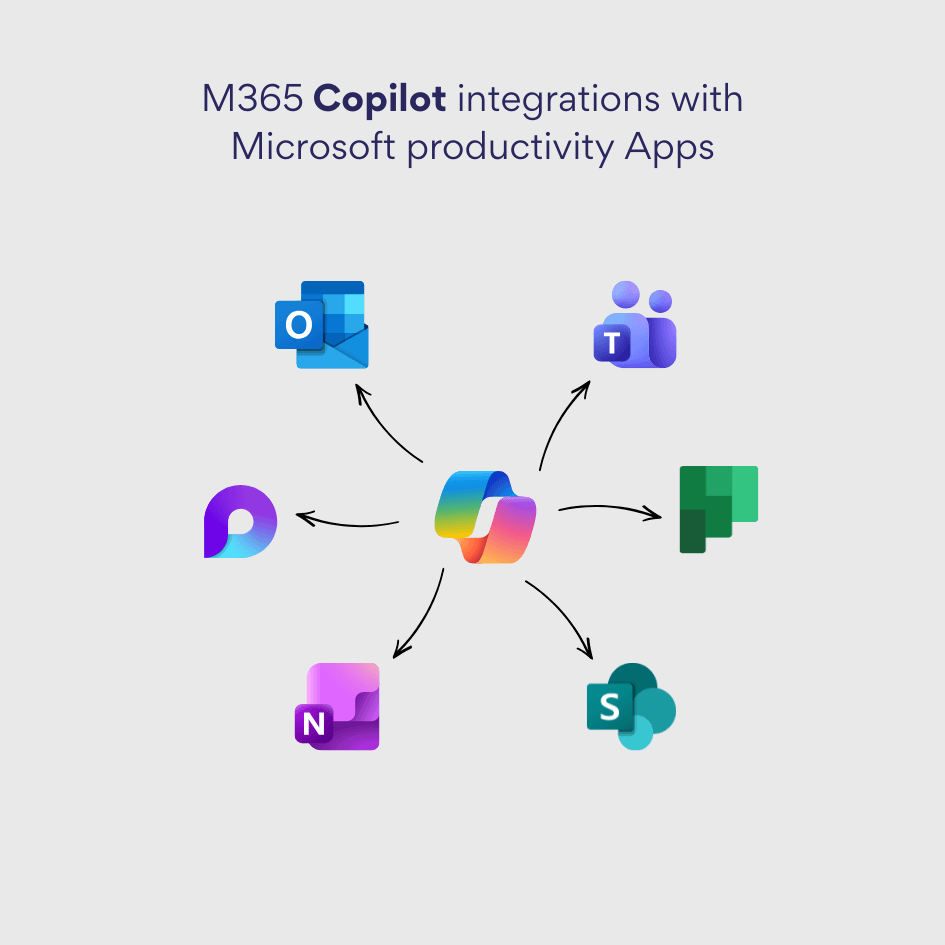
M365 Copilot is not a standalone tool—it’s deeply embedded within the Microsoft 365 ecosystem at both the application and Microsoft Graph levels. This integration allows secure access to corporate data while creating a connected work environment.
Core Application Integration
M365 Copilot integrates with the full spectrum of Microsoft 365 applications, transforming how users interact with familiar tools:
SharePoint Integration
M365 Copilot connects directly with SharePoint libraries, allowing:
- Analysis of documents across organizational repositories
- Content creation based on corporate knowledge bases
- Intelligent search across multiple libraries
- Automatic summarization of lengthy documents
- Discovery of related content and expert contributors
For example, when preparing a proposal, M365 Copilot can analyze previous successful proposals stored in SharePoint, extract key themes, and suggest content structures.
Outlook and Teams Integration
Within communication tools, Office 365 Copilot provides powerful assistance:
In Outlook:
- Prioritize messages based on importance and context
- Draft responses that match your communication style
- Summarize long email threads into insights
- Schedule follow-ups and create reminders
- Extract commitments and deadlines from emails
In Teams:
- Generate meeting summaries with key decisions and action items
- Answer questions by searching across channels and chat history
- Create status updates based on team conversations
- Identify subject matter experts within your company
- Surface relevant information during discussions
Task and Project Management Integration
M365 Copilot extends into task management tools, supporting Microsoft’s vision of a connected workspace where AI helps manage both content and workflows:
Planner Integration:
M365 Copilot can transform communications into actionable tasks:
- Create tasks automatically from Teams conversations or Outlook emails
- Assign team members based on their roles and workload
- Set deadlines by analyzing project timelines and dependencies
- Determine priorities based on business impact and urgency
- Track progress and suggest corrections to project plans
For instance, during a Teams meeting discussion about a product launch, Copilot can identify action items, create corresponding Planner tasks, assign them to the right team members, and set due dates—all without manual task creation.
Loop Integration:
In Microsoft Loop, the collaborative workspace application, M365 Copilot offers:
- Generation of content blocks for project planning
- Real-time collaboration assistance during team brainstorming
- Synchronization of information across different workspaces
- Dynamic updating of shared components
- Creation of connected canvases that bring together information
OneNote Integration:
Copilot AI enhances note-taking and organization:
- Convert freeform notes into structured lists and action plans
- Transform meeting notes into formal reports
- Link notes to relevant calendar events in Outlook
- Connect notes to related projects in Planner
- Extract key information and create summary documents
Extended Ecosystem Integration
Beyond core productivity applications, M365 Copilot integrates with broader Microsoft business solutions, creating a unified intelligent workspace:
Power Automate Integration
Microsoft Copilot 365 can suggest and help build automation workflows:
- Propose automatic notification scenarios (e.g., project completion alerts)
- Create flows for saving Teams attachments to SharePoint
- Suggest approval processes based on company patterns
- Automate data synchronization between applications
- Build custom workflows using natural language
For example, you might ask Copilot: “Set up an automation that notifies the finance team whenever a contract is uploaded to the legal folder.” Copilot can then guide you through creating this Power Automate flow or even generate the workflow automatically.
Dynamics 365 Integration
In customer relationship management and business operations, M365 Copilot provides significant value:
For Sales Teams:
- Analyze customer interaction history across emails and meetings
- Generate personalized outreach based on customer preferences and past conversations
- Create sales reports with insights from CRM data
- Suggest next best actions based on deal stage
- Draft proposals incorporating customer-specific requirements
For Customer Service:
- Provide context-aware responses to customer questions
- Summarize customer history for faster issue resolution
- Suggest solutions based on similar past cases
- Generate follow-up communications
- Identify escalation patterns and improvement opportunities
The Connected Workspace Vision
This integration strategy reflects Microsoft’s vision of a connected, intelligent workspace where Copilot 365 serves as the bridge between applications, data, and people. Rather than working in isolated way, users can:
- Access information from any source without switching contexts
- Take actions across multiple applications from a single interface
- Maintain continuity of work as they move between tools
- Benefit from AI that understands their work context
Continuous Expansion
Microsoft is actively expanding Microsoft 365 Copilot integrations, with plans to extend support across all key Microsoft 365 tools. This ongoing development ensures that the Copilot experience will become increasingly comprehensive, eventually touching every aspect of digital work within the Microsoft ecosystem.
The result is an AI assistant that doesn’t just help with individual tasks but orchestrates entire workflows, connecting data, people, and processes into a coherent, intelligent work environment.
Section 4: Microsoft 365 Copilot for Business and Enterprise Users
4.1 M365 Copilot’s Role in the Corporate Ecosystem
M365 Copilot represents far more than a task automation tool—it’s a fundamental component of corporate digital transformation. Organizations implementing Copilot are rethinking how work gets done in the age of AI.
Copilot 365 proves valuable for organizations that handle vast amounts of information daily:
- Financial reports and analysis
- Customer communications and correspondence
- Project planning and documentation
- Strategic presentations and proposals
- Compliance documentation and audits
In these data-intensive environments, Microsoft Copilot 365 transforms information overload into insights, helping organizations operate efficiently while maintaining compliance standards.
4.2 How Copilot Enhances Productivity
The productivity gains from Office 365 Copilot stem from its ability to handle routine yet time-consuming operations, freeing employees to focus on strategic thinking, creative problem-solving, and high-value activities that require human judgment.
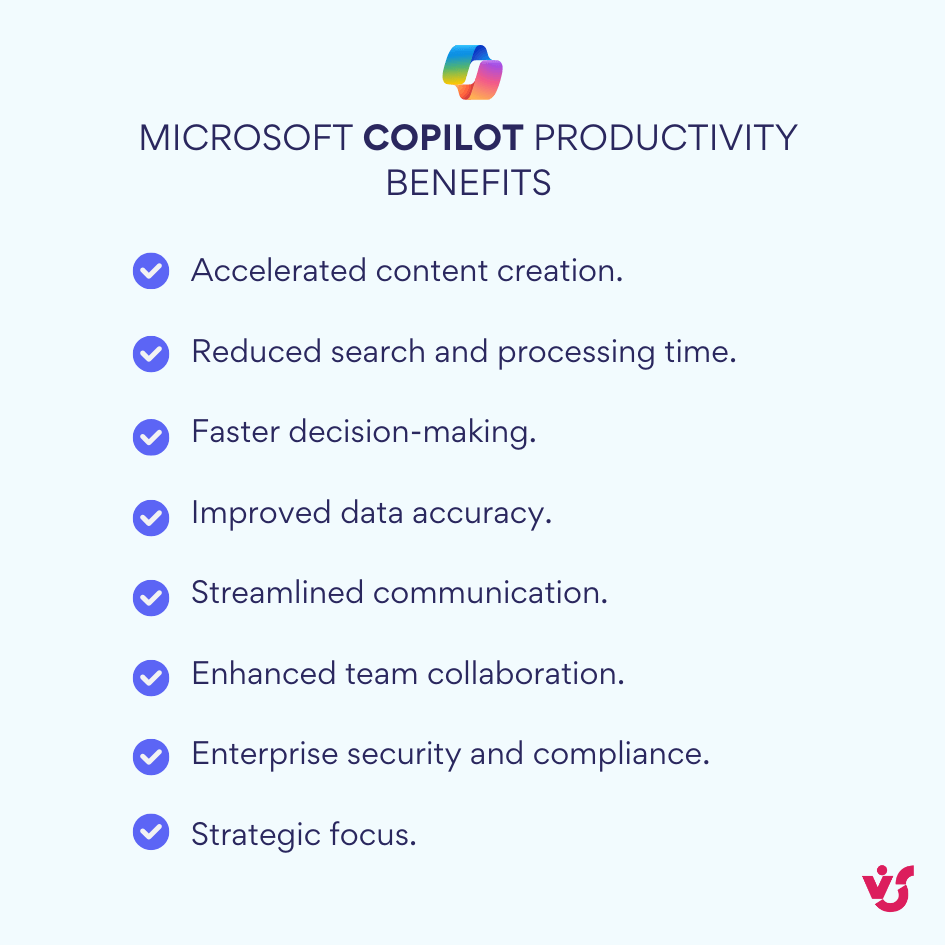
Core Productivity Benefits
Microsoft Copilot helps companies and employees in multiple dimensions:
- Accelerated Content Creation. Generate documents, emails, presentations, and reports significantly faster than manual creation. M365 Copilot can produce first drafts in seconds, allowing employees to focus on refinement and strategic messaging.
- Reduced Search and Processing Time. Eliminate hours spent hunting for information across email threads, document libraries, and chat histories. M365 Copilot retrieves relevant information instantly, dramatically reducing the time from question to answer.
- Faster Decision-Making. Access real-time data analysis without waiting for reports or manual compilation. Copilot AI can analyze current data on demand, enabling leaders to make decisions quickly as situations evolve.
- Improved Data Accuracy. Reduce errors caused by outdated information, manual data entry, or version control issues. Microsoft Office 365 Copilot works with current data from authoritative sources, minimizing mistakes from duplicated or obsolete files.
- Streamlined Communication. Cut through routine correspondence tasks—drafting replies, scheduling follow-ups, summarizing conversations. This way employees spend more time on meaningful interactions and less on administrative tasks.
- Enhanced Team Collaboration. Improve coordination through seamless integration with Teams, Outlook, and other Microsoft 365 applications. Microsoft Copilot 365 ensures everyone has access to the same information, reducing miscommunication.
- Enterprise Security and Compliance. Maintain data security and meet corporate standards automatically. M365 Copilot operates within existing governance frameworks, so that AI-assisted work doesn’t compromise compliance requirements.
- Strategic Focus. Free employees from repetitive tasks, allowing them to concentrate on innovation, strategy, and creative work that drives business value.
Practical Business Applications
Let’s examine specific scenarios where Copilot 365 optimizes internal processes:
Automated Reporting
Finance teams can transform raw data into reports with minimal manual effort. For example, Microsoft 365 Copilot can:
- Extract sales figures from multiple regional spreadsheets
- Generate variance analysis comparing actual to budget
- Create executive summaries highlighting key trends
- Produce formatted reports ready for board presentation
- Update reports automatically when underlying data changes
Proposal and Presentation Development
Sales and business development teams can accelerate the proposal process:
- Generate customized proposals from templates using client-specific data
- Create compelling presentations from Word documents or meeting notes
- Incorporate relevant case studies from SharePoint libraries
- Ensure consistency with brand guidelines and messaging
- Adapt content for different audience levels (technical vs. executive)
Self-Service Data Analysis
Business units can analyze internal data without engaging dedicated analysts:
- Ask questions about performance metrics in natural language
- Generate visualizations to identify trends and patterns
- Compare performance across regions, products, or time periods
- Forecast future outcomes based on historical data
- Share insights immediately with decision-makers
HR and Finance Support
Administrative departments gain intelligent assistance:
HR Functions:
- Draft job descriptions based on role requirements
- Summarize candidate interview feedback
- Generate onboarding documentation
- Create policy summaries and employee communications
- Analyze workforce data for planning purposes
Finance Operations:
- Automate expense report summaries
- Generate budget variance explanations
- Create financial presentation materials
- Analyze spending patterns and suggest optimizations
- Produce audit documentation and compliance reports
Hybrid Team Effectiveness
Office 365 Copilot proves especially effective for hybrid and distributed teams where coordination requires gathering information from multiple sources and time zones. The tool excels at:
- Bridging time zone gaps by summarizing missed meetings
- Consolidating feedback from asynchronous collaboration
- Maintaining project context as team members work independently
- Ensuring consistent information access regardless of location
- Facilitating handoffs between team members
4.3 Licensing and Investment Considerations
Is Copilot Free with Office 365?
Microsoft 365 Copilot is not included in standard Office 365 or Microsoft 365 subscriptions and requires a separate license. This represents an additional investment beyond base productivity suite costs.
Understanding the Value Proposition
While M365 Copilot requires additional licensing, the investment is justified for organizations where automation and efficiency deliver measurable returns. Consider these factors:
Time Savings ROI
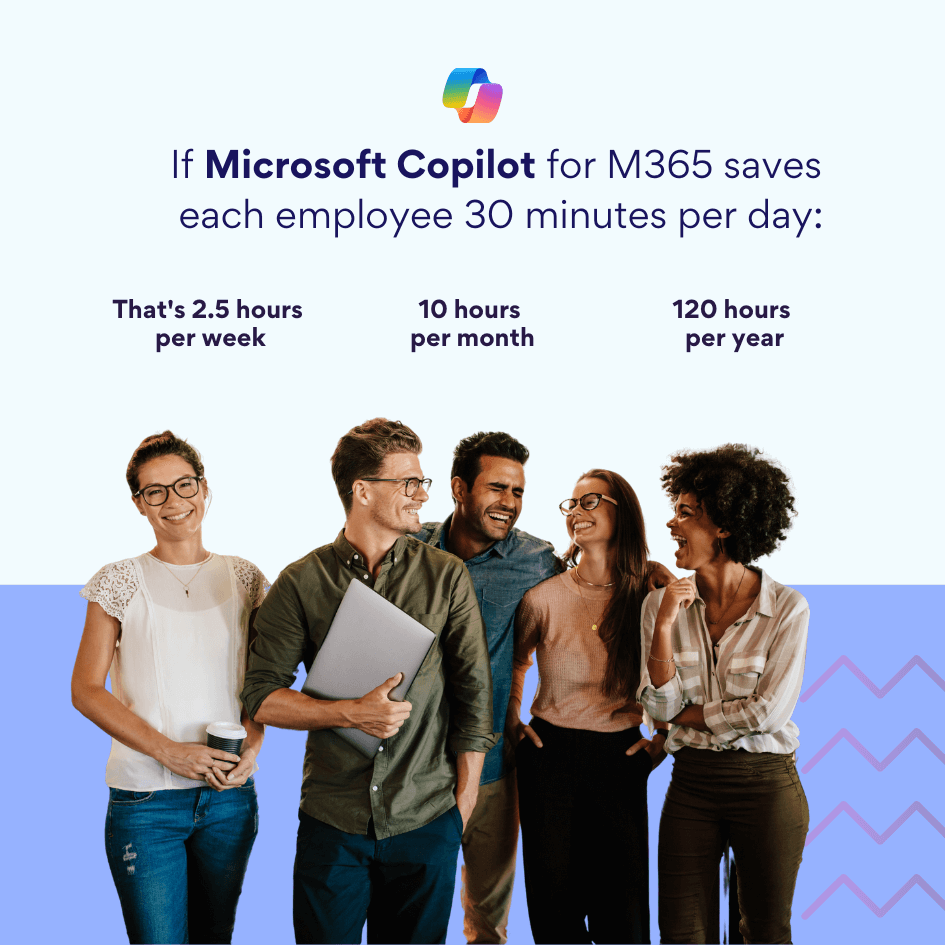
For knowledge workers with high hourly costs, these time savings quickly exceed the licensing expense. The return multiplies across larger teams.
Quality Improvements
Beyond time savings, Copilot AI delivers value through:
- Reduced errors and rework
- Faster response times to customers
- Better-informed decision-making
- Improved employee satisfaction (less time on mundane tasks)
- Improved competitive positioning through faster execution
Organizational Readiness
The investment makes most sense for organizations that:
- Process substantial volumes of documents, data, and communications
- Employ knowledge workers in roles where time efficiency impacts revenue
- Operate in competitive markets where speed is vital
- Value innovation and employee satisfaction
- Have mature Microsoft 365 deployments ready to use AI capabilities
For companies meeting these criteria, Microsoft Office 365 Copilot typically achieves positive ROI within the first year of deployment, with benefits accelerating as users become more proficient and the organization discovers new applications for the technology.
Section 5: Getting Started with Microsoft 365 Copilot
5.1 Preparing Your Organization for Microsoft 365 Copilot Deployment
Microsoft 365 Copilot is not automatically available to all Microsoft 365 users by default. Understanding the requirements and preparing your environment properly is essential for successful implementation.
Licensing Requirements
M365 Copilot is designed for corporate clients using specific subscription plans. Here’s Microsoft 365 Copilot Pricing for 2025:
- $30 per user/month with annual commitment.
- $31.50 per user/month if billed monthly (still requires 12-month commitment)
This $30 fee is an add-on – users must already have a Microsoft 365 Business Standard, Business Premium, E3, or E5 license, which costs $12.50 to $57 per user/month.
Total actual cost: $42.50 to $87 per user/month depending on the base Microsoft 365 license.
The license is activated at the organizational level, and administrators can manage access for specific users or departments.
Key Preparation Steps
Successful Office 365 Copilot deployment begins with proper preparation of your digital environment. Here are the critical steps:
1. Audit Your Current Microsoft 365 Infrastructure
Before deployment, conduct a thorough review:
- Verify subscription levels and renewal dates
- Review security settings and configurations
- Assess current access management policies
- Evaluate user adoption of existing Microsoft 365 tools
- Identify gaps in data governance
2. Update Data and Organizational Structures
Microsoft Copilot 365 performs best with clean, well-organized data:
- Remove duplicate files and outdated documents
- Archive or delete inactive content
- Organize SharePoint libraries with clear naming conventions
- Structure Teams channels logically
- Consolidate scattered information into centralized repositories
3. Configure Microsoft Graph Access
Ensure M365 Copilot can properly access corporate data:
- Verify Microsoft Graph API permissions
- Test connectivity to documents, calendars, email, and chats
- Confirm integration with all relevant Microsoft 365 services
- Review and update metadata across content repositories
4. Review Access Policies and Confidentiality Settings
Critical for security and compliance:
- Ensure M365 Copilot only accesses data authorized for each user’s role
- Implement role-based access controls (RBAC)
- Configure information protection labels
- Set up data loss prevention (DLP) policies
- Verify that sensitive content has appropriate restrictions
Data Quality Drives Results
High-quality data preparation directly impacts the accuracy and relevance of Copilot AI responses. Well-organized information allows Copilot to provide precise, actionable insights. Conversely, cluttered or outdated data repositories lead to less useful results.
5.2 Configuring Access and Activating Copilot
Setting up M365 Copilot is managed through the Microsoft 365 Admin Center. Here’s the step-by-step process:
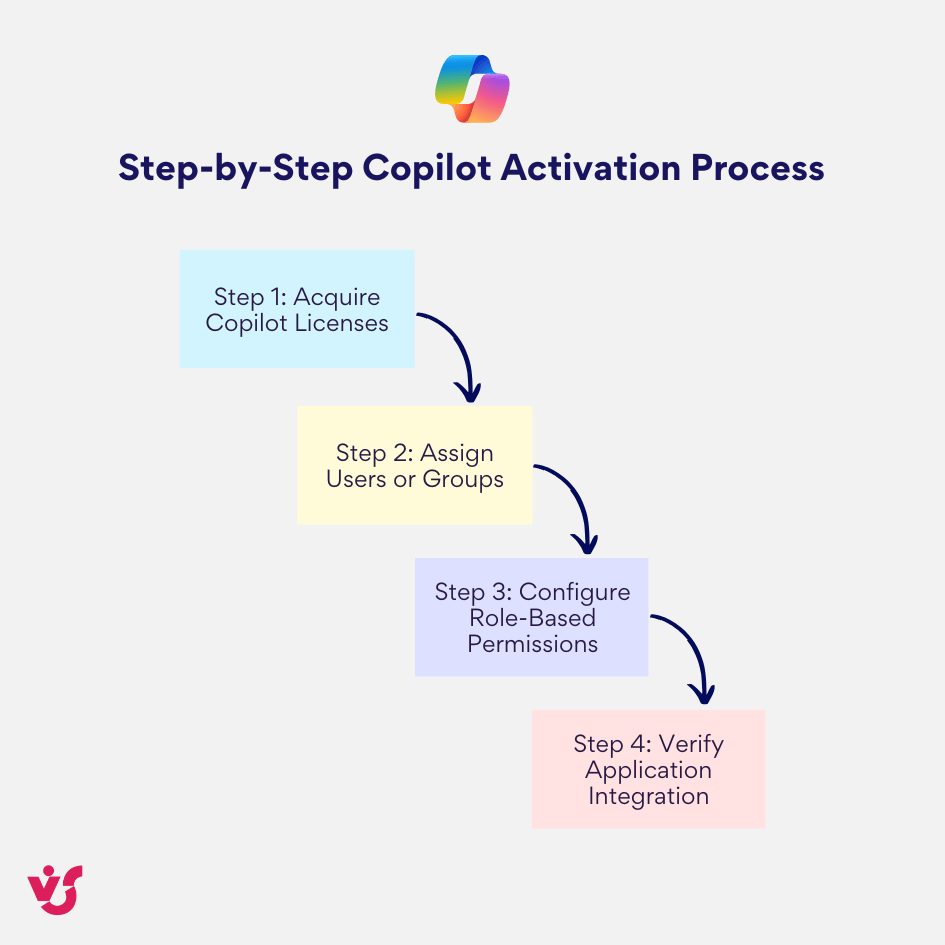
Step-by-Step Activation Process
Step 1: Acquire Copilot Licenses
The administrator purchases Microsoft Office 365 Copilot licenses through the Microsoft Admin Center or through your Microsoft account representative. Licenses are typically purchased in bulk based on expected user count.
Step 2: Assign Users or Groups
Select which users or groups need Copilot access:
- Start with specific departments (recommended for pilot programs)
- Assign based on job functions and expected ROI
- Consider limiting initial deployment to power users and early adopters
- Create security groups for easier management
Step 3: Configure Role-Based Permissions
Set permissions aligned with corporate roles:
- Office employees may have full access
- Contractors might have limited or no access
- Executives might access different data scopes than general staff
- Ensure compliance with data governance policies
Step 4: Verify Application Integration
Confirm M365 Copilot integration across applications:
- Word – document creation and editing
- Excel – data analysis and visualization
- PowerPoint – presentation generation
- Outlook – email management and composition
- Teams – meeting summaries and collaboration
User Experience After Activation
Once activated, users see Copilot 365 directly within their Microsoft 365 applications. The interface typically appears as:
- A dedicated sidebar panel
- A Copilot button in the ribbon or toolbar
- Chat-style interaction windows
- Contextual suggestions and prompts
The experience is designed to be intuitive, requiring minimal training for basic use.
5.3 Employee Training and Adaptation to New Processes
The success of Microsoft 365 Copilot implementation depends heavily on user adoption and proficiency. Effective training ensures employees can leverage the tool’s full potential.
Training Recommendations
Internal Demonstrations and Workshops
Conduct hands-on sessions covering:
- Basic Copilot functionality in each application
- Common use cases relevant to different departments
- Best practices for writing effective prompts
- Tips for refining and iterating on Copilot outputs
- Privacy and security considerations
Create Internal Knowledge Resources
Develop organizational-specific guidance:
- Reference guide with example prompts for common tasks
- Department-specific use case libraries
- FAQ addressing common questions and issues
- Video tutorials demonstrating real workflows
- Quick-start guides for new users
Encourage Knowledge Sharing
Foster a learning community:
- Create channels in Teams for sharing Copilot tips
- Recognize and showcase successful use cases
- Encourage employees to document their most effective prompts
- Establish “Copilot champions” within departments
- Host regular show-and-tell sessions
Microsoft Learning Resources
Microsoft provides training materials:
- Microsoft Learn offers free courses on M365 Copilot
- Customer Success Center provides implementation guidance
- Documentation and best practices are regularly updated
- Webinars and virtual events cover advanced topics
Training for IT Administrators
Don’t overlook technical training:
- Policy management and configuration
- Security and compliance monitoring
- Usage analytics and adoption tracking
- Troubleshooting and user support
- Integration with other systems
Well-trained administrators can optimize M365 Copilot deployment and quickly resolve issues that arise.
5.4 The Importance of Data Quality and Microsoft Graph Configuration
The effectiveness of Copilot AI Microsoft is directly proportional to the quality of underlying data and proper Microsoft Graph configuration.
Data Structure Requirements
For optimal Microsoft Copilot 365 performance:
Structured and Current Data
- Regular cleanup of outdated files
- Consistent metadata across documents
- Clear version control practices
- Archived historical content appropriately separated from active data
Clear Access Rights
- Well-defined user permissions
- Role-based access properly implemented
- Regular audits of access levels
- Prompt removal of access for departed employees
Unified Naming and Storage Systems
- Consistent file naming conventions across SharePoint
- Standardized folder structures in Teams
- Organized Outlook folder hierarchies
- Coherent tagging and categorization systems
Impact on Copilot Performance
Data quality directly affects output quality. Consider this example:
- Poor Data Scenario: If your Outlook calendar isn’t synchronized properly or meeting details are inconsistent, Office 365 Copilot cannot accurately generate meeting reports or identify action items. The tool can only work with the data it can access and understand.
- Optimized Data Scenario: With well-maintained calendars, detailed meeting notes in Teams, and properly tagged documents in SharePoint, M365 Copilot can produce comprehensive, accurate summaries that capture all relevant information and context.
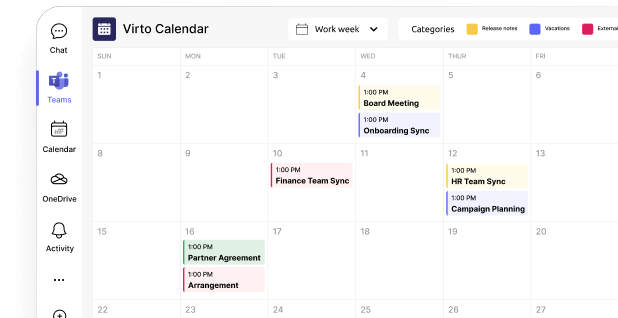
Read more about AI Calendars and Scheduling Assistants >>>
Merge all calendars in one place
Try Virto Calendar to Sync all data
Microsoft Graph Health Check
Before full deployment, verify:
- All relevant data sources are connected to Microsoft Graph
- Permissions flow correctly through the Graph API
- Metadata is complete and accurate
- Cross-application references work properly
- Search functionality returns expected results
5.5 Configuring Security Policies and Access Controls
Security remains paramount when deploying Microsoft Copilot for Microsoft 365. Organizations must establish robust governance frameworks.
Essential Security Configurations
Review and Update Compliance Policies
Ensure your policies address AI-assisted work:
- Data residency requirements
- Industry-specific regulations (HIPAA, GDPR, SOX, etc.)
- Information classification standards
- Acceptable use policies for AI tools
- Data retention and deletion rules
Configure Access Restrictions for Sensitive Data
Prevent M365 Copilot from accessing inappropriate sources:
- Label highly confidential documents with restricted access
- Implement sensitivity labels across content
- Set up conditional access policies
- Define which data repositories Copilot can query
- Establish clear boundaries for different user roles
Enable Auditing Through Microsoft Purview
Track Copilot 365 interactions for compliance and security:
- Log all Copilot queries and responses
- Monitor data access patterns
- Identify unusual or suspicious activity
- Generate reports for compliance audits
- Maintain audit trails for regulatory requirements
Microsoft Purview provides visibility into how MS365 Copilot is being used and what data it accesses, ensuring accountability and compliance.
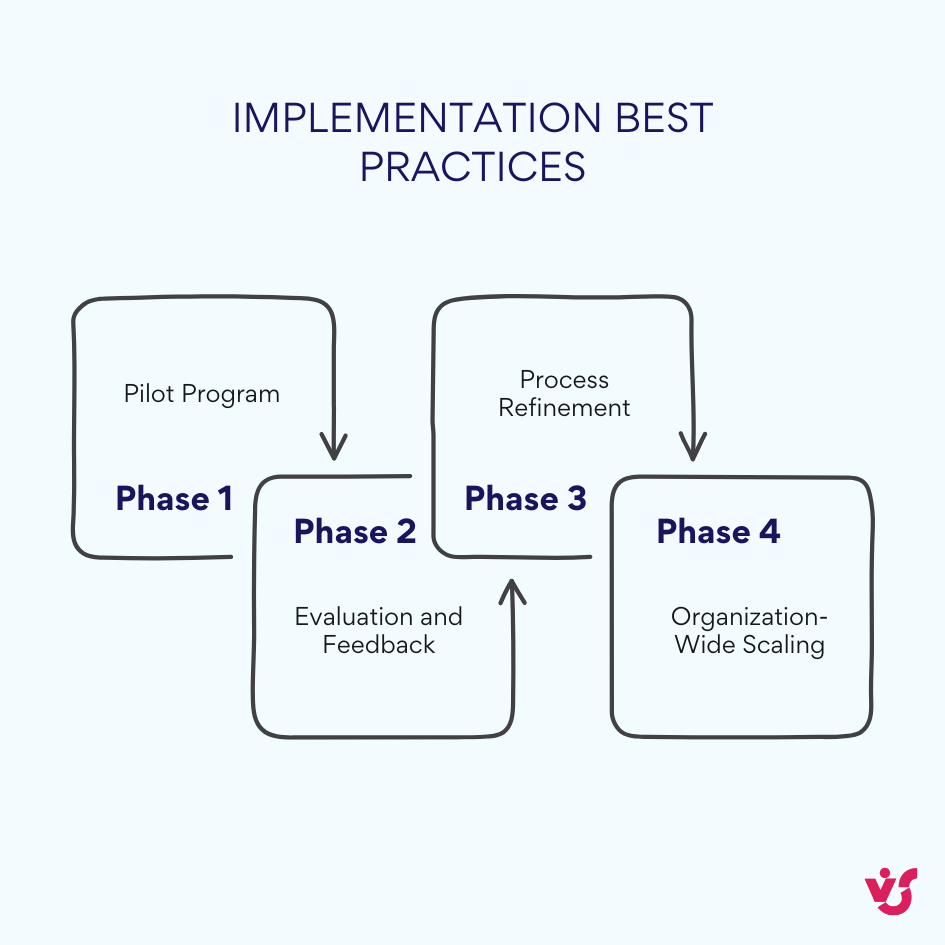
5.6 Implementation Best Practices: Pilot Phase and Scaling
Rather than organization-wide deployment, adopt a phased approach that minimizes risk and maximizes learning.
Recommended Implementation Phases
Phase 1: Pilot Program
Start with a small, representative group:
- Select the right department: Choose teams that will benefit most—marketing, sales, or knowledge workers who create substantial content
- Define success metrics: Time saved, quality improvements, user satisfaction, ROI indicators
- Provide intensive support: Ensure pilot users have resources and help they need
- Set clear timeframes: Typically 4-12 weeks for meaningful results
Phase 2: Evaluation and Feedback
Gather insights:
- Usage analytics: Which features are most used?
- User surveys: What works well? What’s confusing?
- Productivity measurements: Are tasks completed faster?
- Quality assessments: Is output quality improving?
- Pain points: What issues need resolution?
Phase 3: Process Refinement
Optimize based on pilot learnings:
- Adjust security settings: Tighten or loosen based on actual needs
- Refine prompt templates: Document what works best
- Enhance training materials: Address gaps discovered during pilot
- Update policies: Incorporate lessons learned
- Prepare support resources: Anticipate common questions for broader rollout
Phase 4: Organization-Wide Scaling
Expand systematically:
- Department-by-department rollout: Rather than all at once
- Leverage champions: Pilot users become advocates and trainers
- Maintain support channels: Ensure help is available during transition
- Monitor adoption: Track usage and address low-adoption areas
- Continuous improvement: Regular reviews and optimization
Benefits of Phased Approach
Taking it step by step makes implementation much smoother. Starting small means any issues only affect a handful of people, not your entire workforce. When the pilot group shares their positive experiences, other employees become genuinely interested rather than skeptical. You learn what works and what doesn’t before rolling it out to everyone, avoiding costly mistakes. Your leadership team gets concrete proof that Copilot delivers results, making budget decisions easier. And best of all, you can keep improving the setup based on what people actually tell you works in practice.
Companies that start with a pilot program usually get better results faster than those who try to deploy everywhere at once. The slow-and-steady approach builds momentum naturally and creates enthusiastic users who help others get up to speed.
Section 6: Extending Microsoft 365 Capabilities with Virtosoftware Applications
While Microsoft 365 Copilot brings powerful AI capabilities to your workplace, the Microsoft 365 ecosystem can be significantly enhanced with specialized solutions even before implementing AI tools. Virtosoftware offers a range of applications for Microsoft 365 and SharePoint Online that help organizations automate daily operations, improve planning and information management.
Complementing Your Digital Workspace
Virtosoftware products integrate seamlessly into Microsoft Teams and SharePoint interfaces, extending standard M365 Copilot functionality without requiring complex configuration or custom development. These tools allow organizations to gradually develop their digital environment, optimizing processes either before implementing AI or alongside it.
The key advantage is that these applications work naturally within the Microsoft 365 environment your teams already use. There’s no need to learn entirely new platforms or switch between different systems—everything stays within the familiar Microsoft interface.
Core Virtosoftware Solutions
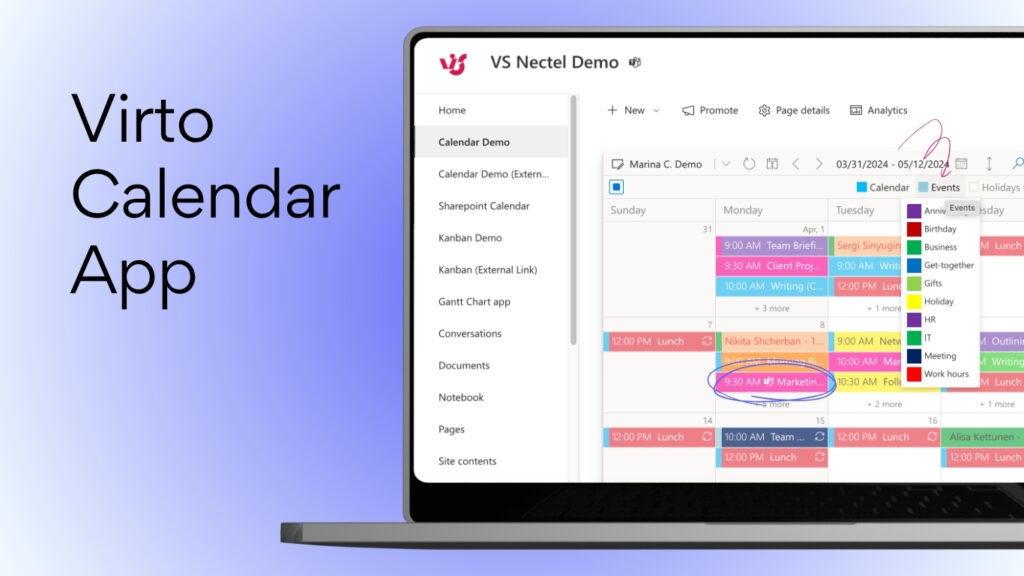
Virto Calendar App
A comprehensive tool for managing corporate schedules, events, and bookings directly within Teams and SharePoint Online. This application goes beyond standard Microsoft calendar functionality by offering:
- Advanced scheduling capabilities for shared resources
- Room and equipment booking management
- Event coordination across multiple teams and departments
- Customizable calendar views tailored to organizational needs
- Integration with existing Microsoft 365 calendars
Whether you’re managing conference room bookings, coordinating team schedules, or planning company events, Virto Calendar provides the structure and visibility that busy organizations need.
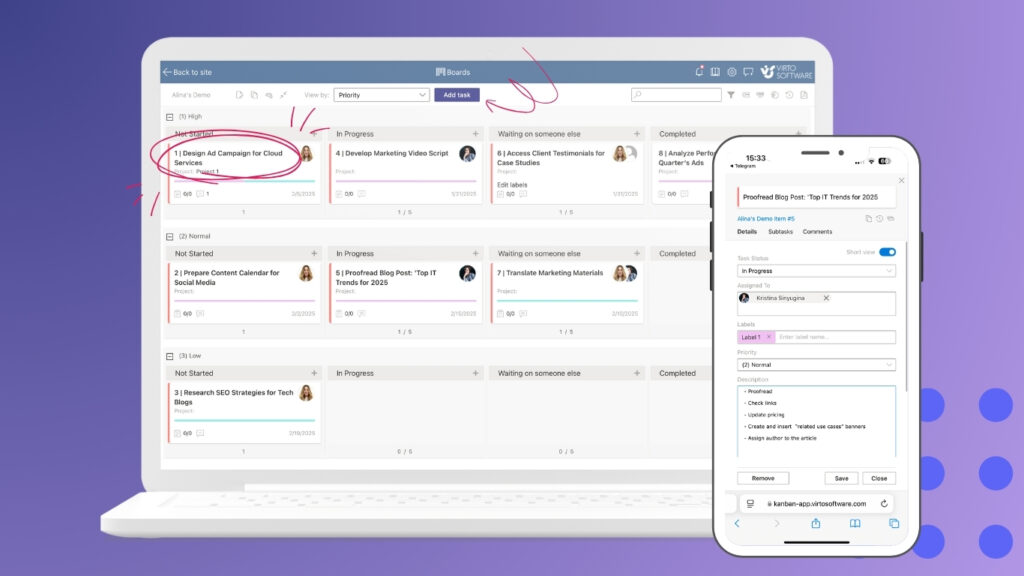
Virto Kanban Board App
Visual task and project management using the popular Kanban methodology, integrated directly with Microsoft Teams. This application helps teams:
- Visualize workflows and project progress at a glance
- Track tasks through customizable workflow stages
- Collaborate on projects within Teams channels
- Manage backlogs and prioritize work efficiently
- Monitor team capacity and workload distribution
The visual nature of Virto Kanban boards makes it easy for everyone to understand project status without lengthy status meetings or email updates.
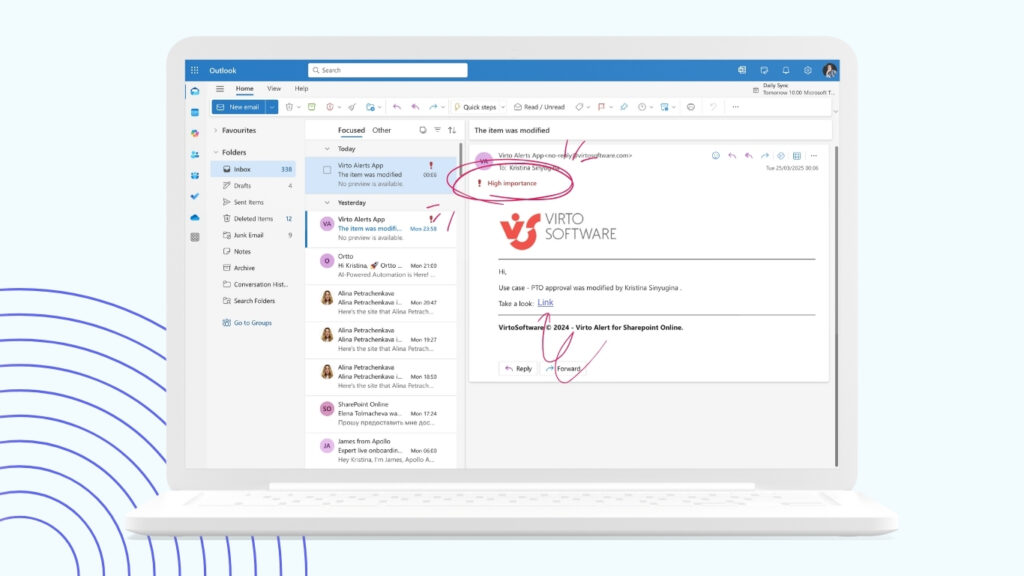
Virto Alerts & Reminder App
Intelligent notifications and reminders that ensure important events, deadlines, and updates never get missed. Virto Alerts & Reminder provides:
- Customizable alert rules for different types of content
- Scheduled reminders for approaching deadlines
- Automated notifications for document updates
- Event-triggered alerts based on specific conditions
- Multi-channel delivery (email, Teams, mobile notifications)
In busy work environments where information flows constantly, automated reminders help teams stay on top of critical tasks without the mental burden of remembering everything manually.
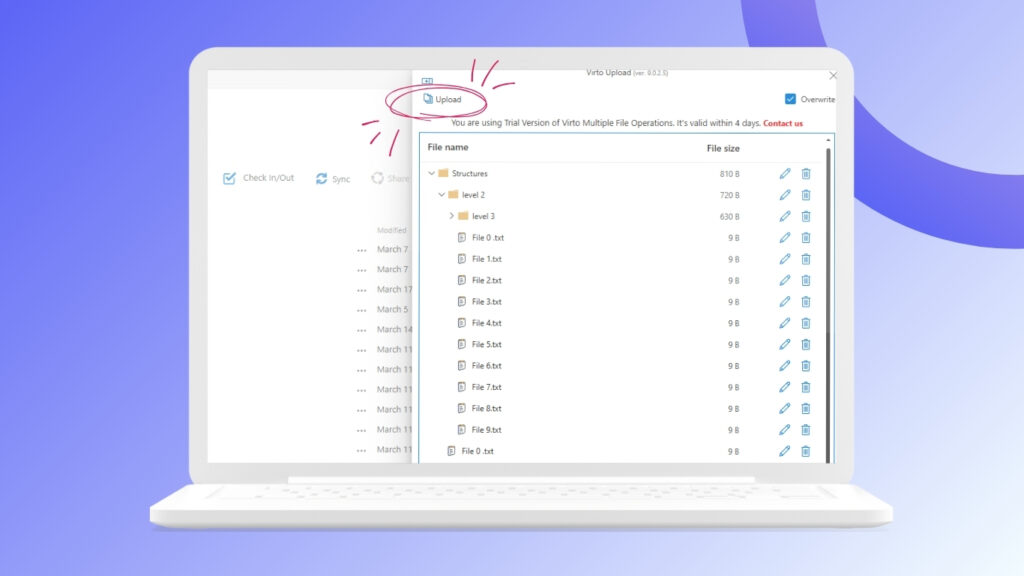
Virto Multiple File Upload App
Streamlined file uploading and management for SharePoint Online, addressing one of the common pain points in document management. Virto Multiple File Upload features include:
- Bulk file uploads with drag-and-drop simplicity
- Metadata assignment during upload
- Folder structure preservation
- Progress tracking for large uploads
- Error handling and retry capabilities
This eliminates the tedious process of uploading files one by one and ensures consistent metadata application across document libraries.
Creating a Powerful Combined Ecosystem
It’s important to understand that Virtosoftware applications don’t replace Microsoft 365 Copilot—they complement it. Together, they create a comprehensive ecosystem where each component plays a specific role:
Microsoft Copilot 365 provides:
- Intelligent automation powered by AI
- Natural language interaction with your data
- Content generation and analysis
- Contextual insights from across your digital workspace
- Predictive assistance based on patterns and user behavior
Virtosoftware Solutions deliver:
- Structured processes and workflows
- Flexible customization for specific business needs
- Visual management and oversight tools
- Specialized functionality for particular use cases
- Enhanced control over organizational processes
The Synergy Effect
When used together, Office 365 Copilot and Virtosoftware applications create synergies that amplify their individual benefits. For example:
- M365 Copilot can help you draft project plans and analyze task dependencies, while Virto Kanban Board provides the visual framework to track execution and team progress.
- Copilot AI can summarize meeting notes and identify action items, while Virto Calendar ensures those actions are scheduled and resources are properly allocated.
- Microsoft Copilot 365 can analyze document usage patterns and suggest relevant content, while Virto Alerts makes sure stakeholders are notified when critical documents are updated.
- MS365 Copilot can help prepare bulk documentation, while Virto Multiple File Upload streamlines the process of organizing these documents in SharePoint with proper metadata.
Whether your organization is preparing for Microsoft Office 365 Copilot deployment, already using it, or taking a measured approach to AI adoption, Virtosoftware applications provide valuable enhancements that improve productivity and collaboration today while positioning you for future capabilities tomorrow
Explore VirtoSoftware use cases
Conclusion
Microsoft 365 Copilot represents a powerful evolution in workplace productivity. By integrating advanced AI directly into applications millions use daily, M365 Copilot helps automate and accelerate everyday tasks, from drafting documents to analyzing data and managing communications.
For businesses evaluating Microsoft Copilot for Microsoft 365, success depends on thoughtful implementation—pilot programs, proper training, and quality data preparation. Organizations that approach MS 365 Copilot deployment strategically achieve meaningful ROI.
Copilot AI exists within a broader productivity ecosystem. Virtosoftware applications extend Microsoft 365 and SharePoint with specialized solutions for collaboration and process management that work alongside Office 365 Copilot, creating a comprehensive digital workspace where teams work more efficiently and focus on what matters most.
As you consider your productivity strategy, explore both AI-powered tools like Microsoft Copilot 365 and Virtosoftware’s specialized applications. Together, they combine cutting-edge intelligence with proven enhancements, all within the Microsoft 365 environment your teams already know. Take the next step—discover how these tools can transform how your organization works today..