SharePoint Collaboration: How to Optimize Teamwork
A practical guide to SharePoint collaboration sites, built-in tools, and Virtosoftware apps that boost productivity across teams.

SharePoint has been around for decades, yet it continues to hold its ground as one of the most trusted platforms for enterprise collaboration. Why? Because it doesn’t just keep up with the way organizations work—it constantly evolves to match it. Whether your team is managing sensitive documents, coordinating projects, tracking tasks, or driving discussions, a SharePoint collaboration site provides a structured yet flexible environment to get it all done.
This article is designed for both sides of the spectrum: newcomers exploring SharePoint collaboration tools for the first time, and seasoned professionals who know the platform inside out. We’ll highlight the native SharePoint collaboration features that make it such a powerful platform out of the box, and then show how these capabilities can be extended with VirtoSoftware apps.
Together, these layers reveal why collaboration in SharePoint is more than just file sharing—it’s about creating a tailored digital workspace that can evolve with the unique needs of every team.
👉Before we unpack SharePoint collaboration features, explore our hubs on SharePoint Online and SharePoint Web Parts to see the bigger picture.
What is SharePoint Collaboration?
👉What is SharePoint collaboration? SharePoint collaboration goes far beyond keeping documents in folders. At its core, it’s about creating a digital ecosystem where employees, teams, and entire departments can work together seamlessly. A SharePoint collaboration site becomes the central hub where content is created, shared, and managed; where conversations flow alongside documents; and where processes are tracked and automated to keep work moving.
So, what exactly does collaboration in SharePoint mean? Think of it as a combination of:
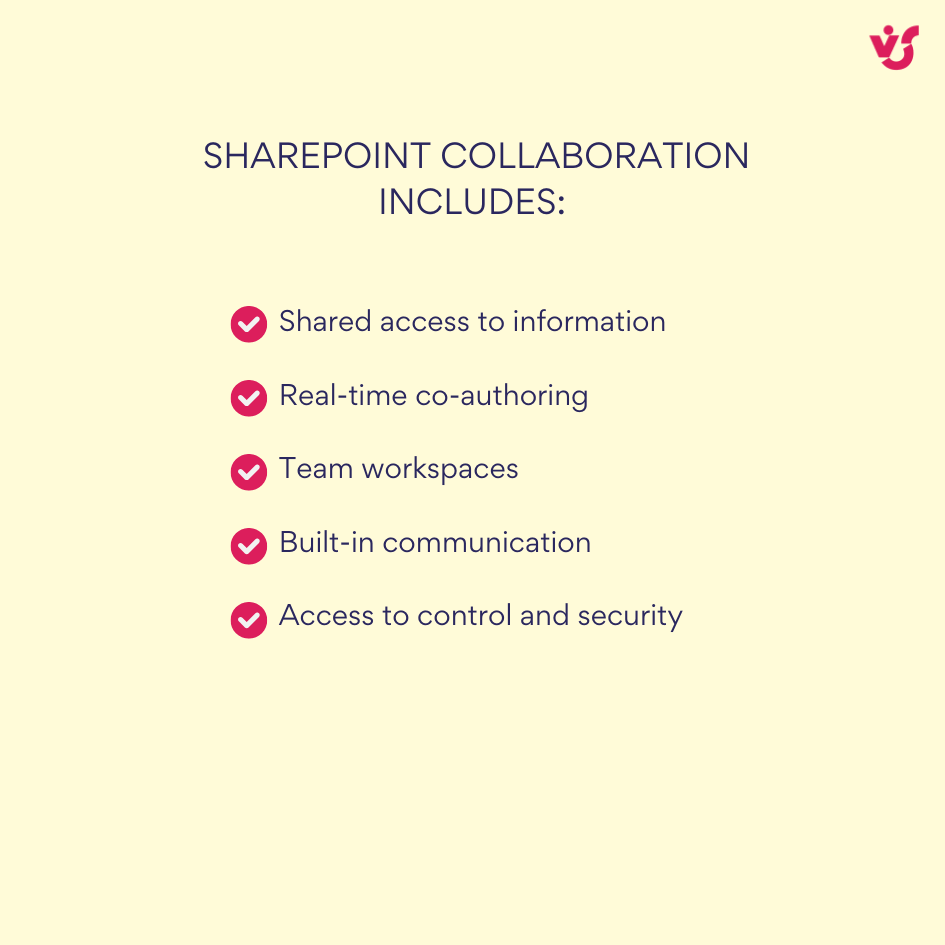
- Shared access to information — documents, lists, libraries, and team calendars available in one secure place.
- Real-time co-authoring — yes, two (or more) people can absolutely work on the same document in SharePoint at the same time, especially when using Office Online. Changes appear instantly, with each user’s edits highlighted.
- Team workspaces — dedicated SharePoint collaboration sites (Team Sites) where groups manage files, projects, and discussions.
- Built-in communication — from comments and notifications to @mentions.
- Access to control and security — granular permissions to keep sensitive content protected while enabling collaboration across the organization.
In other words, SharePoint collaboration features are designed to bring together people, processes, and content in one digital hub. Here’s how it plays out:
- People can quickly find the right files, communicate in context, and share expertise.
- Content like documents, reports, and images is centralized in a protected environment with version history always at hand.
- Processes such as approvals, reminders, or requests can be automated with SharePoint lists, forms, and Power Automate.
The result? No more scattered information across inboxes, chat threads, or disconnected tools. Instead, you get end-to-end communication and knowledge sharing inside a single platform.
👉Can two people work on SharePoint at the same time? Yes. SharePoint collaboration supports real-time co-authoring, so multiple people can edit the same document simultaneously—especially with Office Online. Changes appear instantly, each user’s edits are visible, and version history ensures nothing is lost. In short, one document, one source of truth, and smooth teamwork. It’s not just limited to documents either. Teams can update lists, edit tasks, or manage items in a SharePoint collaboration site simultaneously. With version history tracking in the background, every change is recorded—so you can always roll back if needed.
Examples of SharePoint collaboration in action
- Multiple users editing a Word or Excel file simultaneously—whether in the browser or desktop app—with real-time updates and visible cursors.
- Shared document libraries with flexible access controls, from read-only permissions to external collaboration.
- Version history to restore earlier file versions with a single click.
- Shared calendars and task lists that keep cross-departmental projects in sync.
This is what makes SharePoint collaboration tools stand out: they don’t just help teams store content, they create a connected workspace that keeps everyone aligned and productive.
Key Features and Benefits of SharePoint Collaboration
So, what exactly makes collaboration in SharePoint stand out compared to other platforms? It’s the combination of built-in tools and seamless integrations that give teams a single place to create, organize, and manage their work. From co-authoring documents to tracking tasks and automating processes, the range of SharePoint collaboration features is what transforms it from simple storage into a true digital workplace.
Core SharePoint Collaboration features
1. Shared document libraries & real-time editing
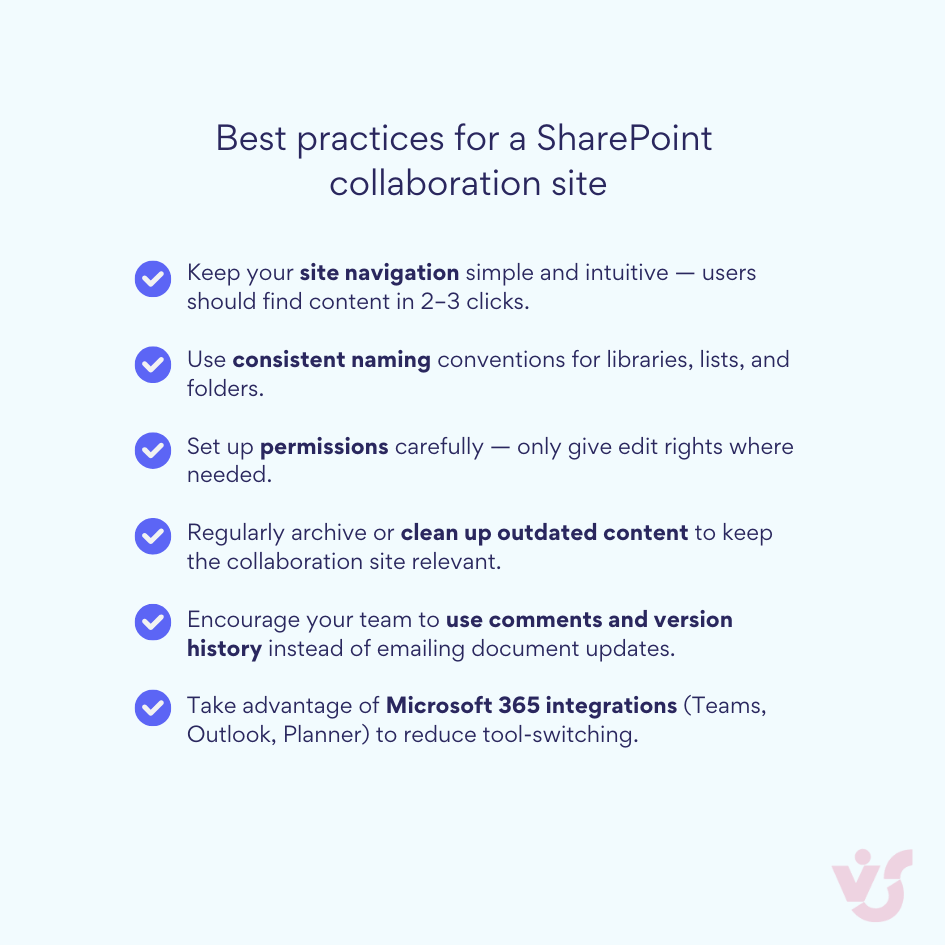
At the heart of SharePoint collaboration are shared document libraries. Teams can co-author Word, Excel, or PowerPoint files directly in the browser or desktop apps. Every change syncs instantly, with visible cursors showing who’s working where. Built-in version history ensures you can roll back to earlier edits at any time, while comments and discussions keep feedback in context.
2. Task lists & team calendars
Another core part of SharePoint collaboration features are customizable lists and calendars. You can track tasks, manage requests, or log ideas with fields, filters, and statuses tailored to your workflow. Shared calendars make it easier to coordinate meetings and deadlines across departments. Best of all, lists and calendars connect seamlessly with Outlook and Microsoft Teams, turning SharePoint into a single workspace for planning and execution.
3. Customizable collaboration sites
Every team works differently, and that’s where a SharePoint collaboration site comes in. These workspaces combine document libraries, lists, calendars, forms, and even dashboards. Each site can be customized to match the needs of a department, project, or process—with unique permissions, layouts, and navigation. It’s collaboration shaped to fit the way your team operates.
4. Deep Microsoft 365 integration
One of the biggest advantages of collaboration in SharePoint is how tightly it connects with Microsoft 365. You can attach SharePoint documents directly in Teams chats, sync calendars with Outlook, and manage files through OneDrive. This integration eliminates the friction of switching tools, making collaboration more fluid across the entire ecosystem.
5. Comments & version control
Feedback and accountability are built in. Users can comment directly within documents, keeping discussions tied to specific content. Every file also maintains a complete version history, so you can see who changed what—and restore previous versions when needed.
👉Is SharePoint a good collaboration tool? Absolutely. SharePoint remains one of the best collaboration tools available for enterprises. Its deep Microsoft 365 integration, flexible SharePoint collaboration sites, and robust feature set make it ideal for teams that need secure access control, centralized content, real-time co-authoring, and process automation. Whether your team is small or spread across global offices, collaboration in SharePoint brings everything together in one connected hub.
Benefits of SharePoint collaboration
Understanding the advantages of collaboration in SharePoint helps explain why it’s such a powerful tool for teams of all sizes. Here’s what makes SharePoint collaboration stand out:
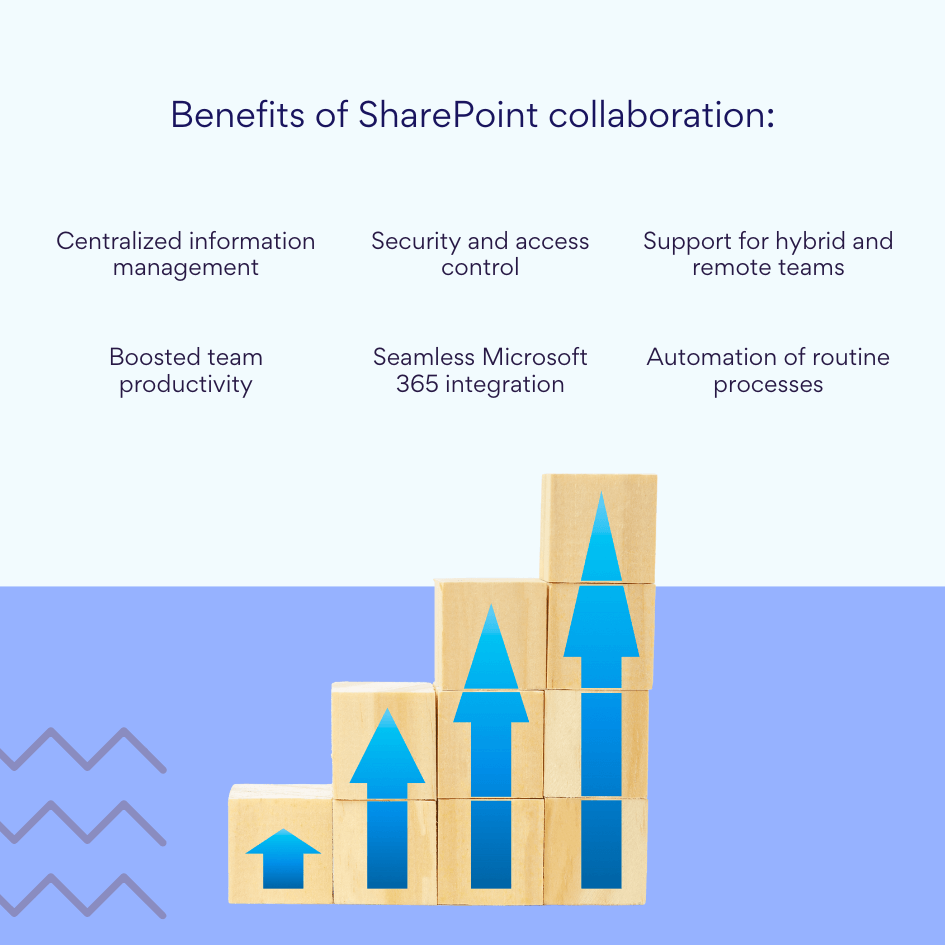
✔️Centralized information management: All files and documents live in one secure place. No more hunting through emails or scattered folders—teams always know where to find what they need.
✔ ️Boosted team productivity: Real-time co-authoring, automatic notifications, and task tracking let teams work faster and stay coordinated. SharePoint collaboration features help remove friction so projects move smoothly from start to finish.
✔️Security and access control: Granular permissions at the library, folder, or document level ensure sensitive information stays protected while still enabling collaboration.
✔️Seamless Microsoft 365 integration: SharePoint works hand-in-hand with Teams, Outlook, Word, and Excel, making collaboration in SharePoint intuitive and connected.
✔️Support for hybrid and remote teams: Access the information you need from anywhere, on any device. SharePoint keeps distributed teams in sync without slowing down workflows.
✔️Automation of routine processes: Built-in tools and Power Automate streamline approvals, reminders, notifications, and other repetitive tasks—freeing teams to focus on higher-value work.
In short, SharePoint collaboration tools don’t just store content—they connect people, processes, and information in a single, secure, and productive environment.
Summary
| Feature | Benefit |
| Centralized information | All files and documents in one place; no lost emails or scattered folders. |
| Team productivity | Real-time co-authoring, automatic notifications, task tracking. |
| Security | Granular access control at library, folder, and document levels. |
| Microsoft 365 integration | Seamless workflow with Teams, Outlook, Word, Excel. |
| Hybrid/remote support | Work from any location or device. |
| Automation | Streamline approvals, reminders, and repetitive tasks. |
How to Organize SharePoint Collaboration
SharePoint gives you plenty of options, but without a clear setup, even the best SharePoint collaboration tools can feel messy. That’s why it’s important to start with structure—deciding who gets access, how content will be organized, and which integrations matter most for your team.
Step-by-step guide to SharePoint collaboration
👉How to enable collaboration in SharePoint? It starts with a clear plan and the right structure. Here’s a step-by-step approach to setting up effective SharePoint collaboration:
- Create a team site
Begin by creating a new site via SharePoint or Microsoft Teams. Choose the Team Site template designed for collaboration, and configure the site name, description, and privacy settings (public or restricted access).
- Add Members
Navigate to Site Permissions or the Microsoft 365 Group panel. Add users via email—both internal employees and external collaborators if external access is enabled. Organize members into groups based on departments, projects, or roles for easier management.
- Assign roles and permissions
SharePoint comes with three standard roles:
- Owner — full site control.
- Member — can edit content.
- Visitor — read-only access.
Permissions can be set at multiple levels: the entire site, individual libraries and lists, or specific folders and files.
👉How do I add a collaborator on SharePoint? Simply add their email, assign the appropriate role, and they gain access based on the permissions you’ve configured.
- Structure Your Content
Thoughtful organization helps navigation and ensures secure access:
- Document Libraries — separate for projects, teams, or clients.
- Lists — for tasks, requests, surveys, and other structured content.
- Folders — to categorize files within libraries by topic, date, or project phase.
Apply permissions at each level as needed to maintain security and clarity.
SharePoint collaboration checklist
A well-structured SharePoint collaboration site with clear access rules prevents chaos and maximizes productivity. Here’s a practical checklist:
1. Set up your site
- Create a Team Site via SharePoint or Microsoft Teams.
- Choose the collaboration template.
- Define site name, description, and privacy settings.
2. Add team members
- Invite internal and external collaborators by email.
- Organize users into groups by department or project.
3. Assign roles & permissions
- Owner: Full site control.
- Member: Edit content.
- Visitor: Read-only.
- Apply permissions at site, library, list, and folder levels.
4. Structure your content
- Libraries for documents per project/team/client.
- Lists for tasks, requests, surveys, and approvals.
- Folders to organize files within libraries.
5. Integrate with Microsoft 365
- Connect with Teams, Outlook, Planner, and OneDrive.
- Add productivity apps like Virto Kanban or Virto Calendar.
6. Maintain & govern your site
- Archive outdated files regularly.
- Assign a site administrator to monitor permissions and structure.
7. Example site structures
- Marketing Team: Campaign libraries, content lists, deadline calendar, KPI dashboard.
- Project Team: Deliverables library, task & issue lists, milestone folders, Planner integration.
- HR Team: Policy libraries, request lists, onboarding checklists, shared HR calendar.
Using a SharePoint Collaboration Site
A SharePoint collaboration site is the backbone of teamwork in SharePoint. Think of it as your team’s digital office: a dedicated workspace where people, documents, and workflows come together. Unlike a simple document library, a collaboration site is a customizable hub that brings structure and context to daily work.
What to include on a collaboration site
To make your collaboration in SharePoint effective, it’s worth setting up the right mix of components from the start:
- Task lists for assigning, tracking, and completing work.
- Calendars for scheduling meetings, deadlines, and project milestones.
- Discussion boards to centralize conversations and knowledge sharing.
- Document libraries for storing and co-editing files.
- Pages and Web Parts for dashboards, quick links, or team announcements.
Examples of collaboration sites in action
- Marketing team site: shared calendars for campaign deadlines, a document library for creative assets, and discussion boards for brainstorming.
- Project team site: task lists linked to Planner, libraries for project documentation, and dashboards to track milestones.
- HR site: onboarding checklists, policy libraries, FAQ lists, and calendars for training sessions.
Getting started with a site template
When creating a SharePoint collaboration site, start with a built-in Team Site template. From there, you can customize the structure, add components, and fine-tune permissions to fit your team’s workflow.
Integration with Microsoft Teams
In SharePoint Online, collaboration sites can connect directly with Microsoft Teams. Each Teams channel maps to a folder in the SharePoint document library, so files are automatically organized. Tasks can also sync with Planner, giving your team a unified experience across both platforms.
SharePoint Collaboration Tools for Teamwork
One of the biggest strengths of SharePoint is the wide range of built-in SharePoint collaboration tools that let teams work smarter, not harder. Instead of juggling multiple apps, you get everything you need for documents, tasks, projects, and communication inside a single digital workspace.
Key SharePoint collaboration features
1️⃣Co-authoring
With co-authoring, multiple users can edit the same Word, Excel, or PowerPoint file at the same time. Every change is synced instantly, and you can even see other people’s cursors moving in real time. This makes SharePoint collaboration smooth and eliminates version chaos.
2️⃣SharePoint lists
Lists are more than just spreadsheets online. They’re a flexible way to manage tasks, requests, ideas, or tickets. You can customize fields, set statuses, filter data, and even trigger workflows with Power Automate.
3️⃣SharePoint calendar
A shared calendar helps teams stay on top of meetings, deadlines, and events. Because it integrates with Outlook, scheduling across your SharePoint collaboration site and email is seamless.
4️⃣Team sites
A SharePoint collaboration site (Team Site) acts as the central hub for your project or department. It can include document libraries, lists, discussion boards, and dashboards — all tailored to how your team works.
5️⃣Versioning
Every document in SharePoint comes with version history, so you can easily roll back to an earlier copy.
👉How can users collaborate on a document in SharePoint? Users can collaborate on a document in SharePoint by opening it directly from a document library in Word, Excel, or PowerPoint. Thanks to Microsoft 365 integration, multiple people can work on the same file at the same time — edits appear instantly, automatic saving keeps versions up to date, and built-in comments make it easy to discuss changes without leaving the document.
Real-World Examples of SharePoint Collaboration in Action
The true value of SharePoint collaboration shows when it adapts to the daily needs of different departments. Whether it’s developers tracking code reviews, sales teams closing deals faster, or HR managing recruitment pipelines, SharePoint offers the flexibility to fit unique business goals. Let’s look at three practical scenarios.
1. Development teams: tasks and documentation in one hub
For development teams, SharePoint often serves as the central space for managing tasks, technical documentation, and workflows. A SharePoint collaboration site might include:
- A task list or Kanban board (via Microsoft Lists or Virto Kanban Board) to track sprint progress.
- Document libraries storing architecture diagrams, deployment guides, API specs, and testing reports.
- Dynamic pages that display sprint statuses, retrospectives, and test outcomes.
This kind of setup keeps everything in one digital workspace and helps distributed teams stay aligned — no matter where developers are located.
2. Sales departments: centralized materials and templates
For sales teams, speed and consistency are critical. A SharePoint collaboration site can become the go-to hub for every pitch and proposal. Typically, it includes:
- Document libraries with up-to-date presentations, pricing sheets, contract templates, and email drafts.
- Access controls configured by region or sales vertical.
- Versioning enabled to ensure managers always work with the latest documents.
This structure reduces mistakes, saves time when preparing client offers, and ensures every rep is using the most accurate and approved content.
3. HR teams: recruitment and internal processes
HR specialists use SharePoint collaboration tools to streamline recruiting, onboarding, and internal HR initiatives. For example:
- A recruitment site where managers can track open positions and candidate profiles.
- Lists to record interview statuses, start dates, and assigned recruiters.
- Outlook integration for reminders and interview scheduling.
- Forms (built with Power Apps or Microsoft Forms) to collect feedback from hiring managers.
By creating this kind of workspace, HR improves transparency, reduces response times, and makes it easier to align with internal stakeholders.
Expanding SharePoint Collaboration with Virtosoftware
SharePoint comes with a powerful set of collaboration tools out of the box, but real-world projects often need more flexibility and visual management options. That’s where Virtosoftware products step in — extending SharePoint collaboration features and helping teams work smarter, whether you’re on SharePoint Online or an on-premises version.
For SharePoint Online (Microsoft 365)
With Virtosoftware apps, you can transform your SharePoint collaboration site into a full workspace for managing projects, calendars, and tasks:
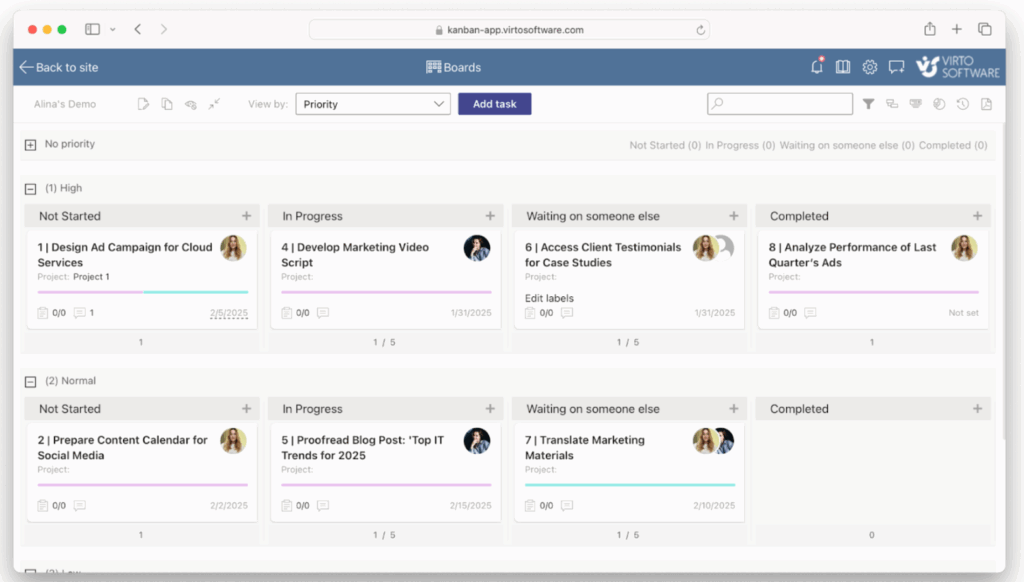
- Organize projects visually with cards and statuses.
- Create separate Kanban boards for different teams or projects.
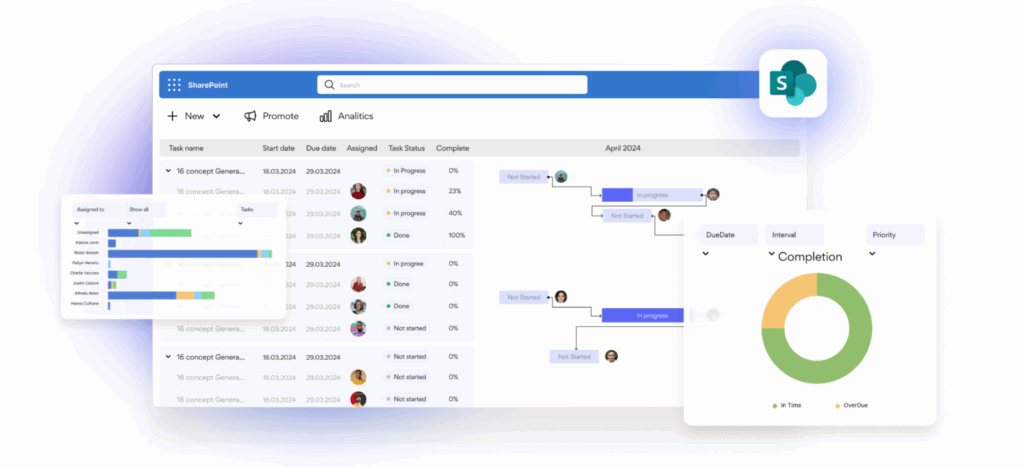
- Plan and track deadlines with interactive Gantt charts.
- See the big picture of your project timeline inside SharePoint.
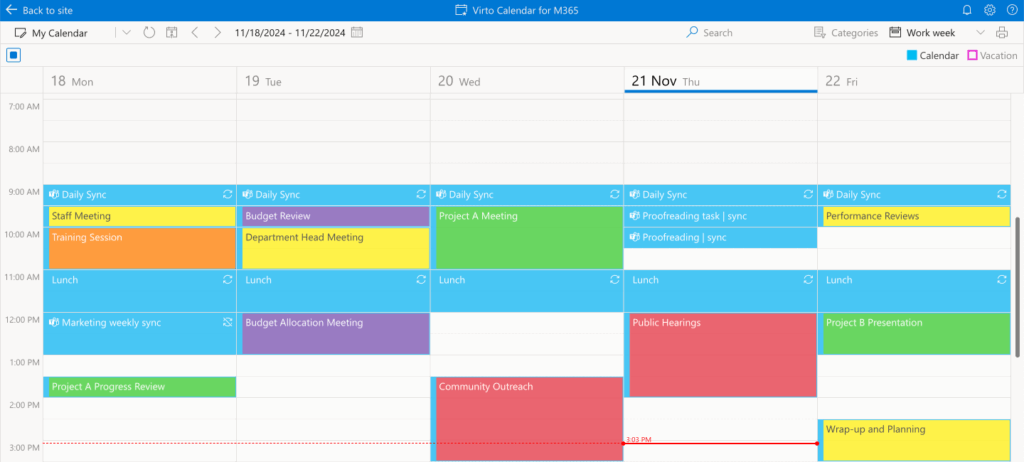
- Consolidate all calendars in one view.
- Keep events, meetings, and deadlines in sync within SharePoint collaboration tools.
For SharePoint On-Premises (2013–2019)
Virtosoftware also provides advanced SharePoint collaboration features for on-premises environments through Web Parts:
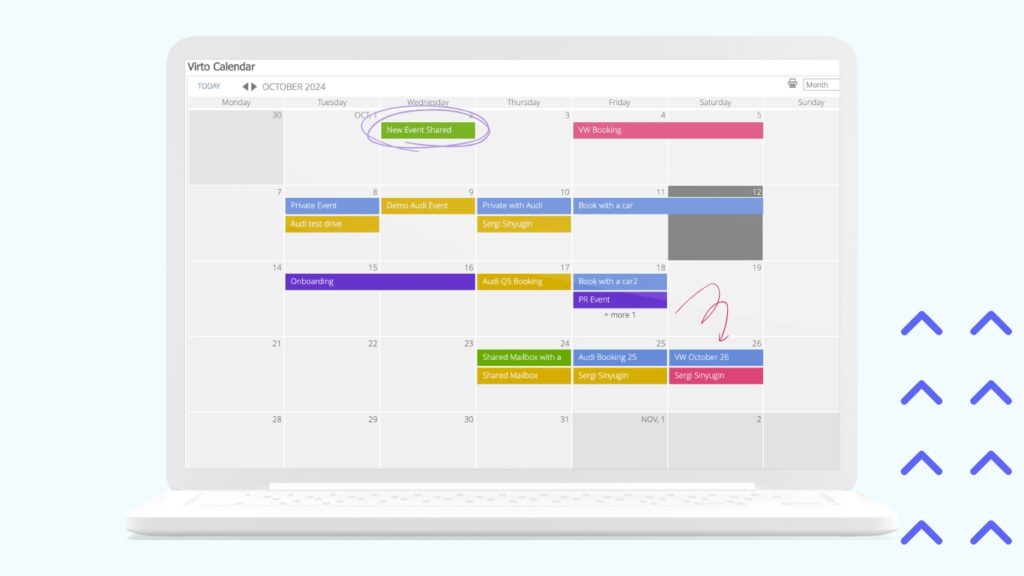
- Virto Calendar Web Part – a flexible way to display events and collaborate on shared calendars.
- Task Management Web Part – organize and manage team tasks directly in SharePoint.
- Discussion Board Web Part – create spaces for communication, idea exchange, and decision-making.

Virto Kanban Board for task management and discussions
Virtosoftware Apps for SharePoint сollaboration
| Environment | Tools | Key Collaboration Features | Example Use Cases |
| SharePoint Online (Microsoft 365) | Virto Kanban Board App | Visual task and project management with cards and statuses | Agile sprint tracking, project boards for different teams |
| Virto Gantt Chart App | Interactive timeline for planning and controlling deadlines | Project roadmaps, release planning | |
| Virto Calendar App | Unified calendar view with events, meetings, and deadlines | Team schedules, company-wide event planning | |
| SharePoint On-Premises (2013–2019) | Virto Calendar Web Part | Advanced calendar display and shared event management | Department calendars, project milestones |
| Task Management Web Part | Create and manage team tasks directly in SharePoint | Task assignments, workflow tracking | |
| Discussion Board Web Part | Centralized space for communication and decision-making | Idea sharing, internal discussions, approvals |
Final Thoughts
SharePoint collaboration has become the backbone of modern teamwork — a platform powerful enough to support the needs of small groups, large enterprises, and everything in between. With its built-in SharePoint collaboration features like document libraries, lists, calendars, and team sites, it provides a solid foundation for productivity and knowledge sharing.
But when you add Virtosoftware solutions into the mix, the experience goes even further. Tools like Virto Kanban, Gantt Chart, and Calendar bring visual clarity, simplify processes, and help teams keep projects on track. For on-premises environments, Virto Web Parts extend these same benefits, ensuring your organization can unlock advanced SharePoint collaboration tools regardless of infrastructure.
If you’re looking to maximize the value of your SharePoint collaboration site, Virtosoftware products are a natural next step — bridging gaps, reducing friction, and making teamwork more effective in both Microsoft 365 and SharePoint On-Premises.
👉For official guidance, best practices, and the latest updates, explore Microsoft’s SharePoint resources directly: