How to Create and Manage Microsoft 365 Backup Effectively
Your files can come back and your business can still stall. This piece shows how to pair Microsoft 365 Backup with smart safeguards—and the right VirtoSoftware apps—so recovery actually restores work.

Most teams assume Microsoft 365 “backs up everything.” It doesn’t. Microsoft guarantees platform availability and gives you short-term recovery tools like recycle bins, version history, and mailbox item recovery. For anything beyond that—longer retention, point-in-time restores, cross-tenant resilience—you need a true backup.
The good news: there’s now a first-party option. Microsoft 365 Backup covers Exchange Online, SharePoint, and OneDrive with frequent restore points and admin-led recovery. It’s opt-in and billed on consumption. Teams chats aren’t included, and many organizations still pair it with a third-party service for longer retention or broader coverage.
This article is a practical guide to what’s built in versus what a full backup adds. We’ll spell out the limits that matter (e.g., 93-day recycle bins; 14–30 days for mailbox item recovery; about 30 days for OneDrive and library restore), show how to fix common “oh no” moments fast, and help you choose between first-party and third-party backup—or use both—without overcomplicating your day.
What Is Microsoft 365 Backup?
Microsoft 365 Backup is Microsoft’s first-party, pay-as-you-go backup service for Exchange Online, SharePoint, and OneDrive. It creates point-in-time copies inside the Microsoft 365 trust boundary so admins can roll data back quickly after ransomware, accidental deletion, or mass edits. Backups honor your data-residency rules and use append-only storage to prevent tampering.
Microsoft 365 Backup is Microsoft’s first-party, pay-as-you-go backup service for Exchange Online, SharePoint, and OneDrive. It creates point-in-time copies inside the Microsoft 365 trust boundary so admins can roll data back quickly after ransomware, accidental deletion, or mass edits. Backups honor your data-residency rules and use append-only storage to prevent tampering.
👉 Learn more here:
- Overview of Microsoft 365 Backup
- Data Backup and Recovery | Microsoft 365 Backup
- Set up Microsoft 365 Backup
💡 Does Microsoft 365 have backup? Yes—Microsoft offers a first-party service called Microsoft 365 Backup that creates point-in-time copies of Exchange Online, SharePoint, and OneDrive. It’s separate from the everyday recovery tools (recycle bins, version history) and is managed in the Microsoft 365 admin center. The service is pay-as-you-go and opt-in rather than included by default.
At a glance
- Scope: Exchange mailboxes, SharePoint sites, OneDrive accounts. (Teams chat isn’t covered yet; only channel files stored in SharePoint are protected.)
- Retention & frequency: One-year retention by default. For SharePoint/OneDrive, restore points every ~10 minutes for the last 14 days, then weekly up to a year; for Exchange, ~10-minute restore points across the year.
- Recovery performance: Admin-led restores for full sites/OneDrives or granular mailbox items, designed for fast, large-scale recovery. Restores are free.
- Billing: Consumption model—$0.15 per GB per month of protected content.
- Where you turn it on: Microsoft 365 admin center (requires pay-as-you-go billing and the right admin role).
- Availability note: Not yet available for GCC tenants.
What it’s good for
- Rapid rollback of entire SharePoint sites or OneDrive accounts after broad corruption or encryption events.
- Item-level recovery in Exchange (mail, calendar, contacts, tasks) without trawling eDiscovery exports.
- Keeping backups inside the Microsoft 365 boundary to meet residency requirements.
What it isn’t
- A chat backup for Teams (today). Pair it with retention/eDiscovery for chats, and rely on SharePoint/OneDrive backups for the files that Teams stores there.
How you use it (in brief)
- Link an Azure subscription for pay-as-you-go, 2) enable Microsoft 365 Backup in the admin center, 3) create protection policies for the sites, OneDrives, and mailboxes you care about. Only tenant-level admins (or the dedicated Backup admin role) can manage it.
💡 Does Microsoft 365 backup automatically? Not by default. You need to activate pay-as-you-go services and turn on Microsoft 365 Backup in the admin center, then apply backup policies to the workloads you want protected. Once enabled, backups follow your policies and provide restore points you can use later; built-in features like version history continue to work, but they aren’t the same as a backup.
Built-in Microsoft 365 Protection Mechanisms
Microsoft 365 includes several native tools that help you protect content and roll it back after mistakes or limited-scope incidents. These tools are designed for short-term recovery and compliance—not as a full, independent backup.
What’s built in
Here’s how the native safety nets fit together. Start with the lightest touch for single files—use the recycle bin or version history. If the damage is wider, roll back a whole library or an entire OneDrive. For mail, check Deleted Items first, then Recoverable Items. And remember: these tools operate inside your tenant and within set time windows, so they’re ideal for quick fixes, not long-term protection.
Recycle bin and file versioning (OneDrive & SharePoint)
How delete/restore works. When you delete a file, it first lands in the site or OneDrive recycle bin. If it’s emptied there, it moves to the site collection (second-stage) recycle bin. Total retention across both stages is up to 93 days; after that, recovery with standard tools isn’t possible.
Version history. SharePoint libraries have versioning on by default, so you can roll a file back to a prior version without affecting other files. OneDrive and Office apps also expose version history in the file UI. Restoring a version creates a new latest version—it doesn’t delete history.
Point-in-time rollback for big mishaps.
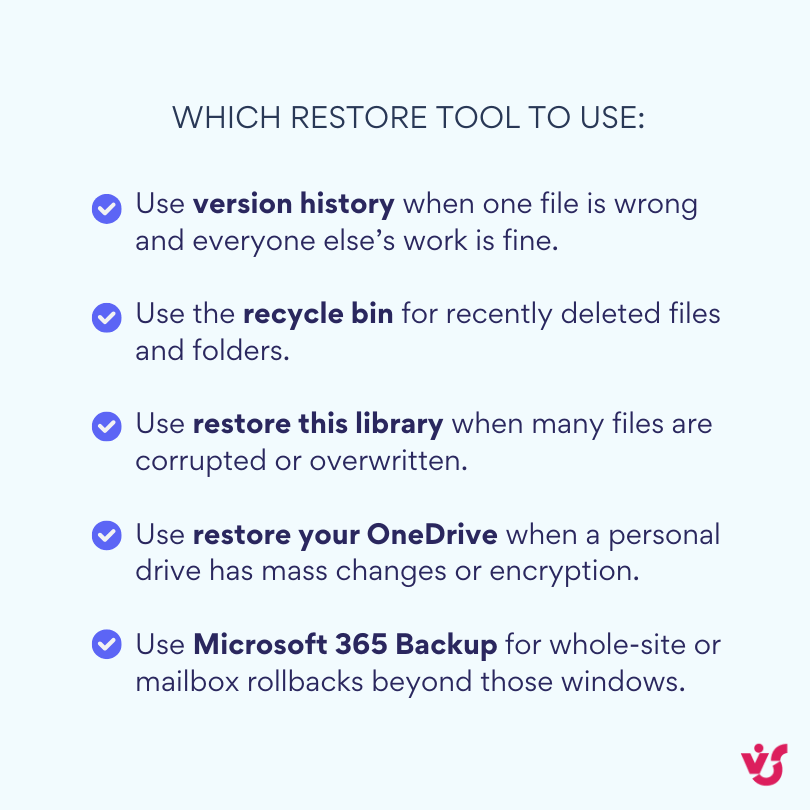
- Restore this library (SharePoint): site owners can rewind a document library to a prior point (roughly last 30 days) using the activity slider—great for mass deletes/overwrites.
- Restore your OneDrive: lets users roll back their entire OneDrive for the last 30 days—handy for ransomware or bulk changes.
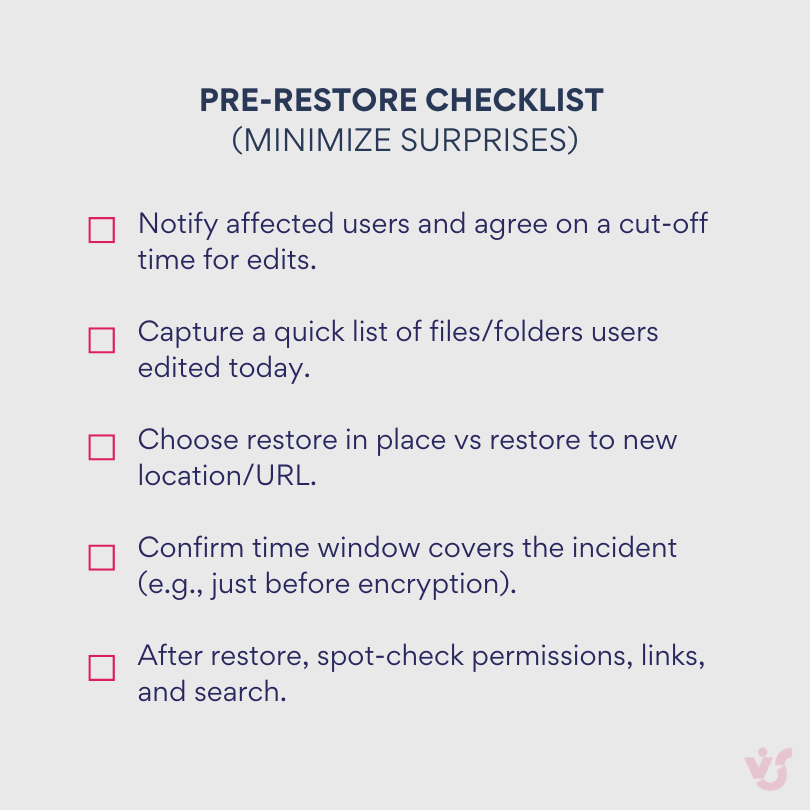
⚡ Tips & caveats. Library/OneDrive restore replays many changes—tell people first so they can save current work and avoid surprise overwrites.
Retention policies & archives (Exchange Online)
What they do. Microsoft Purview retention policies/labels can keep or delete mailbox content based on rules; they’re for governance, not backup. Archive mailboxes (with optional auto-expanding archive) add mailbox storage for long-lived mail.
Why it matters. Retention helps ensure content sticks around for regulatory or business reasons—but recovery still depends on the mailbox’s short deleted-item window (see below) unless you have a backup.
Mailbox and email recovery
Everyday restore. Users recover from Deleted Items; if it’s gone, use Recover items deleted from this folder (the Recoverable Items store). By default, deleted items are kept 14 days, configurable up to 30 days per mailbox. After that, you’ll need eDiscovery/holds or a backup.
Admin knobs. Admins can change the per-mailbox retention setting (14→30 days) and should watch Recoverable Items quotas.
SharePoint site recovery options
Deleted sites. Admins can restore deleted SharePoint sites from the SharePoint admin center for 93 days; after that they’re permanently removed. There isn’t a self-service, point-in-time site snapshot outside Microsoft 365 Backup.
| Workload/feature | Where you restore | Typical window | Notes |
| OneDrive/SharePoint recycle bin | Recycle bin → second-stage recycle bin | Up to 93 days total | After that, standard recovery won’t work |
| OneDrive “restore your OneDrive” | OneDrive settings → Restore | ~30 days | Good for ransomware/mass edits |
| SharePoint “restore this library” | Library settings → Restore this library | ~30 days | Point-in-time for a single library |
| Exchange “Recoverable Items” | Outlook on the web → Recover items… | 14–30 days | Default 14; admin can set to 30 |
| Deleted SharePoint sites | SharePoint admin center | 93 days | Admin-level restore only |
⚡ Bottom line: these are recovery and compliance features that operate inside your tenant. They’re helpful for day-to-day mistakes, but they are not a substitute for a true backup.
Key limitations of built-in features
Before you lean on the built-ins, keep these constraints in mind. They’re excellent for quick fixes within your tenant, but they don’t provide thorough protection—here’s what to watch for.
- Limited retention windows. Examples: SharePoint/OneDrive recycle bins (93 days), library/OneDrive restore (~30 days), Exchange recoverable items (14–30 days).
- Dependence on your policies. If a policy deletes or retains content incorrectly, recovery may not be possible after its window expires.
- No protection from account/tenant compromise. Native features rely on the same identity and admin surface; compromise can affect both data and recovery settings. (This is why cloud security uses a shared responsibility model.)
- No independent storage. Built-in mechanisms (and Microsoft 365 Backup, when used) keep data inside Microsoft 365’s boundaries; only third-party backups store copies outside your tenant.
If a time limit passes—or attacker actions alter policies/identities—full recovery typically requires an independent backup copy you control.
⚡ Practical tip before you roll back: warn users that a library/OneDrive restore reverts recent changes for everyone; ask teams to save current copies of critical files if they’ve been updated since the issue. (This avoids surprise overwrites.)
How to activate Office 365 backup?
It depends on what you’re activating:
- Built-in tools (governance & short-term recovery): configure in the Microsoft 365 admin and Purview portals. Examples include enabling archive mailboxes and creating retention policies for Exchange, SharePoint, OneDrive, and Teams.
- Full backup options:
- Microsoft 365 Backup (first-party): opt-in, pay-as-you-go service for Exchange, SharePoint, and OneDrive. It creates point-in-time copies inside the Microsoft 365 trust boundary (append-only storage) and is managed in the admin center.
- Third-party backup (independent storage): backs up Microsoft 365 data outside your tenant, giving you a logically separate copy and additional resiliency from identity or tenant-level issues. (Vendors vary; choose based on retention, scope, and compliance needs.)
Built-in recovery vs full backup—what’s the difference?
Think of built-ins as quick, in-tenant fixes for recent mistakes; a full backup is a separate copy you control for long-term, tenant-independent recovery. Here’s how they differ at a glance.
- Built-in functions: point or time-boxed recovery (e.g., recycle bins, version history, library/OneDrive restore, recoverable items). Useful for quick fixes, bounded by retention windows and your policies.
- Full backup: maintained copies of data with restore points beyond day-to-day retention. This can be first-party (Microsoft 365 Backup, stored inside Microsoft 365) or third-party (stored in an independent location outside Microsoft 365). Third-party backups add isolation from tenant or account compromise.
| Dimension | Built-in recovery | Microsoft 365 backup (first-party) | Third-party backup (independent) |
| Storage location | Inside tenant | Inside Microsoft 365 boundary | Outside tenant (vendor or your cloud/on-prem) |
| Independence | Low | Medium (in-platform) | High (separate platform) |
| Coverage | Recycle bins, versions, limited rollbacks | Exchange, SharePoint, OneDrive | Broad (often adds Teams messages, extras) |
| Retention length | Short, policy-bound | Default ~1 year (policy-driven) | Flexible, multi-year/archival |
| Best for | Quick, recent fixes | Fast point-in-time rollbacks | Long-term, compliance, isolation |
| Who operates | Site/mailbox owners & admins | Admins in M365 | Backup admins / vendor console |
How to Create a Microsoft 365 Backup
There are two valid approaches today:
- First-party: enable Microsoft 365 Backup to create point-in-time copies of Exchange Online, SharePoint, and OneDrive inside the Microsoft 365 trust boundary. It’s configured in the admin center with backup policies per workload. This is fast for rollbacks, but it isn’t independent storage.
- Independent (third-party): use dedicated backup software or a SaaS service to copy Microsoft 365 data to storage that’s separate from your tenant (public cloud object storage or on-prem). This adds isolation from tenant/account compromise and gives you broader choices for retention, storage location, and workloads like Teams messages.
How to back up using Microsoft 365 & How to backup a Microsoft 365 account?
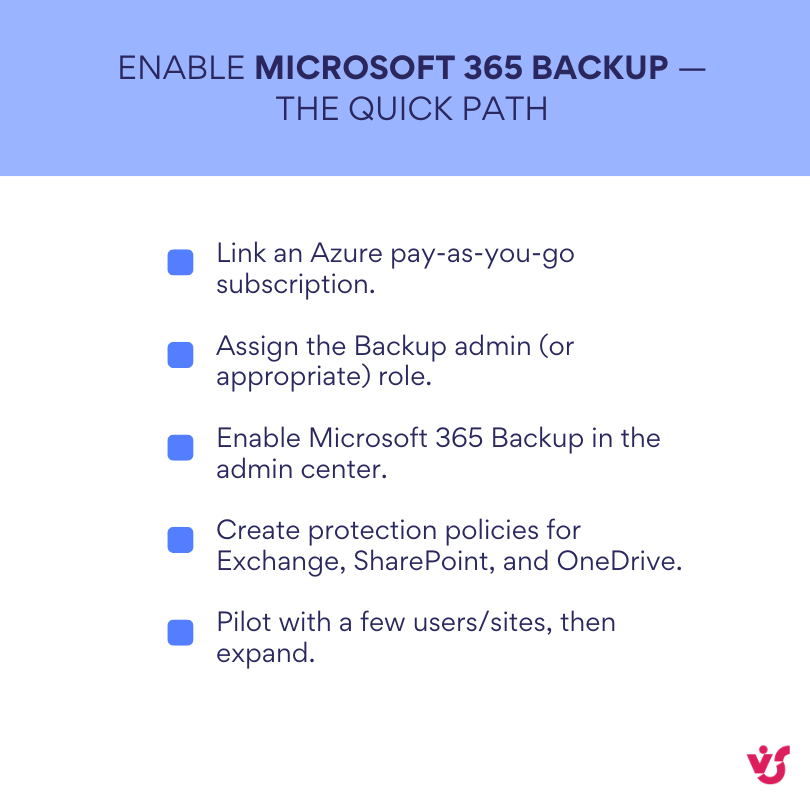
If you want fast, admin-led rollbacks within Microsoft 365, turn on Microsoft 365 Backup in the admin center and apply policies to mailboxes, sites, and OneDrives.
If you need an independent copy (separate storage, longer retention, additional workloads), pick a third-party backup that connects to your tenant via API consent and writes to cloud or on-prem repositories.
Backing up Office 365 with the popular third-party options
Here are a few of the best-known options to orient you—what they cover, where they store data, and what they do well.
- Veeam: available as SaaS (Veeam Data Cloud) or self-hosted (Veeam Backup for Microsoft 365). Covers Exchange, SharePoint, OneDrive, and Teams, with options to store backups in cloud object storage or on-prem S3-compatible systems; supports encryption and immutability.
- AvePoint Cloud Backup: broad Microsoft 365 coverage with granular restores; also integrates with Microsoft 365 Backup Storage for accelerated recovery (Backup Express).
- Barracuda Cloud-to-Cloud Backup: granular, point-in-time backup/restore for Exchange, SharePoint, OneDrive, Teams, Groups; data stored in Barracuda Cloud Storage with scheduled and on-demand backups.
We’ll explore these and other contenders in more detail in a later section, including when to favor first-party versus independent storage.
What third-party Microsoft 365 backup solutions add
Beyond Microsoft’s built-ins, independent backup platforms add capabilities that matter in day-to-day operations and audits. Here’s what they typically bring on top.
- Automated schedules for recurring backups (often incremental with periodic full/synthetic full), plus on-demand runs.
- Independent storage in separate data centers or on-prem object/NAS repositories—useful for isolation and long-term retention.
- Granular recovery down to a single email, file, site, or Teams item (scope varies by vendor and Microsoft APIs).
- Compliance & security features such as encryption, role-based access, and immutability to help meet regulatory requirements (e.g., GDPR/HIPAA)—implementation depends on the product you choose.
Again, we’ll cover third-party options and their benefits (limitations, etc.) in a later section, so keep reading.
Step-by-step: Set up a Microsoft 365 account backup
Use this checklist to stand up a reliable Microsoft 365 backup plan. It moves from scoping and governance basics to choosing first-party or third-party tooling, wiring permissions, and validating restores. Start with a small pilot, confirm restore speed and integrity, then scale to the rest of the tenant.
- Decide scope: Define exactly which workloads, users, and sites you’ll protect and how quickly they must be restored so coverage, RPO/RTO targets, and cost all line up with business impact.
- Workloads: Exchange Online (user, shared, resource mailboxes), SharePoint sites (team, communication, hub), OneDrive accounts, and—if required—Teams content (channel files in SharePoint; chat/meetings via supported APIs).
- RPO/RTO targets: Define how much data you can afford to lose (RPO) and how fast you must restore (RTO) per workload.
- Coverage list: Start with the most critical mailboxes/sites (executives, finance, legal, key project sites) and high-change OneDrives. Include guest access sites if they hold business data.
- Exclusions: Test tenants, stale OneDrives, or low-value sites—document why they’re excluded.
- Harden the basics: Turn on versioning, confirm recycle-bin defaults, and apply baseline retention/archives so routine fixes don’t escalate into restores and accidental deletions stay recoverable.
- SharePoint/OneDrive: Ensure version history is on and limits are sensible for active libraries. Confirm recycle bin defaults and library/OneDrive rollback are available.
- Exchange: Set Deleted Items retention to 30 days where appropriate; enable archive mailboxes (and auto-expanding archiving if needed).
- Retention policies: In Microsoft Purview, apply retention to core locations so important items aren’t prematurely deleted. Document these settings; they influence restore options later.
- Choose your backup approach: Weigh first-party, third-party, or hybrid based on independence, retention length, Teams coverage, residency, and budget so the solution actually meets compliance and recovery needs.
- First-party only: Turn on Microsoft 365 Backup for fast, in-tenant point-in-time restores of Exchange, SharePoint, and OneDrive.
- Third-party only: Pick a SaaS or self-hosted product to keep copies in independent storage (public cloud or on-prem).
- Hybrid (common): Use Microsoft 365 Backup for rapid rollbacks and a third-party for long retention, independent storage, and extra workloads (for example, Teams messages).
Create a simple decision table: retention length, independence, workloads, budget, and residency needs.
- Connect the tenant: Use app-based auth and minimal permissions to grant backup access while limiting blast radius and satisfying security requirements.
- First-party path: Link an Azure pay-as-you-go subscription, assign the proper admin role (e.g., Backup admin), enable the service, then create protection policies for Exchange/SharePoint/OneDrive. Start with a pilot set of users/sites.
- Third-party path:
- Prefer app-based auth (service principal + certificate) over user accounts.
- Grant only the required Microsoft Graph/Exchange/SharePoint/OneDrive permissions.
- If you want Teams message coverage, make sure the product supports the Teams export APIs and that your tenant approvals/licensing are in place.
- Plan schedules & retention. Set incremental/full cadence, tiered retention, and immutability to balance restore speed with storage cost and legal obligations.
- Starter schedule: Daily incrementals for all workloads; weekly synthetic fulls (or the vendor’s equivalent). Increase frequency for high-change mailboxes/sites (for example, every 6–12 hours).
- Retention tiers:
- Hot (fast restore): 30–90 days
- Standard: 1–3 years
- Archive: 5–7+ years (or as policy demands)
- Storage choices: Keep recent restore points on faster storage, move older backups to cheaper tiers. Enable immutability/object lock where offered.
- Indexing/search: Ensure the product indexes content so you can locate specific mail, files, or sites during a recovery.
- Test restores: Perform item-level and full restores to alternate locations to verify data integrity, permissions, searchability, and throughput before an incident forces your hand.
- Quick win: Restore a single email and a single file to an alternate location. Verify content, metadata, and permissions.
- Bigger unit: Restore a full mailbox or a SharePoint site copy to a new URL/folder (do a non-destructive test first). Check links, views, and sharing.
- Ransomware drill: Pick a library and simulate a point-in-time rollback just before “infection.” Confirm the end-to-end runbook and comms.
- Acceptance criteria: Time to first byte, total restore time, search accuracy, and user confirmation that the data is usable.
- Secure the backup platform: Enforce MFA, RBAC, encryption, immutable storage, and separate credentials/repos so the backups remain trustworthy even if the primary tenant is compromised.
- Access: Enforce MFA and SSO; use role-based access (separate backup operators from global admins). Keep a break-glass account offline.
- Credentials: Use certificate-based app auth; rotate keys; restrict consent.
- Network & storage: Restrict admin access by IP/location where possible. Turn on at-rest encryption and immutability/WORM for repositories.
- Separation: Store Microsoft backups in a logically separate account/subscription and, if using third-party, outside the primary Microsoft 365 tenant boundary.
- Monitoring: Send admin and job logs to your SIEM. Alert on failed jobs, unexpected deletions, or policy changes.
- Compliance: Capture a Data Processing Addendum/BAA if required, confirm data residency, and document retention/Legal Hold interactions.
Quick rollout template
- Week 1: Scope + policy review; pick pilot users/sites; enable archives/retention basics.
- Week 2: Deploy first-party/third-party, connect tenant with least privilege; protect pilot workloads.
- Week 3: Run test restores (single items + full mailbox/site); adjust schedules/retention.
- Week 4: Expand coverage, finalize runbooks, set alerts/dashboards, and train the helpdesk.
Quick contrast: built-in recovery vs full backup M365
Here’s the quick cheat sheet. Use built-ins for recent, contained issues inside your tenant; reach for a full backup when you need longer retention, independent storage, or wider coverage.
- Built-in: recycle bins, version history, library/OneDrive restore, recoverable items—helpful for quick fixes within defined windows and driven by your tenant policies.
- Full backup: maintained copies with restore points beyond day-to-day retention, stored either inside Microsoft 365 (first-party Microsoft 365 Backup) or in independent storage (third-party). Independent copies add isolation from policy mistakes and account/tenant compromise.
How to Restore Data from Microsoft 365 Backup
This section covers restores with Microsoft 365 Backup and the built-in recovery tools in OneDrive, SharePoint, and Exchange/Outlook. Use Backup when you need point-in-time rollback at scale; use built-ins for everyday fixes inside their time windows.
| Scenario | Use this | Where you do it | Time window |
| Single corrupted document | Version history | SharePoint/OneDrive library UI | N/A (versioned) |
| Mass overwrite/encryption in a library | Restore this library | Library settings | ~30 days |
| OneDrive hit by ransomware | Restore your OneDrive | OneDrive settings | ~30 days |
| Deleted email | Deleted Items → Restore | Outlook/OWA | Until emptied |
| Hard-deleted email | Recoverable Items | OWA → Recover items… | 14–30 days |
| Deleted SharePoint site | Restore site | SharePoint admin center | 93 days |
| Deleted Teams channel | Restore channel | Teams → Manage team → Channels | Limited window |
| Full site/mailbox rollback | Microsoft 365 Backup | Admin center | Per policy/retention |
General principles of recovery
Restoring in Microsoft 365 isn’t one-size-fits-all. First, scope the issue—what was affected, how widespread it is, and whether an end user or an admin is best placed to act.
- Your path depends on the workload and your role. Admins restore OneDrive, SharePoint, and Exchange content from Microsoft 365 Backup in the admin center by choosing a restore point and either replacing in place or restoring to a new location (there’s an “express” mode for faster OneDrive/SharePoint restores).
- Built-in options include recycle bins, version history, OneDrive/library restore, and Outlook’s Recoverable Items. They’re great for short-term issues.
- For long retention or independence from tenant credentials, use a third-party backup with its own restore console. Backup copies outside your tenant add isolation.
- Heads-up before any rollback: tell users you’re rolling back a library/site or mailbox; new work can be overwritten. Microsoft’s own guidance notes users may not realize edits are about to be reverted during a restore.
💡 How do I restore my Microsoft 365 backup? From the Microsoft 365 admin center, open Microsoft 365 Backup and choose the workload tab—OneDrive, SharePoint, or Exchange—then pick a restore point and target (in place or to a new location). For large OneDrive or SharePoint rollbacks, Microsoft recommends using an express restore point for the fastest experience. Refer to the notes below for more info.
OneDrive/SharePoint: Deleted files (recycle bin)
Start with the recycle bin for quick, self-serve restores. The path differs slightly for personal OneDrive versus team SharePoint sites, so follow the steps for the location where the file originally lived.
OneDrive (end user):
- Open OneDrive on the web → Recycle bin.
- Select files/folders → Restore.
SharePoint (site owner/admin):
- Open the site → Recycle bin → restore items.
- If not there, a site collection admin can check the Site collection recycle bin (second-stage) and restore from there.
Time limit: SharePoint/OneDrive deletions are kept up to 93 days across both recycle bins; after that, standard recovery won’t work.
OneDrive/SharePoint: File versions and library rollback
Use the lightest touch first. Roll back a single document with version history; if many files were affected or encrypted, use library or OneDrive restore to rewind the whole collection.
- Version history (single file): Open the document in its library → file menu → Version history → pick a version → Restore.
- Library/OneDrive rollback (mass issues):
- SharePoint library: Settings → Restore this library → choose a date/time (about last 30 days) → confirm.
- OneDrive: Settings → Restore your OneDrive → pick a date/range (last 30 days) → confirm.
Rollback is ideal for ransomware or large accidental changes because it returns the entire library/OneDrive to the selected moment.
Exchange online (outlook): emails and archive
Outlook has layers of safety: Deleted Items for routine mistakes, Recoverable Items for hard deletes, and archive or eDiscovery when retention applies. Start with the simplest option and move up only if needed.
- Basic restore: In Outlook or Outlook on the web, open Deleted Items → select the item → Restore/move it back.
- Recoverable Items (server-side): In Outlook on the web, choose Recover items deleted from this folder, select items, Restore. Default retention is 14 days, configurable up to 30 days per mailbox.
- In-place archive mailbox: Use the Online Archive to find older mail and move it back; admins enable/size this in Exchange Online (auto-expanding archiving provides additional capacity).
- eDiscovery when holds/retention apply: Admins can use Microsoft Purview eDiscovery to search and export preserved content (mail, Teams, SharePoint, OneDrive). Ask your admin if you need this route.
Outlook calendar/contacts: events and people
Deleted events and contacts land in Deleted Items and can be restored from there; if they’ve moved to the Recoverable area, use Recover items deleted from this folder similar to email.
Microsoft Teams: channels, messages, and files
Recovery in Teams depends on content type. Channel files live in SharePoint, chat files live in OneDrive, and messages follow retention and eDiscovery—begin with files, then address channels and chats as separate cases.
- Files: Channel files live in the team’s SharePoint; chat-shared files live in the sender’s OneDrive. Restore via the site/library recycle bin or version history for the relevant location.
- Restore a deleted channel (owners): Teams → More options for the team → Manage team → Channels → expand Deleted → Restore (limited-time window).
- Chats/messages: End-user restore isn’t available. Preservation and discovery depend on retention policies and eDiscovery; contact your admin.
- Private/shared channels: Each uses its own SharePoint site; recover files in that site.
SharePoint: site/collection restore
Admins can restore deleted SharePoint sites from the SharePoint admin center within 93 days. After that window, standard tools can’t recover the site—plan on an independent backup for critical content.
💡How do I do Office backup? If by ‘backup Office 365’ you mean Microsoft 365, you’ve got two solid paths: turn on Microsoft 365 Backup, or use an independent third-party Office 365 backup solutions. First-party: in the admin center link an Azure pay-as-you-go subscription, enable Microsoft 365 Backup, create protection policies for Exchange/SharePoint/OneDrive, and run a test restore. Third-party O365 backups: choose a SaaS or self-hosted tool, connect the tenant with least-privilege app consent, write to separate storage (cloud or on-prem), schedule daily incrementals with periodic fulls, enforce MFA/immutability, and verify restores.
Examples of recovery scenarios
These quick scenarios map common problems to the fastest fix, showing when to use version history, recycle bins, point-in-time rollbacks, or admin-level restores.
- Single corrupted file: Open the SharePoint library → Version history → select yesterday’s working version → Restore. Other files remain untouched.
- Accidentally deleted email: Open Deleted Items → find the message → Restore. If the folder is empty, use Recover items deleted from this folder.
- Ransomware across a library: Library owner uses Restore this library, selects a timestamp just before the incident, confirms; files return to their pre-infection state. Notify users first to avoid overwriting new edits.
- Teams channel removed by mistake: Team owner → Manage team → Channels → Deleted → Restore; if files are missing, recover them from the linked SharePoint site’s recycle bin/version history.
Using Microsoft 365 backup for full restores (admin)
When Backup is enabled, admins can:
- Restore OneDrive or SharePoint to a prior point in time—either replace the original or restore to a new URL (good for compare/copy without overwriting). “Express” restore points speed up large rollbacks.
- Restore Exchange full mailboxes or selected content only (emails, notes, contacts, calendars, tasks) to a new folder or in place.
⚡ Tip: for OneDrive/SharePoint restores in place, warn users and pause edits; Microsoft notes users might not realize active edits will soon be reverted.
Review and Comparison of Third-Party Backup Solutions for Office 365
Many companies add a third-party backup Microsoft 365 when they need long-term retention, must meet frameworks like GDPR/HIPAA/SOX, or simply can’t risk losing data older than the built-in windows (for example, beyond 90–180 days). A key reason: third-party tools keep copies outside your Microsoft 365 tenant, giving you independence from the platform itself. By contrast, Microsoft 365 Backup stores copies within Microsoft 365’s protected service boundaries.
Benefits of third-party Microsoft 365 backups
Third-party platforms add capabilities beyond Microsoft’s built-ins and first-party backup. Here’s what they typically deliver and why many teams adopt them:
- Independent storage. Save backup copies in a vendor cloud or your own cloud/on-prem environment (for example, Druva stores isolated copies on AWS; AvePoint and Barracuda also offer vendor-managed clouds). This separation adds resilience against tenant/account compromise.
- Flexible schedules. Configure recurring incremental jobs, periodic full/synthetic full, and ad-hoc backups; some platforms offer both scheduled and on-demand runs.
- Granular recovery. Restore a single email, file, chat/channel item, or a specific document version—without rolling back an entire mailbox or site. (Message-level Teams coverage depends on the Microsoft Teams Export APIs, which many vendors use.)
- Long-term retention. Keep archives for years; some services advertise effectively unlimited retention/storage tiers.
- Retention controls. Tune retention by workload, site, mailbox, or policy—beyond what day-to-day Microsoft 365 settings provide.
- Compliance support. Features such as immutable/WORM storage, encryption, RBAC, and eDiscovery-friendly exports help organizations meet regulatory expectations (e.g., GDPR/HIPAA/SOX).
- Cybersecurity posture. Immutability and isolated copies reduce ransomware blast radius and help ensure clean restores.
Overview and comparison of Microsoft backup software
Below is a quick, vendor-neutral snapshot. Exact features and pricing change—always confirm current specs.
- Microsoft 365 Backup (first-party)
Microsoft’s own backup service for Exchange Online, SharePoint, and OneDrive that creates point-in-time copies inside Microsoft 365’s protected boundaries and lets admins perform fast, large-scale restores from the admin center. It’s opt-in and billed on consumption; Teams chat isn’t covered.
- Scope: Exchange Online, SharePoint, OneDrive.
- Storage: Inside Microsoft 365’s data boundaries.
- Strengths: Fast, admin-centerled rollbacks; frequent restore points.
- Notes: Not an independent copy; Teams chat isn’t covered.
- Veeam Data Cloud for Microsoft 365
A backup-as-a-service offering from Veeam that protects Exchange Online, SharePoint Online, OneDrive for Business, and Microsoft Teams, with granular restore options delivered from Veeam’s cloud. It’s designed to simplify setup while keeping broad workload coverage.
- Scope: Exchange, SharePoint, OneDrive, Teams.
- Storage: Veeam-managed Azure (region of your choice) or self-hosted with object storage; supports immutability on compatible object stores.
- Strengths: Mature granular restore, strong scheduling/retention controls; integrates with Microsoft 365 Backup Storage as an option.
A SaaS backup platform for Microsoft 365 with wide workload coverage (Exchange, SharePoint, OneDrive, Teams and more) and item-level restores. AvePoint also offers Cloud Backup Express, which uses Microsoft 365 Backup Storage to speed up protection while keeping data within the Microsoft trust boundary.
- Scope: Broad Microsoft 365 coverage.
- Storage: AvePoint cloud or customer-chosen cloud options; Express can leverage Microsoft 365 Backup Storage for speed.
- Strengths: Granular restore, long-term retention options, rapid recovery paths.
- Barracuda Cloud-to-Cloud Backup
Barracuda’s cloud service that backs up Microsoft 365 data—including Teams, Groups, Exchange, SharePoint, OneDrive, and OneNote—with point-in-time and granular restores from Barracuda’s managed cloud. It’s positioned for quick deployment and simple, central management.
- Scope: Exchange, SharePoint, OneDrive, Teams, Groups/OneNote (and more).
- Storage: Barracuda Cloud Storage.
- Strengths: Point-in-time and granular restores; scheduled and on-demand backups.
Commvault’s SaaS approach to Microsoft 365 protection (often referred to as Metallic/Commvault Cloud) that covers Exchange, SharePoint, OneDrive, and Teams, with policy-driven retention and granular recovery. It emphasizes recovery-point-based restores and long-term retention options.
- Scope: Exchange, SharePoint, OneDrive, Teams.
- Storage/retention: Metallic’s Azure-based storage with plans advertising large included storage and long retention.
- Strengths: Broad coverage with granular restore and eDiscovery exports.
A cloud-native backup service that stores isolated copies on Druva’s AWS-based platform and provides fast, point-in-time recovery for Exchange, SharePoint, and OneDrive, with options that accelerate large-scale restores (Backup Express). It focuses on security controls, search, and compliance workflows.
- Scope: Exchange, SharePoint, OneDrive, Teams and related workloads.
- Storage: Isolated copies on AWS with immutability.
- Strengths: Granular, point-in-time restores; security-focused architecture.
A managed-service-friendly backup offering that protects Exchange, Calendar, OneDrive, SharePoint, and Teams with multiple daily backups and straightforward restore flows from Datto’s cloud. It’s commonly used by MSPs and IT teams for tenant-wide coverage.
- Scope: Exchange, Calendar, OneDrive, SharePoint, Teams.
- Storage: Datto cloud.
- Strengths: Multiple daily backups and straightforward recovery for managed environments.
| Product | Core workloads | Where backups are stored | Teams chat/messages | Retention model | Granular restore | Good fit / notes |
| Microsoft 365 Backup (first-party) | Exchange Online, SharePoint, OneDrive | Inside Microsoft 365 service boundaries | Not covered today (channel files via SharePoint) | Default 1-year; ~10-minute points for recent periods, weekly snapshots thereafter | Yes (mailbox/site/OneDrive level; item-level varies by workload) | Fast, admin-center restores; not an independent copy. |
| Veeam Data Cloud for Microsoft 365 | Exchange, SharePoint, OneDrive, Teams | Veeam-managed cloud (Azure); self-hosted option available with separate product | Supported via Teams Export APIs (check licensing/consent) | Vendor-defined; typically flexible per policy | Yes (item to full) | Mature coverage and recovery workflows; broad ecosystem. |
| AvePoint Cloud Backup (incl. Cloud Backup Express) | Exchange, SharePoint, OneDrive, Teams | AvePoint cloud or BYO cloud; Express can use Microsoft 365 Backup Storage | Supported (check plan) | Long-term options; Express offers up to 1-year in M365 Backup storage | Yes | Choice of storage model; “Express” leverages Microsoft’s backup storage for speed. |
| Barracuda Cloud-to-Cloud Backup | Exchange, SharePoint, OneDrive, Teams, OneNote, Groups | Barracuda Cloud Storage | Supported | Policy-based; scheduled and on-demand | Yes (point-in-time, item-level) | Simple SaaS with broad Microsoft 365 app coverage. |
| Commvault Metallic (Commvault Cloud for M365) | Exchange, SharePoint, OneDrive, Teams | Commvault’s SaaS (Azure-based) | Supported | Plans with long retention; “recovery-point-based” restores | Yes | Enterprise features, eDiscovery-friendly exports. |
| Druva for Microsoft 365 | Exchange, SharePoint, OneDrive, Teams | Druva SaaS on AWS (air-gapped/immutable claims) | Supported | Flexible, long-term retention options | Yes | Security-focused design with ransomware defenses. |
| Datto SaaS Protection | Exchange, Calendar, OneDrive, SharePoint, Teams | Datto cloud | Supported | Multiple daily backups; policy-driven retention | Yes | MSP-friendly management and tenant-wide coverage. |
Choosing what fits for Office365 backup
Your choice usually comes down to:
- Organization size and complexity. Larger, regulated tenants tend to want independent storage, immutability, and fine-grained admin/RBAC.
- Budget. Compare pay-as-you-go (first-party) vs per-user or capacity pricing (third-party), plus storage egress/immutability costs.
- Storage/retention requirements. Short-term rollback vs multi-year archives; in-tenant vs out-of-tenant copies.
- Compliance posture. If you map controls to GDPR/HIPAA/SOX, look for immutability, encryption, detailed audit trails, and export options.
| Requirement | First-party | Third-party | Hybrid |
| Fast in-tenant rollback | ✅ | ⚪ | ✅ |
| Independent copy (isolation) | ⚪ | ✅ | ✅ |
| Multi-year retention | ⚪ | ✅ | ✅ |
| Teams message coverage | ⚪ | ✅ (vary by vendor) | ✅ (via vendor) |
| Lowest operational overhead | ✅ | ⚪ | ⚪ |
| Strict data residency outside M365 | ⚪ | ✅ | ✅ |
⚡ Recommendation: use both. Built-in Microsoft capabilities (Recycle Bins, versioning, retention, plus Microsoft 365 Backup for fast rollbacks) cover everyday incidents; a third-party backup adds an independent, long-term safety net for serious failures, ransomware, or tenant-level issues.
The Role of VirtoSoftware Applications as an Add-on to Office 365 Online Backup
Microsoft 365 Backup solves the core problem of data safety—fast, point-in-time recovery of Exchange, SharePoint, and OneDrive. But business continuity also depends on preserving context: who owns what, the status of work, deadlines, and decisions. That collaboration fabric lives in calendars, task boards, and notifications. This is where Virtosoftware’s apps complement Microsoft 365 Backup by keeping day-to-day coordination visible and actionable inside Teams and SharePoint.
- Virto Calendar App keeps schedules coherent after a restore
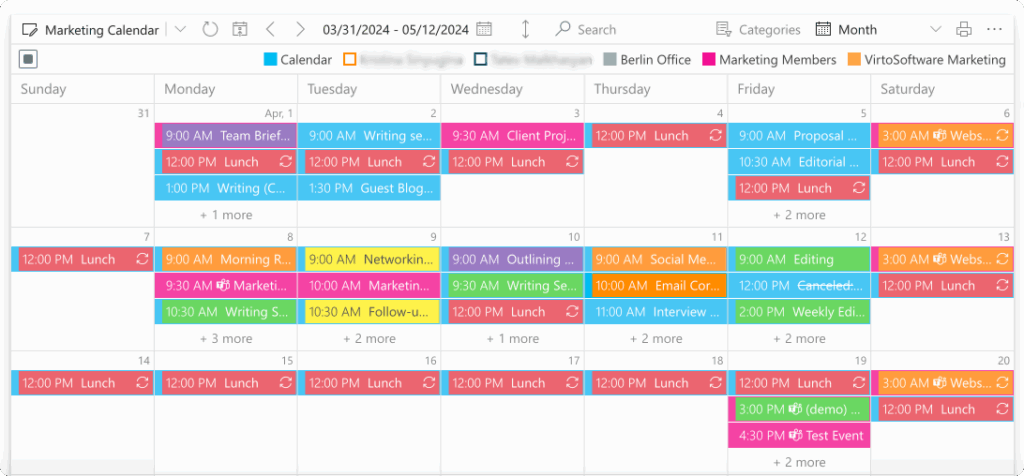
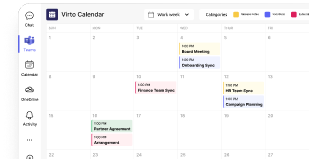
The Calendar app consolidates Microsoft and non-Microsoft calendars into a single, color-coded view in Teams or SharePoint (overlaying SharePoint, Exchange/Outlook, room mailboxes, and iCal feeds). That unified structure helps teams see what’s happening next, even if file data was just rolled back.
Merge all calendars in one place
Try Virto Calendar to Sync all events in Teams
- Virto Kanban Board App preserves task structure and ownership

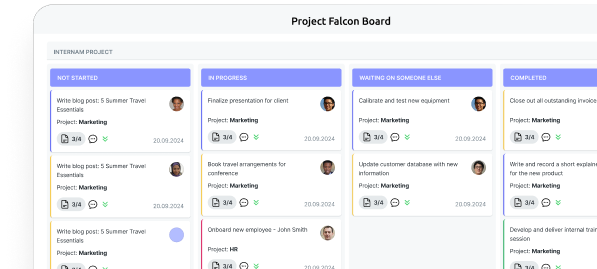
Kanban displays SharePoint lists as boards with columns and swimlanes, supports assignees, comments, attachments, tags, and activity history—all inside Teams. Because tasks and relationships live in list data, the board’s structure and responsibility links remain intact when content is restored, helping teams resume work where they left off.
Virto Kanban
Try Virto Calendar to Sync all data
- Virto Alerts & Reminders App re-establishes timely communication
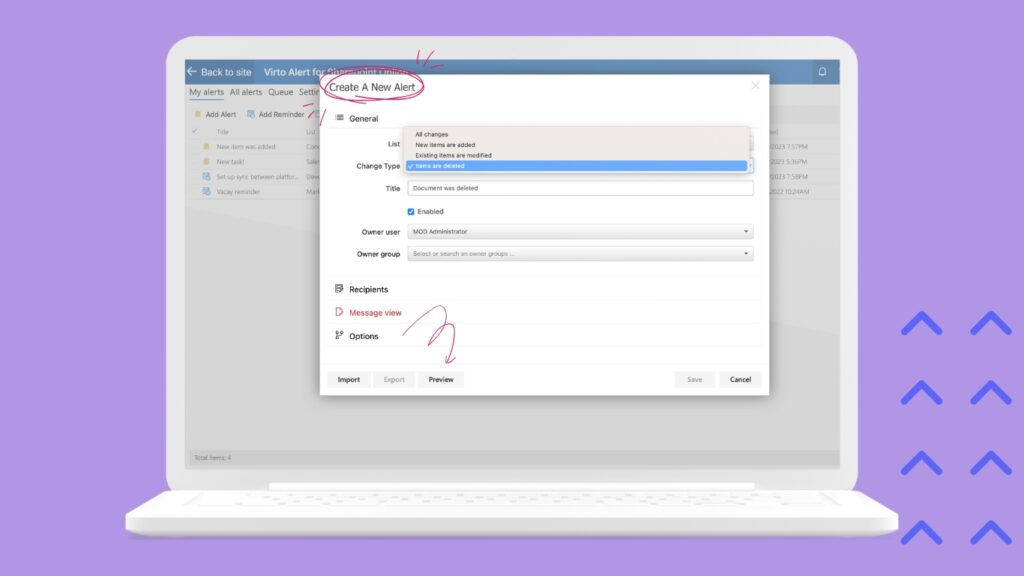
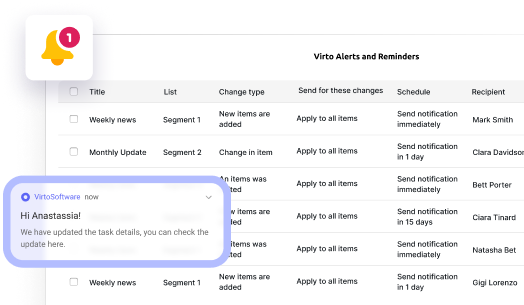
Automated alerts and reminders pull from SharePoint lists, calendars, Kanban, and Planner into Teams (and email/SMS where configured). After a recovery, these notifications help ensure no one misses changed dates or reopened tasks as work restarts.
Virto Alerts
Try Virto Calendar to Sync all data
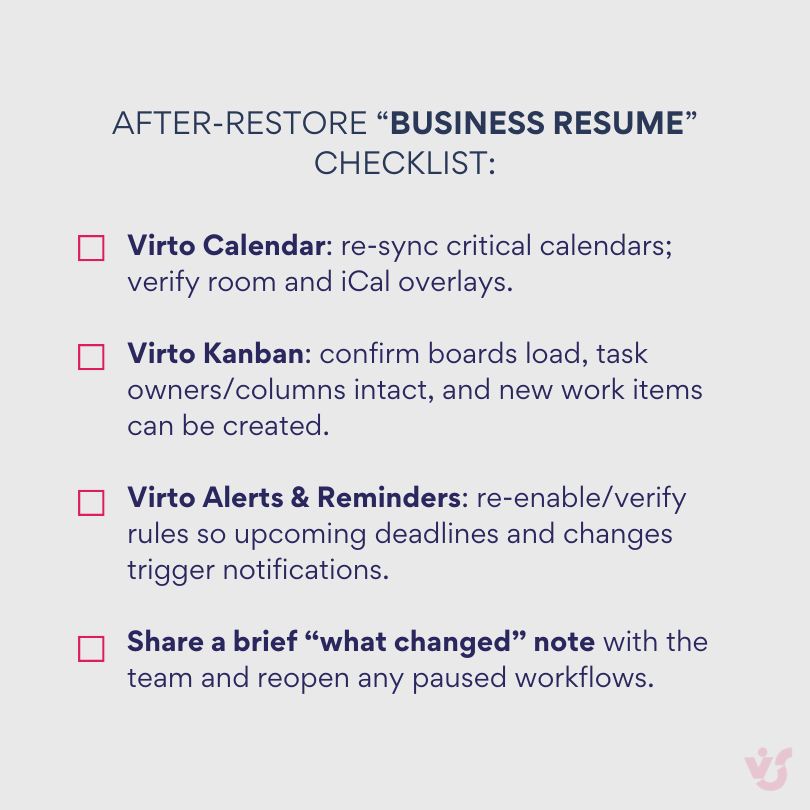
Why this matters: Backups bring files back. These apps help bring collaboration logic back—schedules, owners, and nudges—so teams can execute without guesswork. In practice, pairing Microsoft 365 Backup with Virto Calendar, Virto Kanban, and Virto Alerts turns recovery from a file event into a business-process restart that minimizes disruption.
Conclusion on Microsoft Backup
Microsoft 365 backup is now a must-have. It protects your organization from everyday mistakes, targeted attacks, and unexpected outages—and it lets you get back to a known good state quickly.
Built-in tools are helpful, but they’re time-limited and policy-bound. For durable protection and independent copies, most organizations pair Microsoft 365 Backup with a third-party backup—especially when long retention, isolation from tenant risk, or extra workloads are required.
In practice, full-fledged protection blends three layers: Microsoft’s built-ins for quick fixes, Microsoft 365 Backup for fast point-in-time rollbacks, and a reliable third-party backup for independent, long-term recovery.
Remember, safeguarding the business isn’t just about restoring files—it’s about restoring how work flows. VirtoSoftware apps help preserve that context so teams can pick up right where they left off: Virto Calendar keeps schedules intact, Virto Kanban Board maintains task ownership and status, and Virto Alerts & Reminders ensures no deadlines are missed after a recovery.
Want to see it live? Schedule a demo of the VirtoSoftware apps we discussed, or start a free trial on the VirtoSoftware site.
Official Microsoft resources (sources used in this article):
- Microsoft 365 Backup — overview
- Microsoft 365 Backup — setup (enable pay-as-you-go and create policies).
- Microsoft 365 Backup — restore data (OneDrive, SharePoint, Exchange) and express restore points.
- Microsoft 365 Backup — pricing model (catalog price and billing notes).
- Microsoft 365 Backup — documentation hub.
- SharePoint/OneDrive recycle bin retention (93 days).
- Restore deleted files or folders in OneDrive (recycle bin steps).
- Restore your OneDrive (30-day point-in-time rollback).
- Restore this library (SharePoint library rollback).
- Restore from the site collection recycle bin; 14-day Microsoft Support restore window for sites.
- Exchange Online — recover deleted items (14 days default, up to 30).
- Recover and restore deleted items in Outlook (end-user steps).
- Teams files storage (SharePoint/OneDrive) and Teams–SharePoint integration.
- Delete/recover files in Microsoft Teams (open in SharePoint → recycle bin).
- Archive or restore a channel / team (owner actions and time limits).
- Microsoft Purview eDiscovery — Standard and Premium overviews (holds, search, export).
Relevant pages (additional materials on our blog you may find helpful):
- Boosting Productivity with Microsoft 365
- Microsoft 365 Calendar: Essential Guide, Tips, and Integrations
- Microsoft Office 365 Project Management: The Complete Guide
- Managing Multiple Microsoft 365 Calendars
- How to create Office 365 Shared Calendar: Practical Guide
- What Are Microsoft 365 Groups and How to Use Them
- Microsoft 365 Apps for Enterprise: Features and Benefits
- Microsoft 365 Apps for Business: Complete Overview