How to Use Office 365 Outlook Connectors for Automation
Office 365 connectors set the pattern for centralising updates in Microsoft 365—but they’re now legacy. This guide shows how to replace them with Workflows (Power Automate), migrate safely, and pair Virto Calendar with flows to build a clear, shared schedule that teams actually use.

Office 365 connectors used to be the quick bridge that piped updates from Outlook groups, SharePoint, Planner and third-party services straight into a Teams channel. That model is now being phased out. Connectors for Microsoft 365 Groups in Outlook were retired in August–September 2024, and Microsoft is retiring Office 365 connectors in Teams in favor of the Workflows app powered by Power Automate. Microsoft has since extended the migration deadline—currently set for March 31, 2026—and recommends moving new and existing scenarios to Workflows.
What replaces the old experience is simple: in Teams, add Workflows and choose a template or build a flow to centralize notifications and automate routine tasks. Workflows use the broader Power Automate connector ecosystem, so the same outcomes—posting alerts to channels, creating tasks, syncing updates—are handled as flows rather than legacy connectors. Note that your tenant must allow the Workflows app in the Teams admin center for these actions to be available.
This article explains what the legacy Office 365 connectors did, where things stand today, and how to achieve the same or better results with Workflows and Power Automate. We’ll walk through practical integration patterns and migration tips—including webhook URL updates called out by Microsoft—and show how to pair these with Virto Calendar for Microsoft 365 and Virto Calendar for Microsoft Teams to present a unified calendar view and trigger helpful automations.
📌 tl;dr: treat “connectors” as legacy. Build new integrations—and refit old ones—in Teams using Workflows(Power Automate). More in: Retirement of Office 365 connectors within Microsoft Teams
| Date | What changed | Impact |
| Aug–Sep 2024 | Connectors for Microsoft 365 Groups in Outlook retired | Outlook “Connectors” UI removed; flows no longer post |
| Early 2025 | Teams webhook URL updates required | Existing webhook posts needed URL updates to keep working |
| Oct 28, 2025 | Teams connectors retirement timeline extended; migration date set to Mar 31, 2026 | Build new in Workflows; plan migration for legacy setups |
| Ongoing | Workflows templates expanded | Use Workflows for channel notifications and automation |
Basics and Benefits of Office 365 Connectors
Quick status: “Office 365 connectors” are legacy. For new and migrated setups, use Workflows in Microsoft Teams powered by Power Automate. Microsoft has extended the Teams connectors retirement timeline and, as of October 28, 2025, set the migration deadline to March 31, 2026. Outlook group connectors were already retired in 2024. In this section, we;ll walk you through what Office 365 connectors meant historically and what benefits you might expect from new paths of handling them.
What are Office 365 connectors?
Historically, an Office 365 connector was a lightweight way to pipe updates from third-party apps (Trello, Jira, GitHub), and Microsoft 365 services (Planner, SharePoint) into Outlook group mailboxes or a Teams channel. You’d subscribe once and the connector posted new events as they happened. Those classic connectors for Outlook groups are now gone, and the Teams connectors experience is retiring—Microsoft’s recommended path is Workflows in Teams using Power Automate connectors.
💡 Learn more from official sources:
- Connectors for Groups in Outlook are no longer available – Microsoft Support
- Retirement of Office 365 connectors within Microsoft Teams
What replaces the old “subscribe and post” model is straightforward: in Teams, add Workflows, pick a template, or build a custom flow to listen for events in apps like Trello, Jira or Forms, then act—post to a channel, create a task, send an approval, write to SharePoint, and so on. If you don’t see Workflows, your tenant admin may need to enable it.
💡 Learn more from official sources:
Two connector families to keep straight today:
- Classic Office 365 connectors (legacy): simple subscriptions that posted messages into Outlook groups or Teams—deprecated/retiring.
- Power Automate connectors (current): the broader, governed catalog used by Workflows/Power Automate to build event-driven automations across Microsoft 365 and third-party apps.
| Dimension | Legacy Office 365 connectors | Workflows (Power Automate) in Teams |
| Where it lives | Outlook groups / Teams | Teams (Apps → Workflows) |
| Status | Retired in Outlook; retiring in Teams | Current and recommended |
| Primary use | Post updates into a channel/inbox | End-to-end automations (triggers + actions) |
| Setup path | Add “Connectors” in Outlook/Teams | Add Workflows, pick template or build a flow |
| Extensibility | Limited formatting | Hundreds of connectors, conditions, approvals |
| Governance/licensing | Minimal controls | Admin policies, DLP, run history; premium licensing for some connectors |
📌 Note on webhooks: Microsoft required URL updates for webhook-based Teams connectors in early 2025 and continues adding webhook parity to Workflows; the overall retirement for Teams connectors has been extended, with the current migration deadline set to March 31, 2026. Read more in: Microsoft for Developers
Key benefits and objectives
Even though the packaging has changed, the outcomes haven’t—you still centralize updates and trigger actions, now with Workflows and the Power Automate connector ecosystem:
- Centralized notifications—surface updates from Planner, Trello, Forms, SharePoint and more into the right Teams channel or chat.
- Process automation—create tasks, send reminders, route approvals, and post status messages without manual steps.
- Data integration—move signals between Microsoft 365 apps and external tools using hundreds of Power Automate connectors.
- Time savings & faster response—less context-switching, quicker visibility when something changes.
- Transparency across teams—shared channels and posts keep everyone aligned.
- Fewer copy-paste errors—flows push the right details to the right place automatically.
- Accessible setup—start from templates in Workflows; admins can layer governance and approvals as needed, and some scenarios may require premium licensing.
👉 Where are connectors in Office 365? They’re no longer in Outlook—Connectors for Microsoft 365 Groups were retired. In Teams, the classic “Connectors” experience is being replaced by the Workflows app (Power Automate), where you use templates or build flows to integrate services.
Common examples
Here are quick, real-world patterns you can build in Teams using Workflows (Power Automate). Each example follows the same shape: a trigger from the source app kicks off one or more actions—post to a channel, create a task, update a list, send an approval. You can start from a template or build a custom flow if you need extra steps. If a connector doesn’t appear, ask IT to enable Workflows and check whether a premium connector or license is required.
- Jira → Teams: when an issue is created or moves to “In progress,” post a card to the engineering channel and create a Planner task for triage. Built with a Jira connector trigger and Teams/Planner actions in Workflows.
- Trello → Teams: on new card in a board list, post to a project channel and @mention the owner; optionally add a due-date reminder flow. Start from a Teams Workflows template.
- Microsoft Forms → Teams/SharePoint: when a response arrives, post a summary to a channel, create a list item with the details, and alert the owner via chat. All done with Workflows templates and SharePoint/Forms connectors.
📌 Admin tip: if Workflows isn’t visible in your tenant—or you’re connecting to premium services—check with IT. Some connectors are premium and need the right licences.
| Step | Where | What to do | Tip |
| 1 | Teams → Apps → Workflows | Open templates | If you don’t see it, ask admin to enable |
| 2 | Template or Create a flow | Choose scenario | Start with a template; customise later |
| 3 | Connections | Sign in to Planner/Trello/Jira/SharePoint | Use least-privilege accounts |
| 4 | Conditions | Filter events | Reduce noise with specific lists/plans |
| 5 | Verify | Run history | Test, then monitor for failures |
Implementing and Configuring the Office 365 Connector
As mentioned, the legacy Connectors UI in Outlook is gone. In Teams, Microsoft’s recommended path is the Workflows app, which exposes Power Automate templates and lets you build channel-centric flows to post messages, create tasks, route approvals, and more. You can open Workflows from the left rail (Apps → Workflows) or from a channel/chat ellipsis.
Step-by-step: set up a workflow in Teams
Here’s the quickest path to replicate legacy connectors using Workflows in Microsoft Teams. We’ll start from a template to get a basic flow running, then you can fine-tune triggers, channels, and permissions afterward. If you don’t see Workflows, your admin may need to enable it.
- Open Teams → Apps → Workflows: You’ll see ready-made templates for common scenarios (Forms → post to Teams, Planner → notify channel, etc.).
- Pick a template or build from scratch: Templates are the fastest path; you can also select Create a flow for a custom design.
- Connect services and choose the target channel: Sign in to the apps you’ll use (Planner, Trello, Jira, SharePoint). Select which team/channel should receive posts.
- Filter noise with triggers and conditions: Limit events to specific boards/projects/lists, and add Conditions so only high-signal changes post to your channel. You can later tune this in Manage workflows.
- Test and verify delivery: Run a quick test, then check Run history to confirm the flow fired and posted to the channel with the right payload.
📌 Migrating from legacy connectors? If you still rely on webhook-based connectors, Microsoft required URL updates in early 2025 to keep posts working during the transition. Plan to replace these with Workflows. Learn more in: Precision about Webhook URL updates – Microsoft Q&A
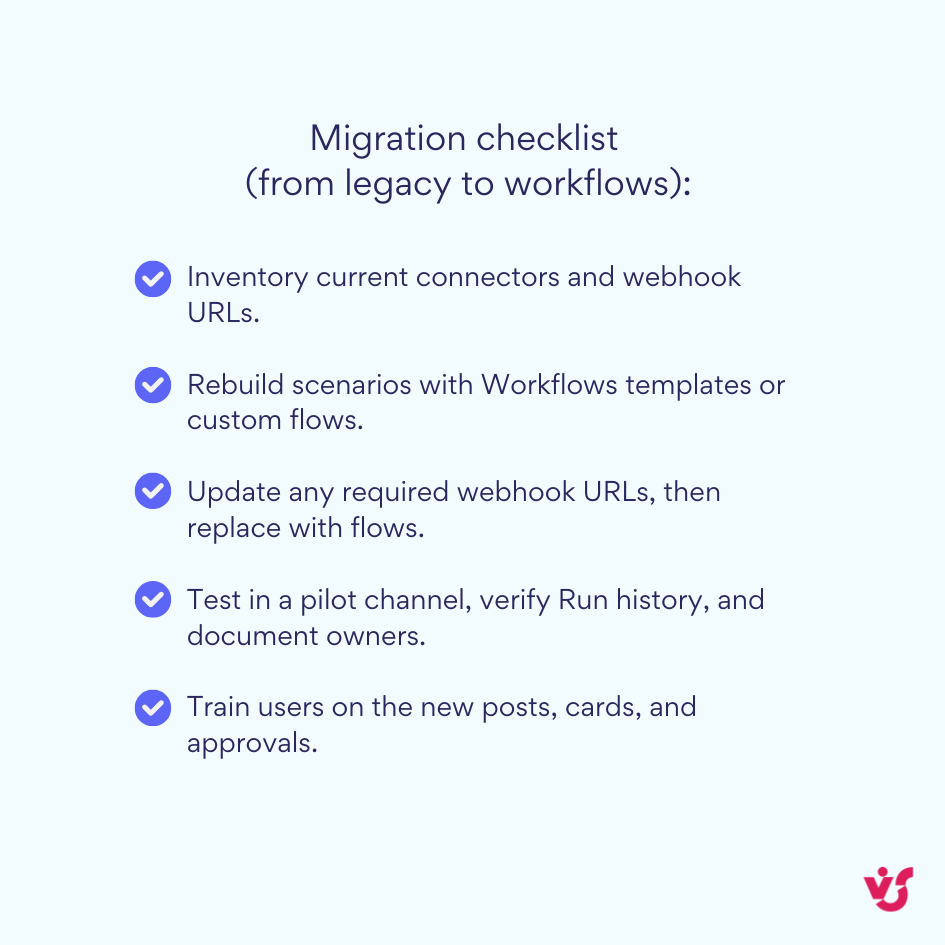
How long it takes and who can do it
Most channel workflows take minutes if templates fit your needs. No coding is required, but availability depends on tenant policy and licensing. Admins can allow/block apps like Workflows in the Teams admin center, and some connectors are premium and need the appropriate Power Automate licence.
Security and governance tips
Before you switch on flows, set the ground rules. Confirm what your tenant allows, which apps and connectors are approved, and who can install or edit Workflows. Then check licensing and data policies so your automations run reliably—and stay compliant.
- Tenant governance applies. App permission policies in the Teams admin center control whether users can install Workflows and third-party apps. Keep external integrations to the channels that truly need them.
- Review permissions during setup. When you connect Trello, Jira, or other services, check requested scopes and use least-privilege accounts.
- Licensing matters. Flows that use premium connectors or advanced features require a Power Automate Premium licence or capacity-based entitlements.
- Operate with auditability. Use Run history and connection management in Workflows to monitor activity; restrict who can edit flows and who can run them (run-only permissions) in Power Automate.
💡 Learn more from official sources:
- Manage your apps in the Microsoft Teams admin center
- Manage app permission policies in Microsoft Teams
- Types of Power Automate licenses – Power Platform | Microsoft Learn
- Licensing overview for Microsoft Power Platform
- Browse and add workflows in Microsoft Teams
📌 Practical tip: Pair Workflows with Power Automate actions to go beyond alerts: create or update Planner tasks, write items to SharePoint, send approvals, or DM the on-call engineer. Start from Teams templates, then extend with additional steps as your scenario grows.
Typical Use Cases for Office 365 Connectors
In this section, we’ll walk you through typical use cases for connectors.
Integration with m365 services
At a high level, the old connectors centralized updates from Microsoft 365 and third-party tools. Today you get the same result—plus richer automation—by using Workflows and the Power Automate connector catalog. You choose a trigger (what event starts things) and actions (what should happen next), then point the output to the right Teams channel or chat.
Common scenarios
Below are quick patterns you can build with Workflows in Teams. Each starts with a trigger and ends with one or more actions—post to a channel, create a task, write to SharePoint, send an approval. You can start from a template or build a custom flow if you need extra steps.
- Planner → Teams. When a task is created, moved, or commented on, post a card to the project channel and optionally create a follow-up task or reminder. Add filters to limit noise to specific plans or buckets.
- SharePoint → Teams. When a file is added, updated, or approved, post a summary to a channel and kick off an approval or assign a Planner task to the document owner.
- Forms → Teams/SharePoint. When a response arrives, post highlights to a channel, create a SharePoint list item with full details, and notify the owner in chat.
- Outlook calendars and tasks. Use the Outlook connectors in Power Automate to create events from a flow, send meeting reminders to a channel, or DM the on-call owner when a calendar changes.
- Virto calendar for Microsoft 365 and Teams. Use Virto to present a single, color-coded view of calendars from Outlook/Exchange, SharePoint lists, Planner and iCal. Pair it with flows to create events, set reminders, or mirror key dates into shared boards—without promising blanket two-way writeback across every source.
Connectors as part of a Power Automate workflow
Think of connectors as the building blocks behind Workflows. Triggers listen for events across Microsoft 365 and popular external apps; actions post messages, create tasks, write list items, send approvals, and more—no code required.
Practical patterns
Use these as building blocks in Workflows. Pick the matching trigger in Power Automate, add the actions noted, then fine-tune filters, channels, and permissions to fit your tenant.
- Planner task created or status changed → send email/Teams alert to the owner and add a due-date reminder.
- Forms response received → create calendar event in Outlook or add an event via Virto, attach the response as context, and notify the team.
- SharePoint file modified → post to Teams with a link, assign a Planner task for review, and require an approval before publish.
- Outlook date to Virto view → create reminders via a flow so key milestones appear in the unified Virto calendar.
Multi-step example
External CRM webhook arrives with a “new opportunity” → create Planner task for presales → post to Teams with deal details → add event in Virto for the kickoff meeting → if deal value exceeds a threshold, request approval from a manager.
These patterns are especially useful for sales, project management, and HR—teams that need fast responses and synchronized communication across tools.
Advanced Features and Integration with VirtoSoftware Products
Legacy Office 365 connectors were good for posting messages, not for planning. They didn’t offer a shared, visual schedule or rich calendar controls, and the Outlook Group version has been retired while the Teams version is on a retirement path. Microsoft’s current path is Workflows in Teams powered by Power Automate, which you’ll use for automation and notifications going forward.
Merge all calendars in one place
Try Virto Calendar to Sync all data
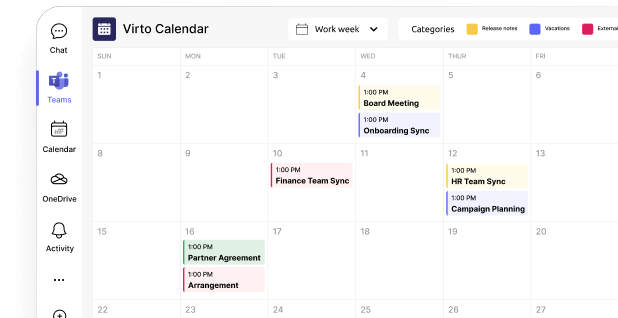
Why add Virto Calendar?
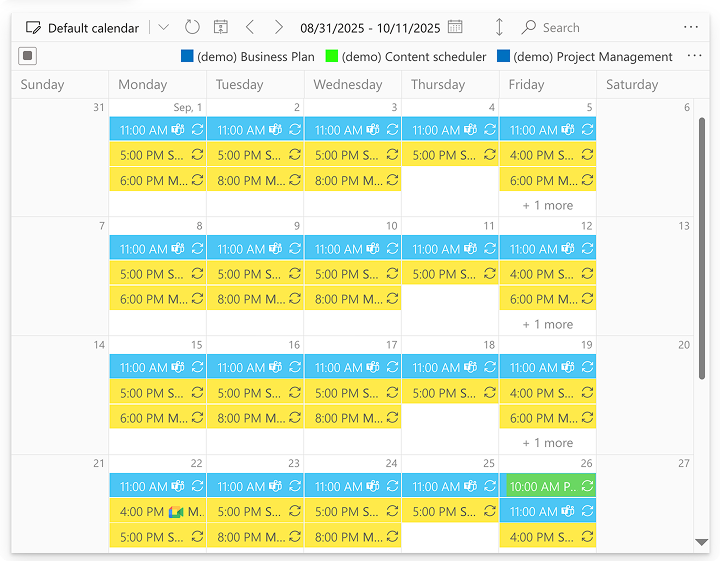
Virto Calendar gives you the visual layer standard connectors never had: a single, color-coded calendar that overlays data from SharePoint, Exchange/Outlook, meeting rooms and iCal sources inside Microsoft 365 and Teams. It’s built for unified viewing and scheduling, not generic “two-way writeback” across every personal Outlook calendar. Use Workflows/Power Automate to create or update items in the underlying sources when you need automation.
Merge all calendars in one place
Try Virto Calendar to Sync all events in Teams
What Virto Calendar adds on top of workflows
Virto Calendar sits on top of your Microsoft 365 data as a planning layer. It overlays calendars from Outlook/Exchange, SharePoint, Planner and iCal into one place, while Workflows handles the automation behind the scenes. Here’s what that combo unlocks:
- Centralized view. See Outlook/Exchange, SharePoint lists, Planner dates, rooms, and external iCalendars in one calendar inside Teams or SharePoint.
- Readable planning UI. Color coding, overlays, and multi-source filtering for quick scan of team schedules and deadlines.
- Automation-ready. Because Virto displays data from Microsoft 365 sources, flows that add or change Outlook or SharePoint items show up in the Virto view without extra steps. Use Power Automate when you need reminders, approvals, or cross-app updates.
Practical scenarios
Below are quick ways teams pair Virto calendar with Workflows—Virto Calendar provides the shared view; Power Automate creates the updates and reminders in the underlying apps where supported.
- Shared vacation calendar. Keep time-off in a SharePoint list; Virto overlays it with team calendars for a single view. Add a Workflow that, on approval, creates an Outlook event and posts a Teams reminder. The entry appears in Virto because it reads from Outlook/SharePoint.
- Project deadlines. Store milestones in a SharePoint list. A flow posts upcoming deadlines to a Teams channel and—if needed—creates Planner tasks. Virto shows the deadlines alongside meetings and room bookings.
- Department schedules. Overlay meeting rooms, team calendars, and external iCal feeds in Virto for operations planning; use Workflows to trigger reminders or status updates when events are created or changed.
Merge all calendars in one place
VirtoSoftware use cases
Best Practices for Effective Use of Office 365 Connectors
Let’s take a look at some best practices for effective use cases of Office 365 connectors.
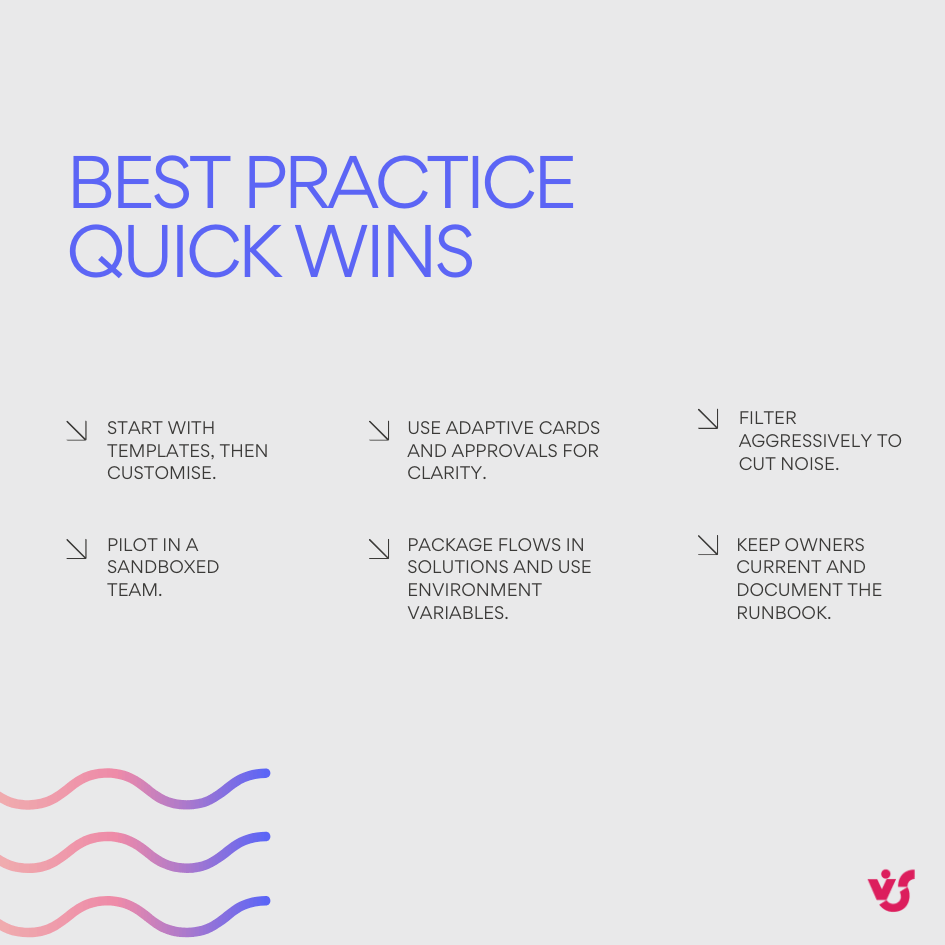
Start simple, then scale:
- Begin with templates. Use Workflows templates for Planner, Forms, SharePoint, and Teams to stand up signal-rich notifications fast; extend as needed.
- Pilot in a sandbox. Test flows in a private team/channel or dev environment before org-wide rollout. Use environment variables so URLs, list IDs, and recipients switch cleanly between dev/test/prod. Package flows in solutions for ALM.
Control noise from day one:
- Filter aggressively. Narrow triggers (specific plan/bucket/list) and add conditions so only high-signal events post to channels.
- Use rich cards for clarity. Prefer adaptive cards or Approvals over plain text posts to capture context, choices, and acknowledgements in one message.
Design for ownership and resilience:
- Choose the right identity. For business-critical flows, use service principal–owned flows to avoid breakage when a person leaves or changes roles. For user-initiated actions, use run-only permissions with “use my connection” when you need actions to occur under the caller’s identity.
- Name, tag, and document. Standardize naming and add owner + runbook links in the flow description so on-call teams can troubleshoot quickly.
Apply governance and licensing early:
- Enable what’s allowed. Ensure the Workflows app is allowed in the Teams admin center and apply app permission policies to control who can use which apps.
- Use DLP policies. Set Power Platform data loss prevention (DLP) rules to keep sensitive connectors separate from non-business ones.
- Plan licensing. Some connectors and features are premium and require Power Automate Premium or capacity-based entitlements; check before rollout.
Monitor, alert, and iterate:
- Monitor runs and errors. Use flow Analytics/Run history and (for solution-aware flows) Dataverse run history to track failures and performance, then alert owners.
- Version and promote. Keep flows in solutions with environment variables and connection references; promote via pipelines to reduce human error.
Pair visualization with automation:
- Use Virto for the shared view; use flows for actions. Virto Calendar overlays Outlook/Exchange, SharePoint lists, Planner, rooms, and iCal into one color-coded view in Teams/SharePoint—great for planning. Let Workflows create/update the underlying events, tasks, and reminders where supported.
- Examples: publish approved PTO from a SharePoint list to Outlook and a Teams channel, or mirror SharePoint milestones to a shared calendar while posting deadline reminders via Workflows.
Operate securely:
- Least privilege. Connect only the resources a flow needs; review scopes when authorizing third-party apps.
- Scope usage. Keep externals (e.g., Trello/Jira) to the channels that truly need them; use approval gates for risky steps.
- Auditability. Keep owners current, restrict who can edit flows, and log business-critical actions (e.g., approval outcomes) to a list or Dataverse for traceability.
Conclusion
Office 365 connectors set the pattern for centralising updates in Microsoft 365—but they’re now legacy. Connectors for Microsoft 365 Groups in Outlook were retired in August–September 2024, and Microsoft is retiring Office 365 connectors in Teams in favour of Workflows (Power Automate). Practically, that means building and running channel-centric automations with Workflows and the Power Automate connector catalog going forward.
Used well, this stack turns Teams and Outlook into a single, effective hub for tasks, events and communications: Workflows handles triggers and actions; Power Automate connectors reach across Microsoft 365 and popular third-party apps; and Virto Calendar provides the shared, visual layer your project and department schedules need. For readers following older setup guides, swap any “Connectors” steps for Apps → Workflows in Teams—and migrate remaining webhook connectors per Microsoft’s guidance.
If you need a clean calendar experience on top of that automation, Virto Calendar for Microsoft 365 and for Microsoft Teams overlays Outlook/Exchange, SharePoint lists, Planner and iCal into one view. Pair it with flows to create/update items where supported, post reminders, and keep teams aligned—without over-promising blanket two-way writeback.
Ready to see it in action? Schedule a demo of Virto Calendar—or install a free trial of our apps from our site—and we’ll help you map your current connector scenarios to Workflows and a unified calendar view.
Official Microsoft resources:
- Retirement of Office 365 connectors in Teams (Microsoft 365 Developer Blog)
- Connectors for Groups in Outlook are no longer available (retirement notice)
- Power Automate connector reference (catalog of connectors)
- Get started with the Workflows app in Microsoft Teams (how to open/use Workflows)
- Browse and add workflows in Microsoft Teams (Manage workflows, run history).
- Overview: Outlook + Power Automate (when to use Office 365 Outlook connector)
- Configure mail flow using Exchange Online connectors (email transport—distinct from legacy Teams/Groups connectors)
Relevant VirtoSoftware pages:
- Outlook Calendar Not Syncing? Learn How To Fix It
- How to Overlay Calendars in Outlook: A Complete Guide & Tips
- Outlook and Teams Calendars Syncing: A Troubleshooting Guide /
- Access and View Someone’s Calendar in Outlook: A Full Guide
- How to Seamlessly Sync MS Teams and Outlook Calendars
- How to Fix Google Calendar Not Syncing with Outlook
- How to Merge Calendars in Outlook: Guide and Tips