VirtoSoftware released Office 365 Alerts App, which allows SharePoint users to send out group and personal email notifications about certain changes of SharePoint lists. The Virto Alerts App compliments a native SharePoint notification system with additional abilities. You will definitely enjoy the user friendly interface when setting up alerts’ forms and notification conditions.
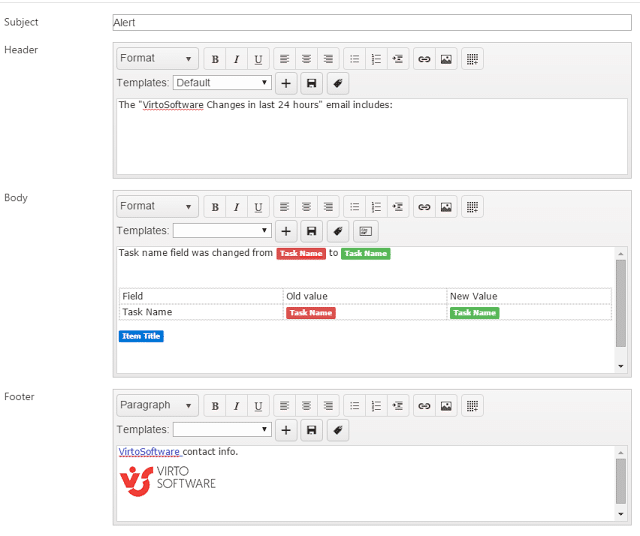
SharePoint Alert Customization
Creation of custom Office 365 alerts became much easier and swifter. No coding required! You just need to submit necessary information into a four-tab form. The tabs are as follows: “General”, “Recipients”, “Message View”, and “Options”. On the “General” tab, one should specify the alert name and the corresponding SharePoint list.
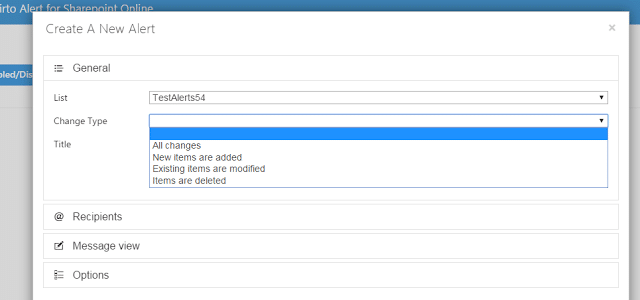
The “Recipients” tab contains a recipient list which is supposed to receive alerts. There are a few options to select recipients.

One can type in SharePoint user names or any external e-mail addresses. Alternatively, you may assign yourself as a recipient by selecting the “Me” option. Thus, the alert email will be sent to you as a user who created the alert case. The further option is sending out alerts to a certain person or a group. For example, if you need to send alerts to users assigned to a certain task, use the “Assigned to” option, and select a user or a group from the corresponding Office 365 Alert list.
Design of SharePoint Alert Emails
The Message View tab is intented for designing a message template. One can use a predefined template, or create a custom one. The adjusted template looks like this:
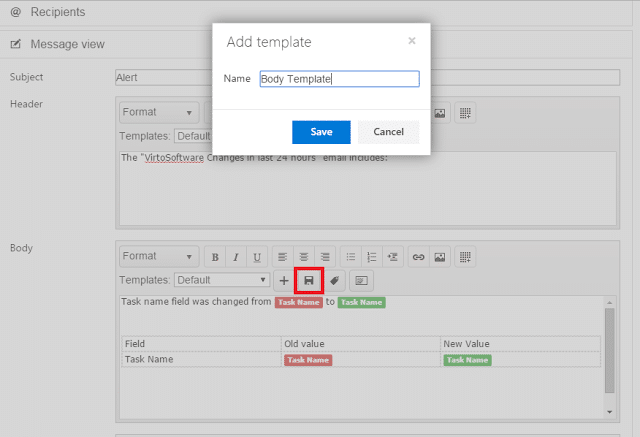
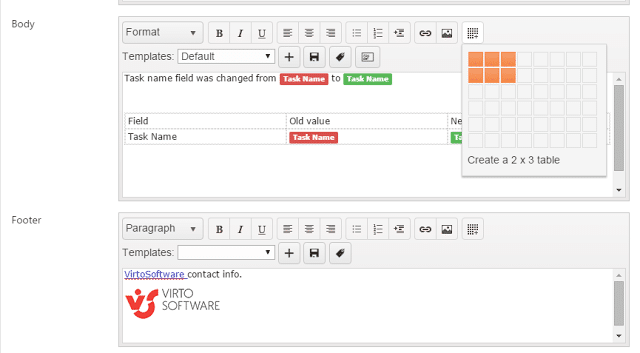
You may turn an alert email into a substantive report supplied with attachments, links, images, or tables. To perform that, click on the “Insert field value” button in the email body, and select required values to be inserted into your alert email.
SharePoint Alert Scheduling
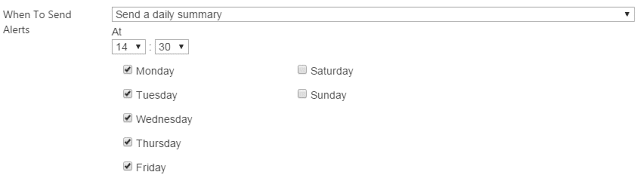
It is possible to schedule alert emails on specific conditions and time. Say, you may receive alerts when someone changes a certain SharePoint list item only within working hours (8 AM to 5 PM). You can also define days of the week to send out alerts on, or choose a specific date taken from the corresponding list.
If your alert list grew too large to easily find a required item, apply the column filter.
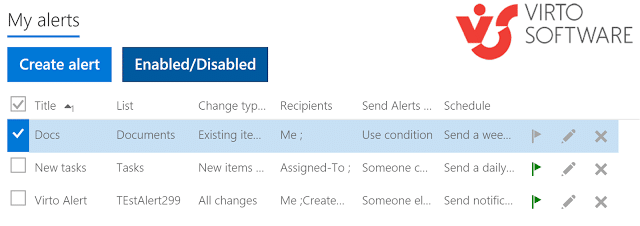
By default, an alert list is displayed in alphabetical order. It is possible to enable or disable some alerts by checking the boxes and clicking on the “Enabled/Disabled” button. In order to edit or delete some alerts, click on the corresponding icon. Install the Virto Office 365 Alerts app and try all its features for free.
| Related Products: |
|---|
 |
| Office 365 Alerts |